
Connector Setup
General Configuration
To configure the Veridium Entra ID connector the following steps must be performed in Microsoft Entra ID and obtain the necessary details:
Step 1: Open Microsoft Entra Admin Center
-
Sign in to the Microsoft Entra admin center: https://entra.microsoft.com
-
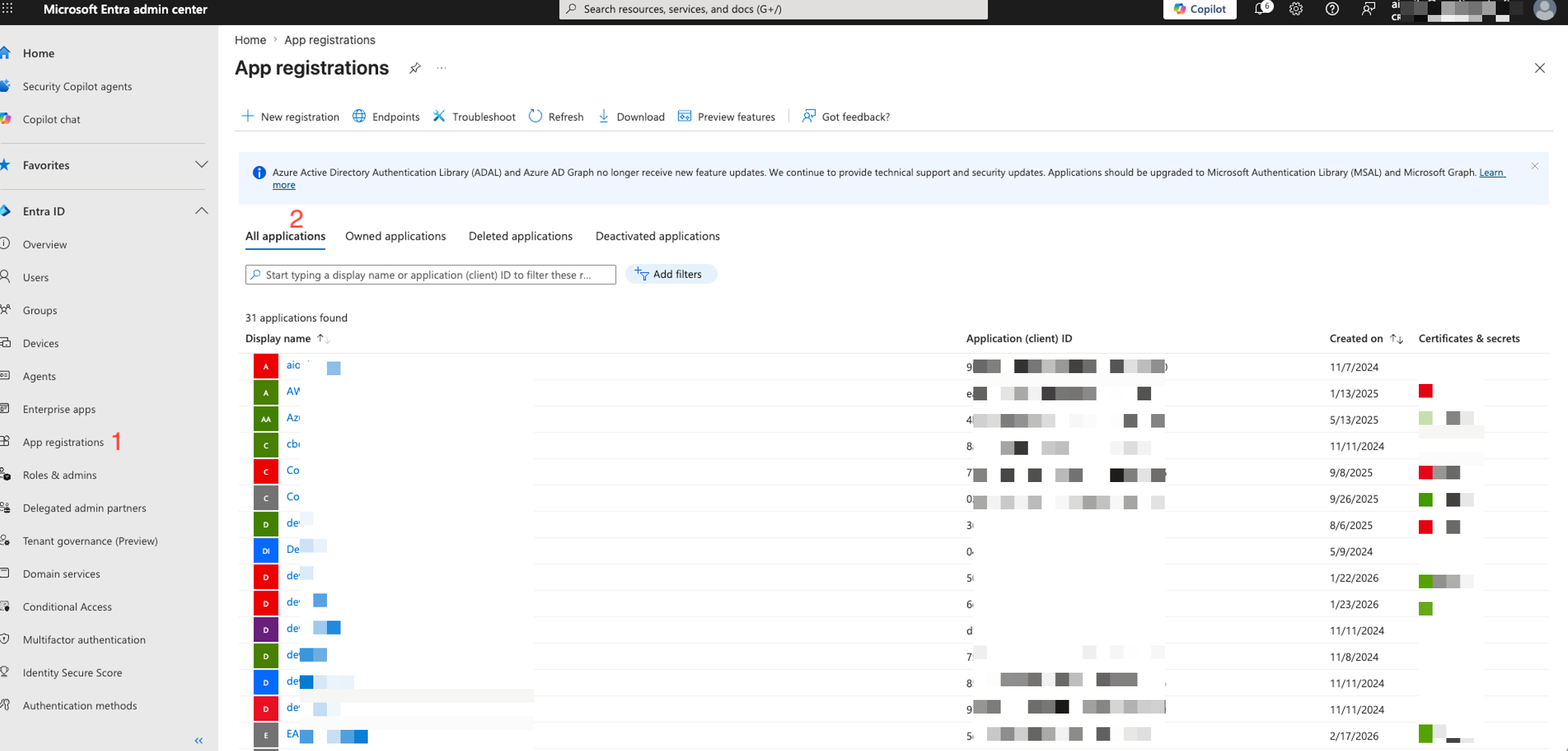
Navigate to Entra ID → App Registration → All applications.
-
Select the application created for the connector integration.
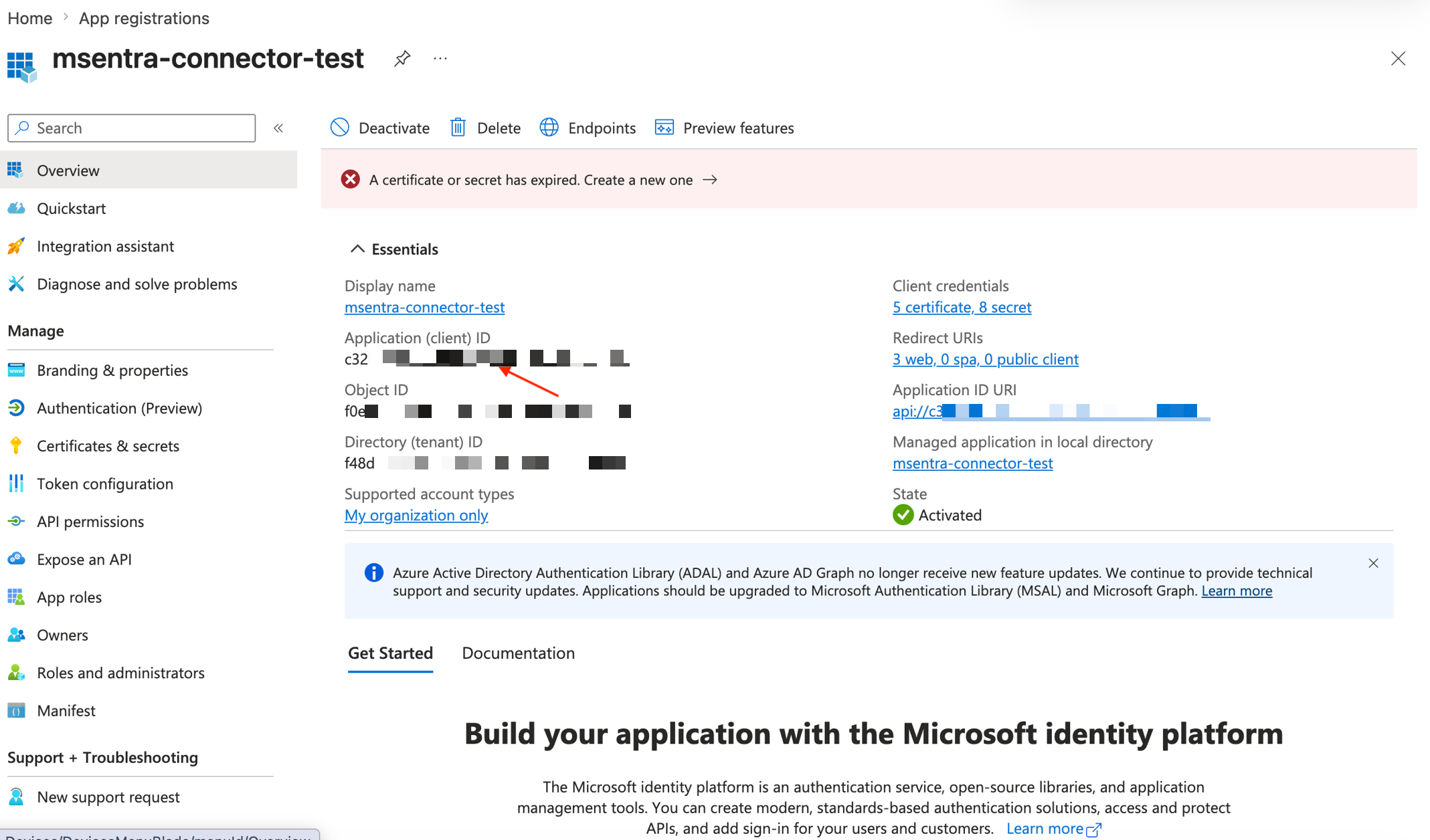
Step 2: Retrieve the Application (Client) ID
-
Open the application's Overview page.
-
Copy the Application (client) ID value.
Step 3: Retrieve the Directory (Tenant) ID
-
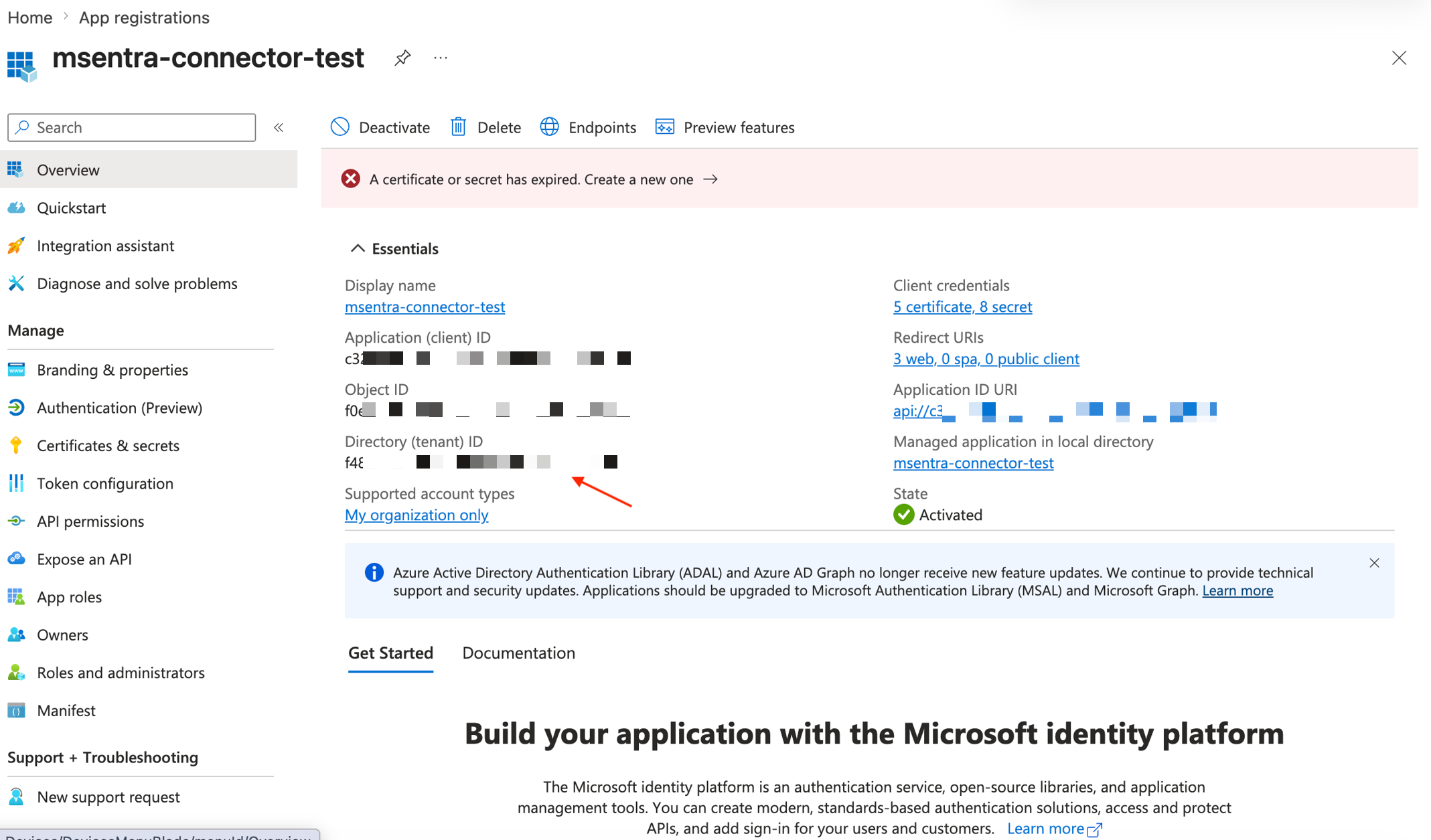
On the same Overview page, locate Directory (tenant) ID.
-
Copy the value.
Step 4: Create and Retrieve a Client Secret or Client Certificate
-
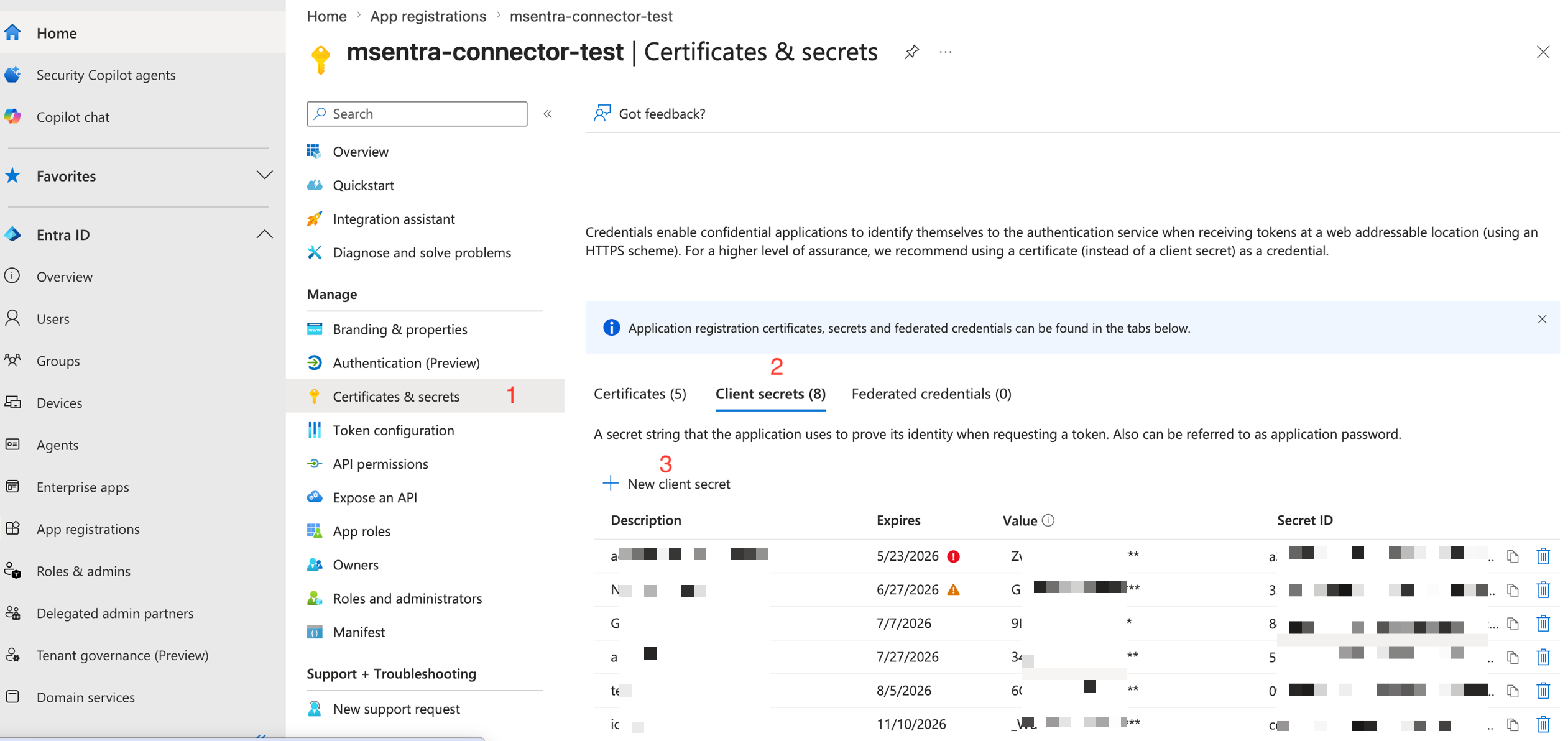
Navigate to Certificates & secrets.
-
Select New client secret.
-
Enter a description and choose an expiration period.
-
Click Add.
-
Copy the generated Secret Value immediately and store it securely.
Important: The secret value is displayed only once and cannot be retrieved later.
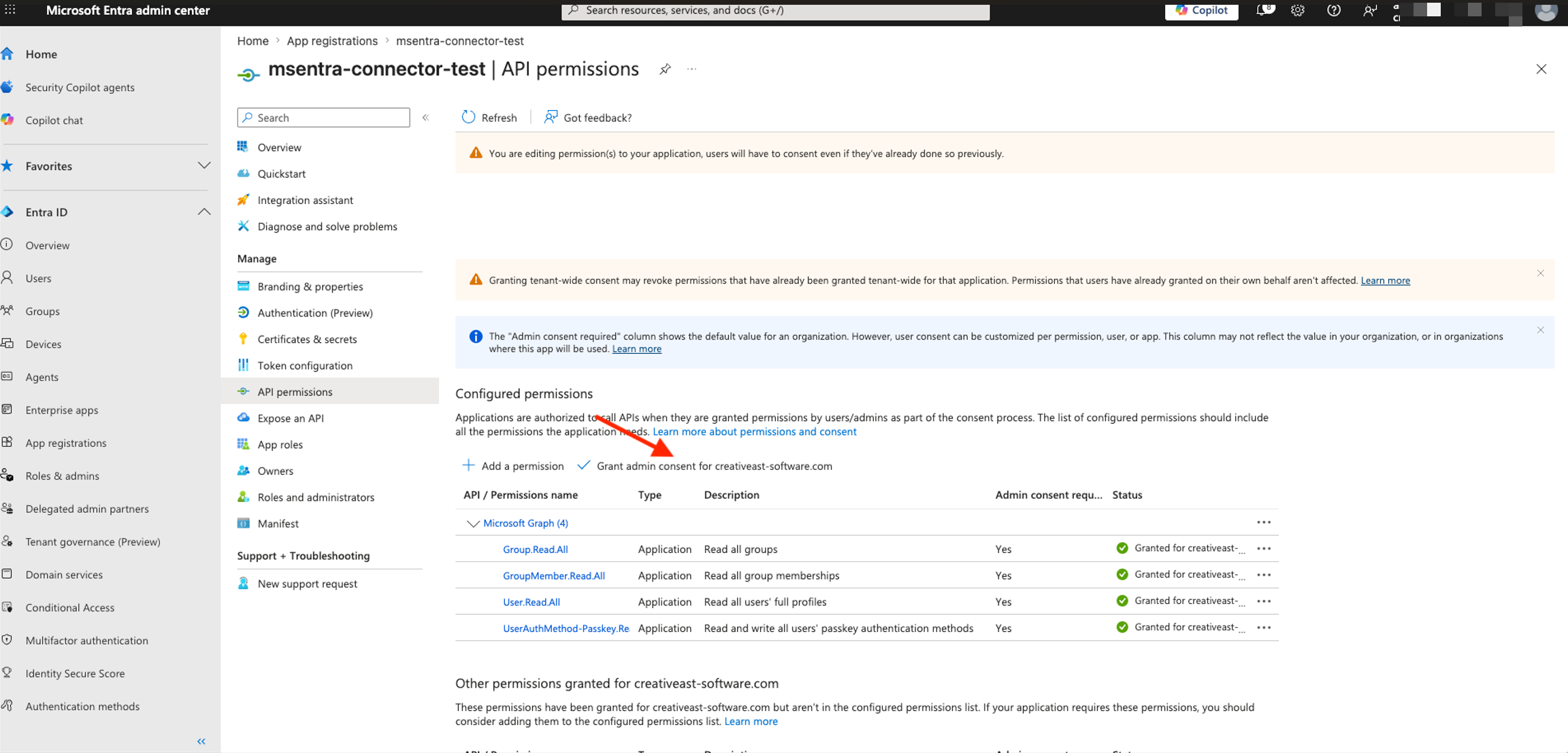
Step 5: Verify API Permissions
-
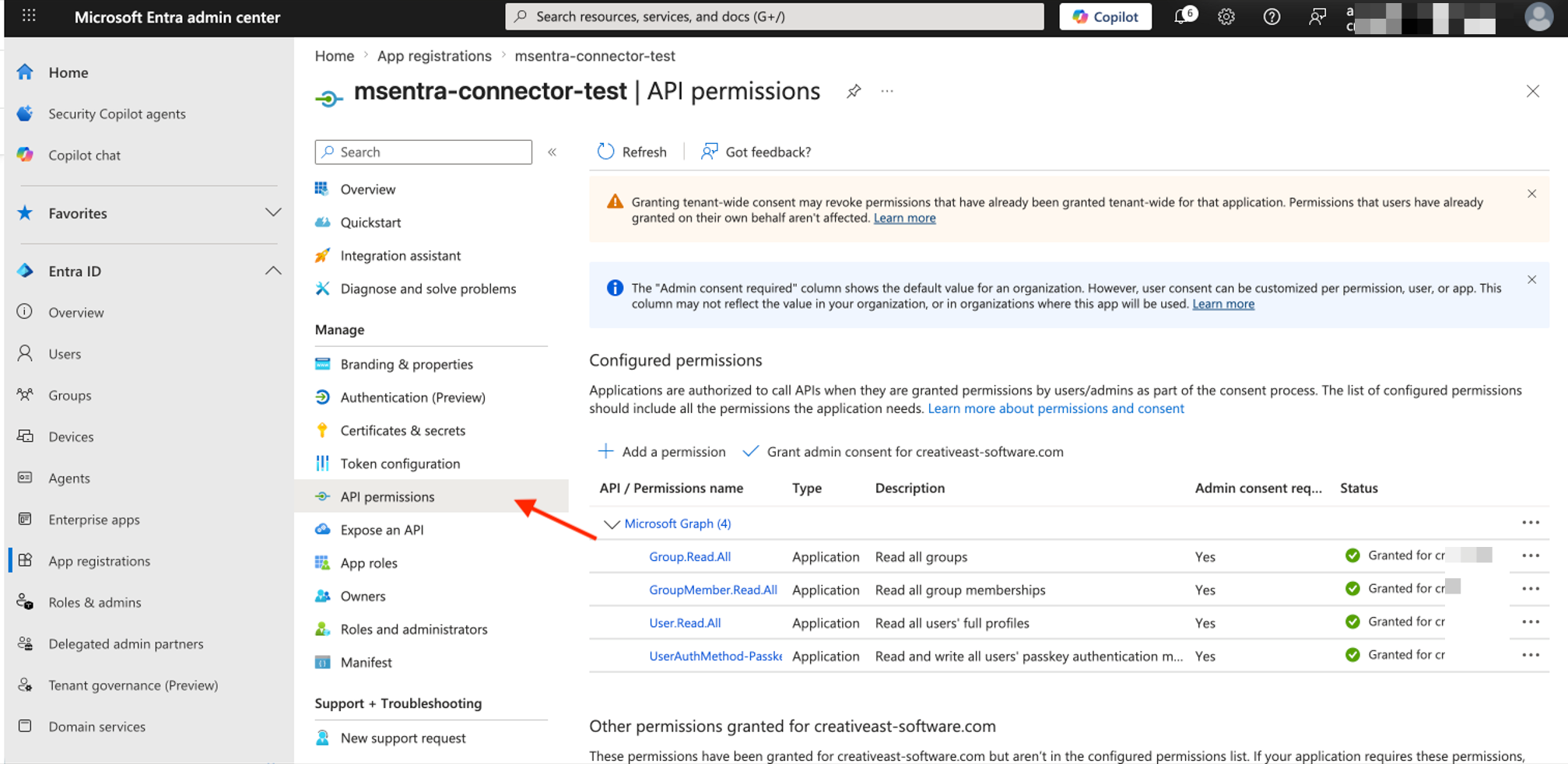
Navigate to API permissions.
-
Confirm that all required Microsoft Graph permissions are present.
-
If required, select Grant admin consent.
Required Microsoft Graph Permissions
The required Microsoft Graph permissions depend on the features enabled in the connector.
User and Group Synchronization
These permissions are required for importing users, groups, and group memberships from Microsoft Entra ID.
|
Permission |
Purpose |
|---|---|
|
|
Read user profiles and attributes used for identity synchronization. |
|
|
Read groups available in the tenant. |
|
|
Read group membership information for user-to-group assignments. |
Required for:
-
User synchronization
-
Group synchronization
-
Authorization based on group membership
-
Enrollment without passkeys
-
Authentication without passkeys
Passkey Enrollment and Management
This permission is required only when passkey management is enabled through the connector.
|
Permission |
Purpose |
|---|---|
|
|
Create, update, and remove passkey authentication methods for users. |
Required for:
-
Passkey enrollment
-
Passkey lifecycle management
-
Passkey provisioning and deprovisioning
Not required for:
-
User synchronization
-
Group synchronization
-
Authentication using already-enrolled passkeys
|
Use Case |
User.Read.All |
Group.Read.All |
GroupMember.Read.All |
UserAuthMethod-Passkey.ReadWrite.All |
|---|---|---|---|---|
|
User Synchronization |
✓ |
|
|
|
|
Group Synchronization |
|
✓ |
✓ |
|
|
Enrollment (without Passkey) |
✓ |
✓ |
✓ |
|
|
Enrollment (with Passkey) |
✓ |
✓ |
✓ |
✓ |
|
Authentication (without Passkey) |
✓ |
✓ |
✓ |
|
|
Authentication (with Existing Passkey) |
✓ |
✓ |
✓ |
|
|
Passkey Provisioning / Management |
✓ |
✓ |
✓ |
✓ |
Admin Consent
After adding the required permissions, select Grant admin consent to authorize the application to access Microsoft Graph on behalf of the organization.
Step 6: Configure Connector Settings
Navigate to:
Admin Manager > Settings > Services > Microsft Entra
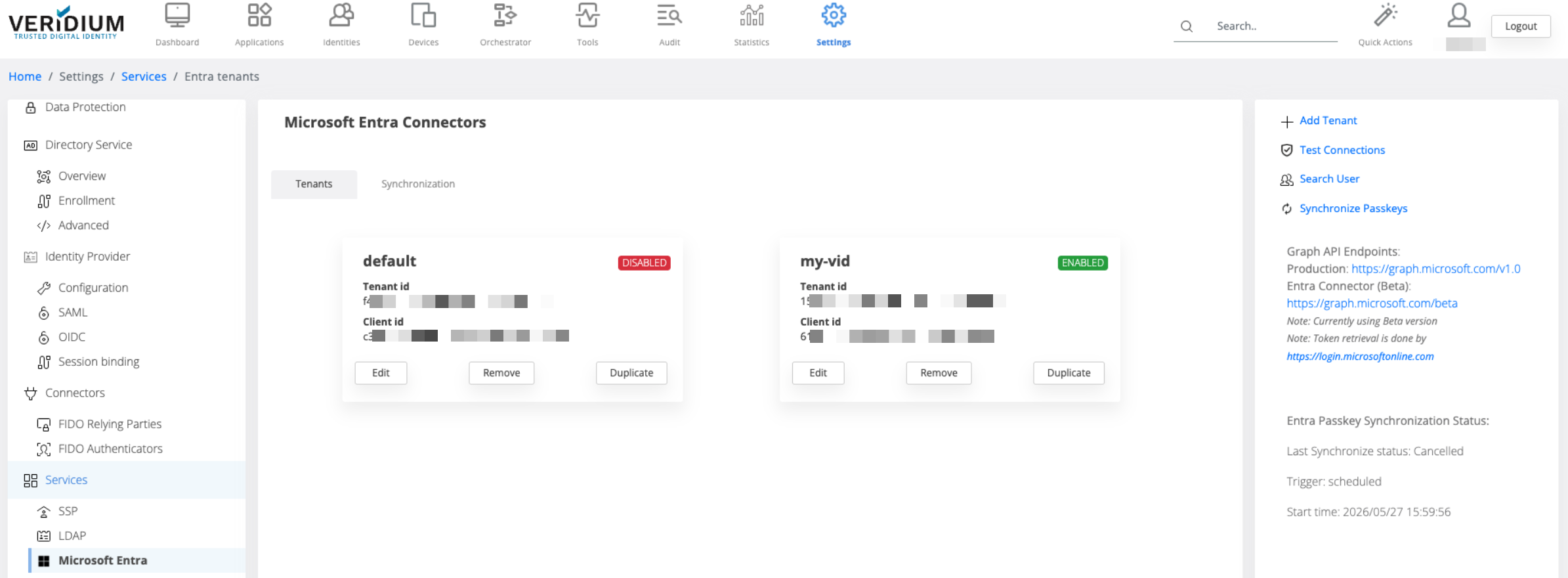
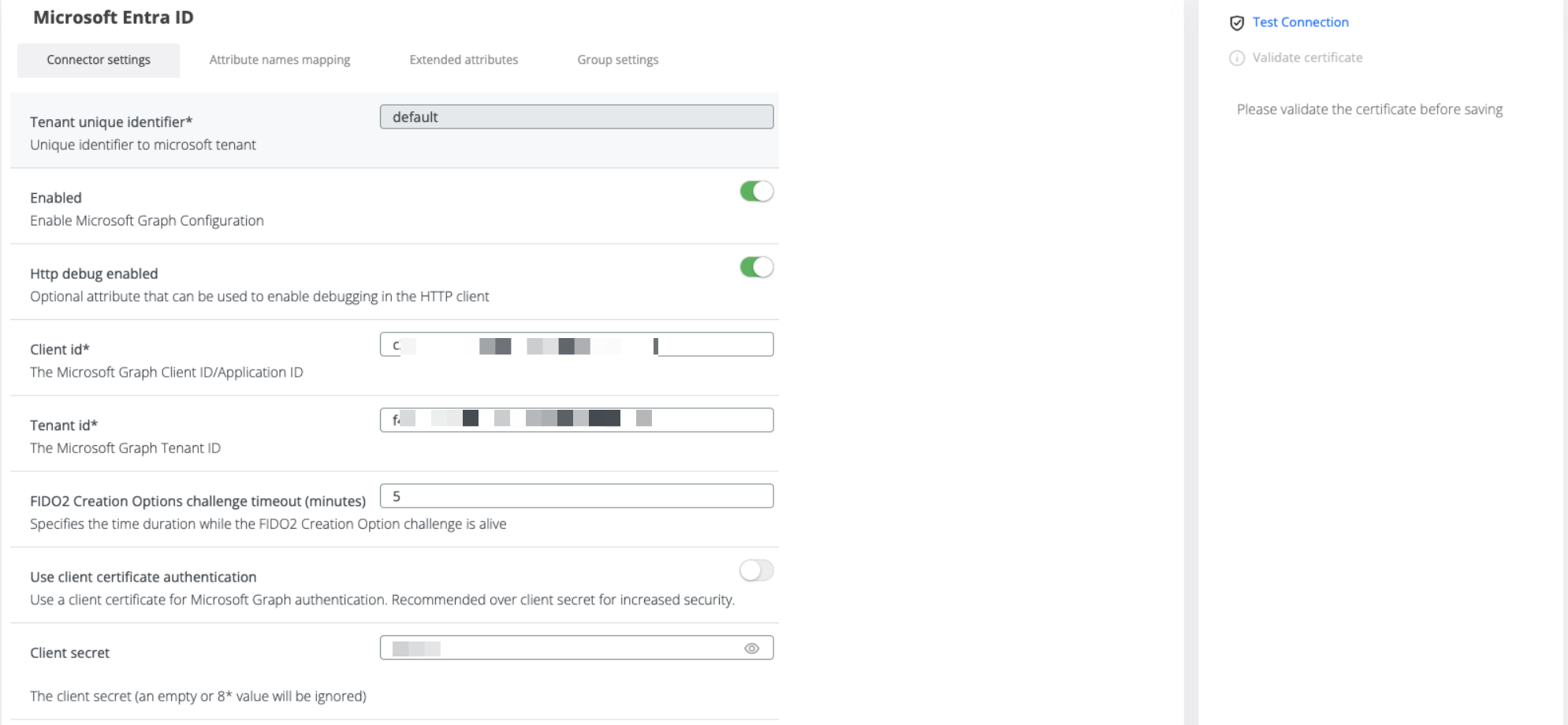
Use the values collected from the previous steps to populate the connector configuration.
|
Connector Field |
Entra ID Value |
|---|---|
|
Tenant ID |
Directory (tenant) ID |
|
Client ID |
Application (client) ID |
|
Client Secret |
Client Secret Value |
Debug Configuration
Http Debug Enabled
If activated, this provides:
-
Microsoft Graph request logging
-
Authentication diagnostics
-
Attribute mapping validation
Disable debugging in production after validation.
FIDO2 Configuration
Configure:
FIDO2 Creation Options challenge timeout
Default:
5 minutes
Specifies the time duration while the FIDO2 Creation Option challenge is alive
Authentication Method
Use Client Certificate Authentication
Enable this option to authenticate to Microsoft Graph using a client certificate instead of a client secret.
Client certificate authentication is recommended for production environments because it provides stronger security than client secret-based authentication.
|
Setting |
Description |
|---|---|
|
Use client certificate authentication |
Enables certificate-based authentication for Microsoft Graph API access |
When this option is enabled, make sure the required certificate is configured and available to VeridiumID.
Client Secret
The client secret is used by VeridiumID to authenticate to Microsoft Graph when certificate-based authentication is not enabled.
|
Setting |
Description |
|---|---|
|
Client secret |
The Azure App Registration client secret used for Microsoft Graph authentication |
Certificate
The certificate is used by VeridiumID to authenticate to Microsoft Graph when client certificate authentication is enabled.
|
Setting |
Description |
|---|---|
|
Certificate |
The client certificate used by VeridiumID to authenticate with the Azure App Registration |
Connection Settings
These settings control how VeridiumID connects to Microsoft Entra ID and Microsoft Graph APIs.
|
Setting |
Default |
Description |
|---|---|---|
|
Connection Timeout (ms) |
5000 |
Maximum time, in milliseconds, to wait while establishing a connection to Microsoft Entra ID. If the server does not respond within this period, the request fails. |
|
Read Timeout (ms) |
5000 |
Maximum time, in milliseconds, to wait for data after the connection has been established. If Microsoft Entra ID takes longer to respond, the operation times out. |
|
Maximum Idle Connections |
5 |
Maximum number of idle HTTP connections kept in the connection pool for Microsoft Entra ID API calls. Higher values may improve performance in high-traffic environments but consume more resources. |
|
Keep-Alive Duration (ms) |
300000 |
How long idle connections remain available for reuse before being closed. Reusing connections reduces connection overhead. The recommended value for most deployments is |
TLS and Certificate Validation
These settings control how VeridiumID validates SSL/TLS certificates when connecting to Microsoft Entra ID.
Disable SSL Certificate Verification
This option bypasses SSL/TLS certificate validation for Microsoft Entra ID connections.
|
Setting |
Description |
|---|---|
|
Disable SSL Certificate Verification |
Disables certificate validation for Microsoft Entra ID connections |
Warning: This option is insecure and should not be used in production environments.
Only use this option temporarily for troubleshooting in controlled environments.
Use Veridium Truststore
Enable this option to use the custom Veridium truststore for SSL/TLS certificate validation.
|
Setting |
Description |
|---|---|
|
Use Veridium Truststore |
Uses the Veridium truststore instead of the Java default truststore |
When disabled, the system uses the Java default truststore.
This option applies only when SSL certificate verification is enabled.
Tenant Domain Pattern
The Tenant Domain Pattern setting controls which user domains are associated with this Entra ID connector.
This is especially useful in multi-tenant deployments where different domains must be routed to different Entra tenants.
|
Setting |
Description |
|---|---|
|
Tenant Domain Pattern |
One or more domain patterns associated with this tenant |
Enter one or more domain patterns separated by commas.
Use * as a wildcard.
Example:
*.dev.com,*.microsoft.com
Additional examples:
*@company.com
*@subsidiary.company.com
When multiple Entra connectors are configured, VeridiumID can use these patterns to determine which connector should handle users from a specific domain.
Attribute names mapping
Proper mapping is essential for identity resolution and JWT token generation
Proper attribute mapping is essential for:
-
User synchronization
-
Authentication flows
-
JWT claim generation
-
Downstream application integrations
Standard Attribute Mapping
|
Internal Attribute |
Entra Attribute |
|---|---|
|
ID |
id |
|
Mobile |
mobilePhone |
|
Groups |
memberOf |
|
User Account Control |
accountEnabled |
|
|
|
|
Username |
userPrincipalName |
|
Line Manager |
manager |
|
First Name |
givenName |
|
Last Name |
surname |
|
Microsoft Login ID |
|
|
Password Last Set |
lastPasswordChangeDateTime |
|
Password Expiration Time |
N/A |
|
Account Lockout Time |
N/A |
|
Account Expires |
N/A |
Extended Attributes
Extended attributes allow administrators to preserve additional Entra-specific metadata.
Example:
|
Internal Attribute |
Entra Attribute |
|---|---|
|
entraId |
id |
|
entraUpn |
userPrincipalName |
|
|
|
|
userPrincipalName |
userPrincipalName |
Critical JWT Claim Requirement
The following mapping is mandatory:
|
Internal Attribute |
Entra Attribute |
|---|---|
|
entraUpn |
userPrincipalName |
This value is required to populate:
entraUpn
inside JWT tokens used by downstream applications.
Group Synchronization Settings
The Entra ID connector can filter which Microsoft Entra ID groups are returned during group lookup and synchronization.
These settings help reduce unnecessary group data, improve performance, and limit synchronization to groups that are relevant for VeridiumID policies or application access.
Allowed Group Types
This setting controls which Microsoft Entra ID group types are included in the result.
|
Setting |
Description |
|---|---|
|
Allowed Group Types |
Filters which Microsoft Entra ID group types are included in group lookup results |
Leave this field empty to return all group types.
Use this setting when only specific group types should be considered by VeridiumID.
Example use cases:
-
Include only security groups
-
Exclude Microsoft 365 groups
-
Limit results to groups used for authentication policies
Group Name Pattern
This setting filters groups by display name using case-insensitive wildcard matching.
|
Setting |
Description |
|---|---|
|
Group Name Pattern |
Filters Microsoft Entra ID groups by display name |
Use * as a wildcard.
Multiple patterns can be provided, separated by commas. When multiple patterns are configured, VeridiumID applies OR logic.
Leave this field empty to include all groups.
Examples:
|
Pattern |
Result |
|---|---|
|
|
Matches groups starting with |
|
|
Matches groups ending with |
|
|
Matches groups containing |
|
|
Matches groups matching either |
Page Size
This setting controls how many groups are retrieved per Microsoft Graph request.
|
Setting |
Default |
Description |
|---|---|---|
|
Page Size |
50 |
Number of groups retrieved per Microsoft Graph request |
The maximum allowed value is:
999
Larger values may be ignored or adjusted by Microsoft Graph.
Increasing the page size can reduce the number of Microsoft Graph requests required, but may also increase response size and processing time.
Veridium Manager Application Settings
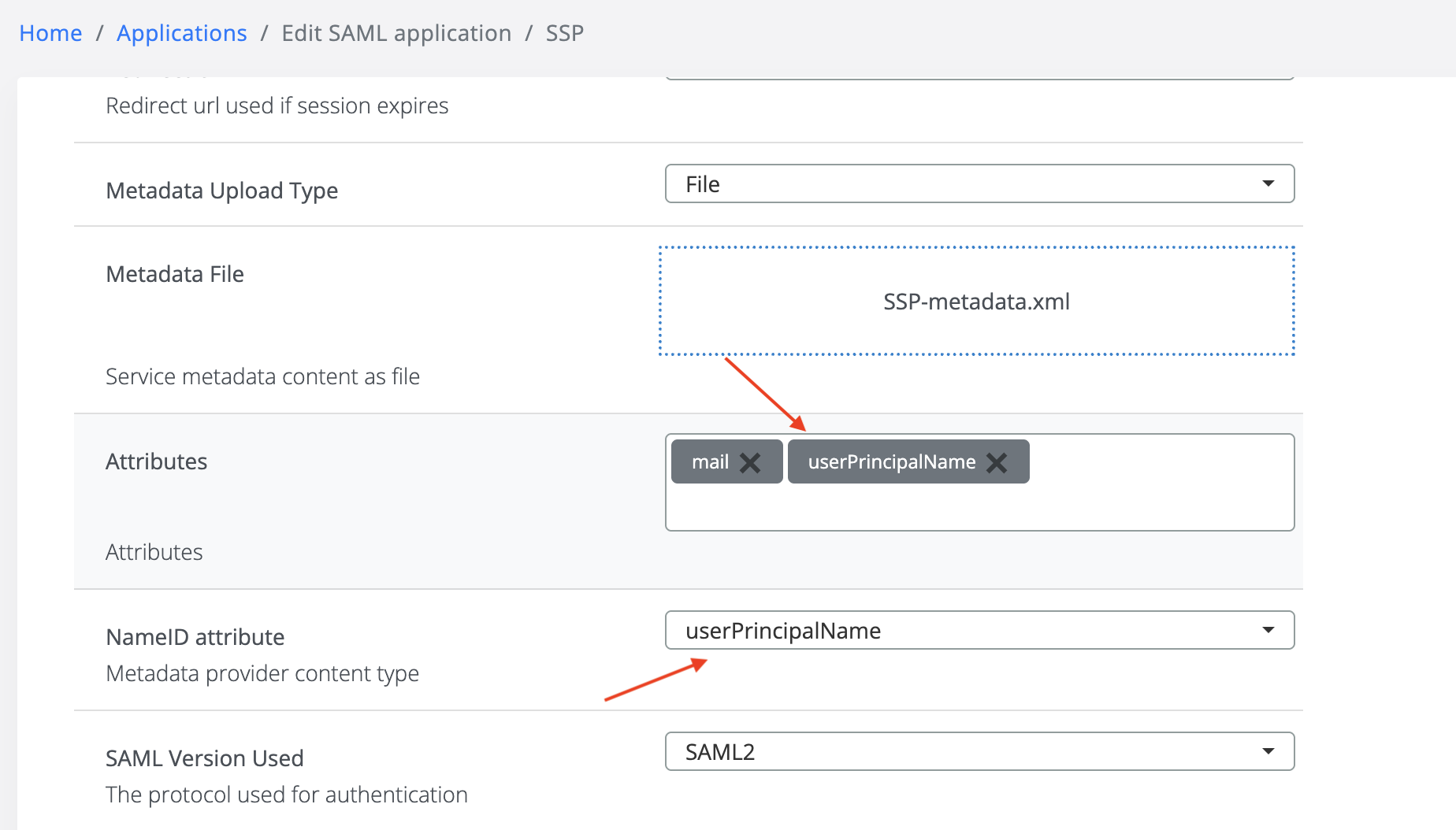
To authenticate to SSP, configure the application to include userPrincipalName in Attributes and set the NameID attribute to userPrincipalName.
Entra-Only User Limitations
Password Management Limitations
Unsupported Features
Entra-only users currently cannot:
-
Authenticate using Entra password directly in VeridiumID
-
Use self-service password reset
-
Change passwords through the platform
-
Authentication in Entra cannot be controlled via Veridium. Only enrolment can be restricted via Veridium platform.
For example if a user’s access is restricted via Entra group permissions, the authentication via Veridium will still work, but user’s access will be denied at Entra level.
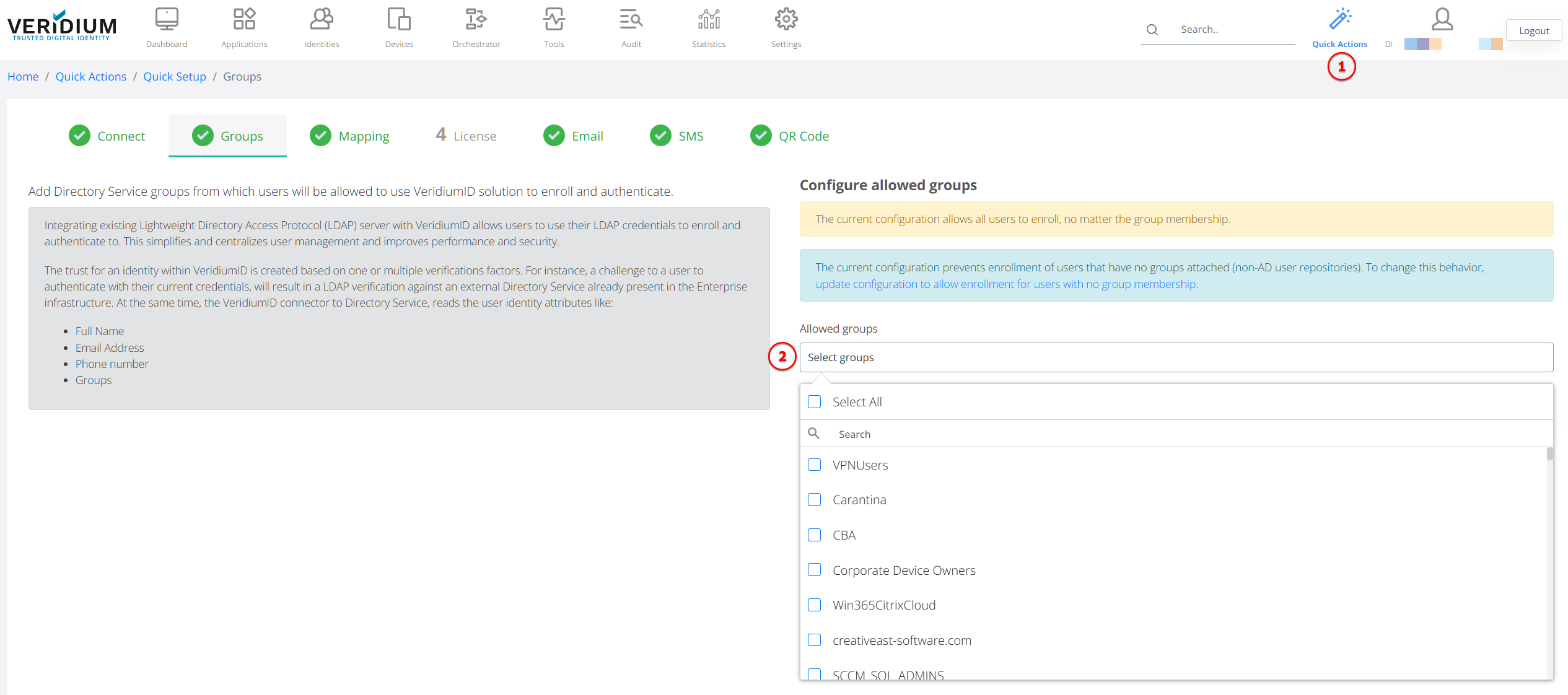
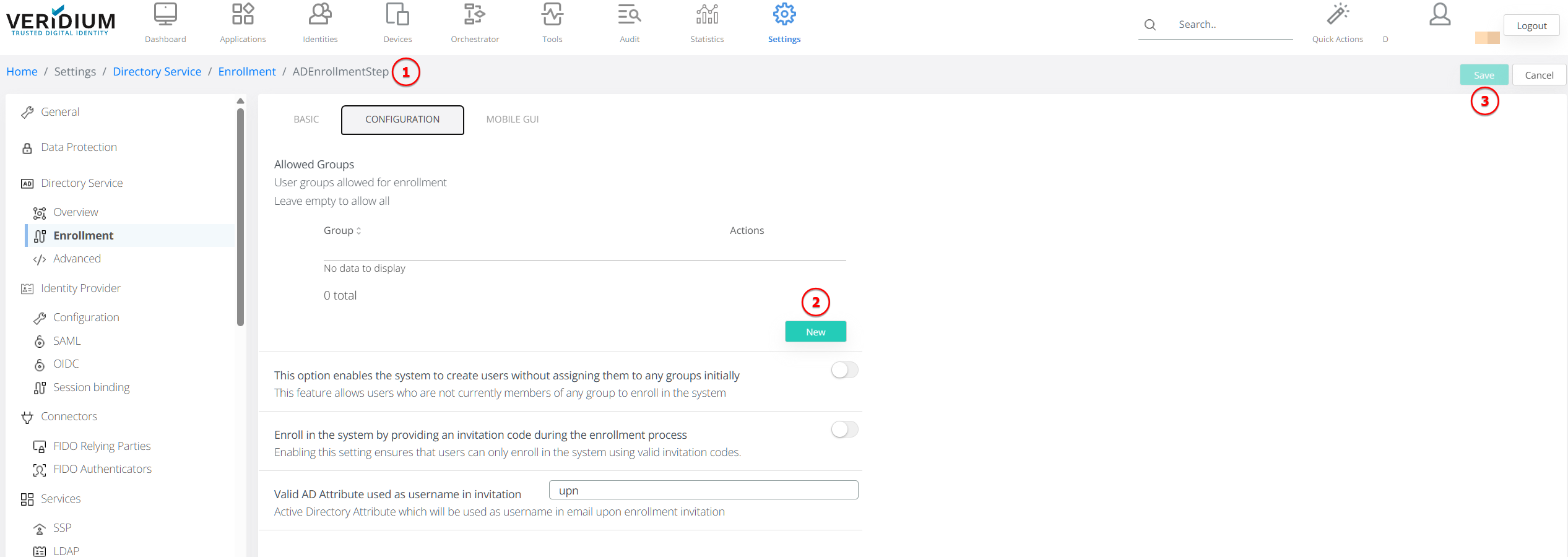
Entra groups can be configured either from Quick Settings, or from Enrollment - AD Enrollment tab: