

This feature enables Veridium users to reset or renew their Active Directory (AD) account passwords directly within the Self Service Provider flows or Veridium Windows Credential Provider. Its purpose is to reduce helpdesk workload while providing users with a more convenient and self-service experience.
To use this feature, a user must successfully authenticate at least once using their LDAP password through Veridium. This initial authentication creates an LDAP password authenticator, which is stored in the user’s list of authenticators.
During every subsequent authentication, Veridium verifies the presence of the LDAP password authenticator. After the authentication is successfully validated, the system checks the database and creates or updates the authenticator as required, ensuring that user information remains consistent and up to date.
The feature can be first enabled from the Administration interface. Configuration flags are available to control and fine-tune the supported functional flows from Settings → General → Ad Password Self Manage, as described in the sections below.
Password Self-Management – Configuration Flags
This section describes the configuration flags that control Active Directory (AD) password self-management behavior. These settings define when, how, and from where users are allowed to reset or renew their AD passwords.
Go to Settings → General → Ad Password Self Manage
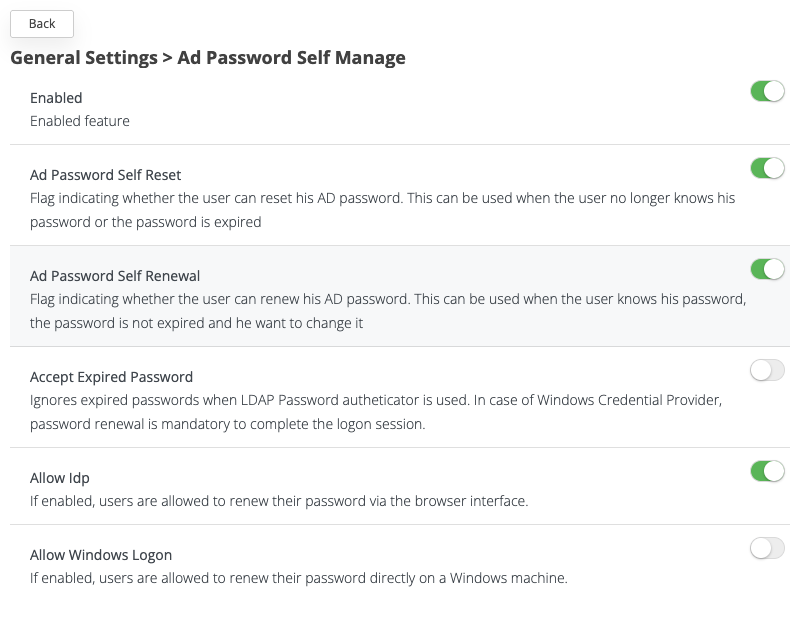
Enabled
Description
Master switch that enables or disables AD Password Self-Management functionality.
Behavior
-
When disabled, all password reset and renewal features are turned off.
-
When enabled, the options below determine the allowed flows and channels.
AD Password Self Reset
Description
Allows users to reset their AD password when they do not know their current password or when the password is expired.
Used When
-
The user forgot their password
-
The password has expired
-
Account recovery scenarios
Notes
-
This flow does not require the current password.
AD Password Self Renewal
Description
Allows users to renew (change) their AD password when they know their current password and the password is not expired.
Used When
-
User wants to proactively change their password
-
Password is still valid
Requirements
-
Current password must be provided
-
Password policy rules are enforced by AD
Accept Expired Password
Description
Controls whether expired passwords are accepted during LDAP authentication.
Behavior
-
Enabled:
-
Expired passwords are accepted for authentication
-
Allows the user to proceed with password renewal
-
-
Disabled:
-
Expired passwords are rejected
-
Important Note
-
When using Windows Credential Provider, password renewal is mandatory to complete the Windows logon session.
-
This flag is especially important for seamless password expiration handling.
-
If the AD Password Self Renewal flag is enabled, the user will be prompted to change the password
Allow IdP
Description
Allows users to renew or reset their password via the browser-based Identity Provider (IdP) interface. Without this setting enabled, the users will not be able to renew the AD password on any browser based IDPs event though the feature is enabled (in both Ad Password Self Manage and LDAP Connection)
Behavior
-
Enabled → Password operations are allowed in web flows
-
Disabled → Browser-based password management is blocked
Typical Use Case
-
Self-service portals
-
Web login flows
Allow Windows Logon
Description
Allows users to renew their password directly on a Windows machine during the Windows logon process.
Behavior
-
Enabled → Password renewal is allowed via Windows Credential Provider
-
Disabled → Windows-based password renewal is blocked
Summary Table
|
Flag |
Purpose |
|---|---|
|
Enabled |
Master switch for AD password self-management |
|
AD Password Self Reset |
Reset password without knowing the old one |
|
AD Password Self Renewal |
Change password when the old one is known |
|
Accept Expired Password |
Allow expired passwords for renewal flows |
|
Allow IdP |
Enable browser-based password management |
|
Allow Windows Logon |
Enable Windows logon password renewal |
If those flags are set on true, the user will have the options to reset/renew the password from the SSP.
In the SSP interface, under the Authenticators section, users will see a new LDAP authenticator. Next to it, the Reset and Renew actions will be available, allowing users to manage their AD passwords directly from the self-service portal.
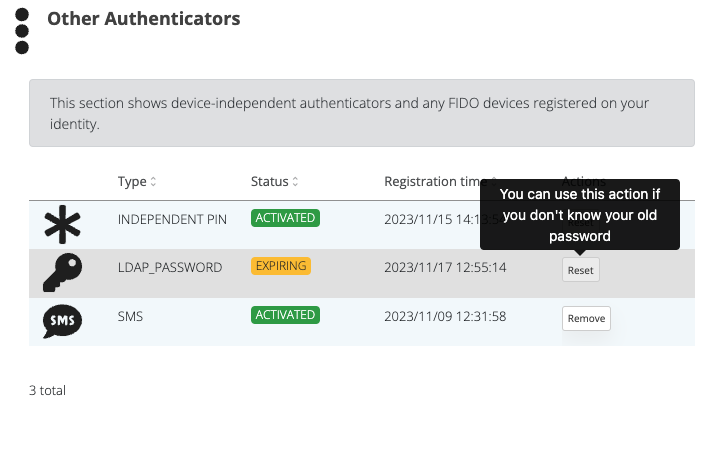
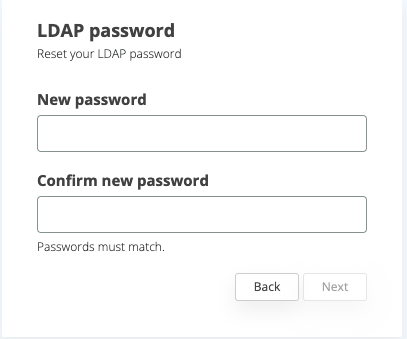
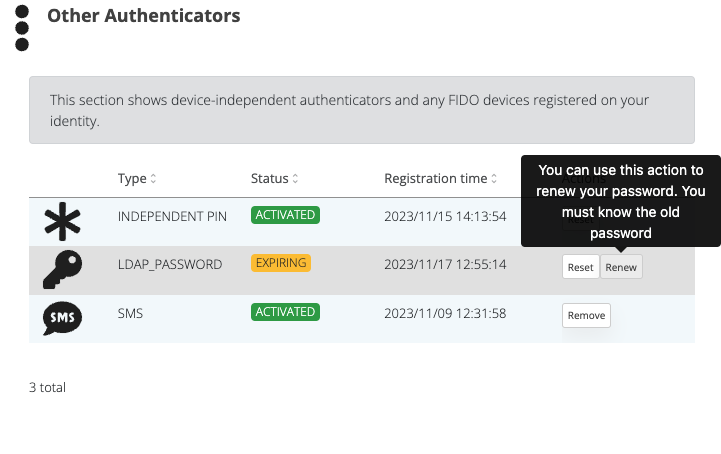
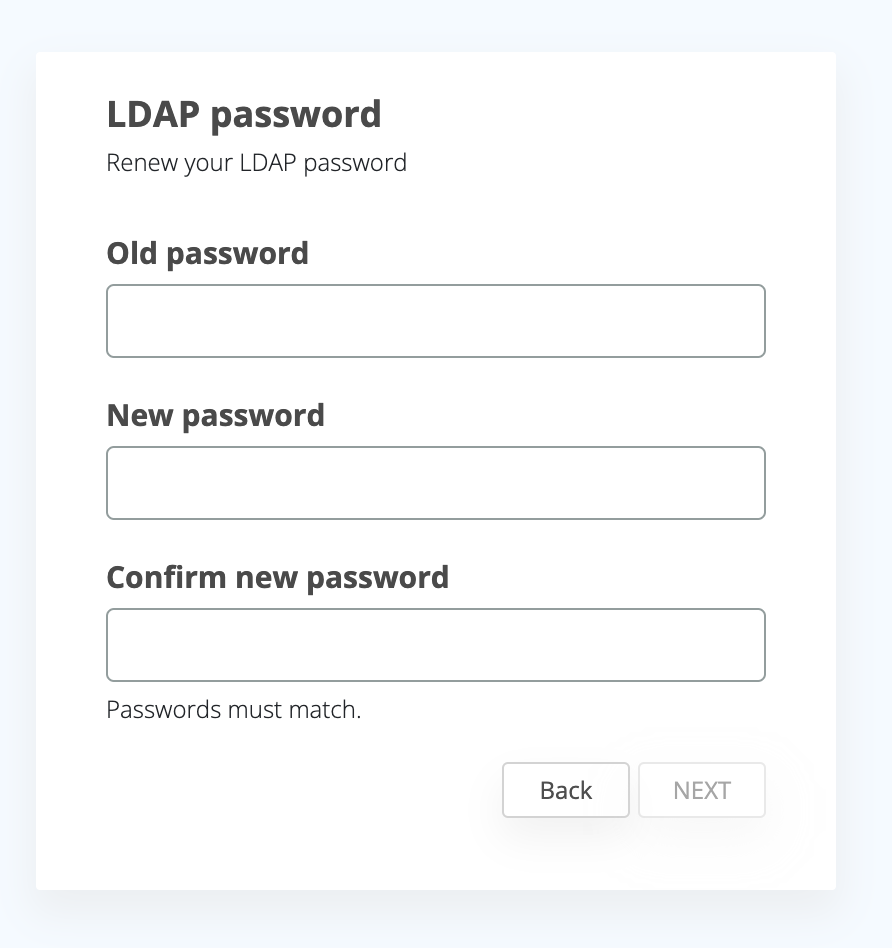
These actions follow the standard enrollment steps, similar to PIN reset action for example, meaning that the user will have to provide a code validation also, if so configured in the integration.
Password Self-Management – LDAP Connection Granularity
Password self-management can be controlled at two levels:
-
Global level – applies system-wide
-
LDAP connection level – applies per LDAP connection
Both levels must allow the feature for password self-management to be active.
LDAP Connection: Allow Password Self-Management
Each LDAP connection has its own Allow Password Self-Management flag.
This flag controls whether password self-management is allowed for users authenticating through that specific LDAP connection.

Behavior
-
If disabled, password self-management is blocked for that LDAP connection
-
If enabled, password self-management follows the global configuration
Precedence Rules (Global vs LDAP)
Password self-management is enabled only if both conditions are met:
-
Global Enabled flag is set to true
-
LDAP connection Allow Password Self-Management flag is set to true
User Experience When Changing Global Enabled Flag
When an administrator enables the global Password Self-Management flag:
-
The system prompts the administrator:
“Enabling this feature allows password self-management. Would you like to enable it for all LDAP connections? Otherwise, the feature may not work for every LDAP connection.”
If the administrator confirms:
-
The Allow Password Self-Management flag is set to true on all existing LDAP connections
-
Password self-management becomes immediately available (subject to other settings)
If the administrator declines:
-
The global flag is enabled
-
LDAP connection flags remain unchanged
-
Password self-management will only be active for LDAP connections where the flag is already enabled
Important Notes
-
Disabling the global Enabled flag always disables password self-management, regardless of LDAP connection settings
-
Enabling the global flag does not automatically enable LDAP connections, unless explicitly confirmed
Global Catalog vs Domain Connection
When an LDAP connection is configured to use a Global Catalog (GC), some AD operations cannot be performed directly through the GC. This includes operations that require full domain context, such as:
-
Password reset
-
Password renewal
-
Retrieving attributes like pwdLastSet or msDS-PasswordExpiryTimeComputed (e.g., for password expiration checks)
To support these operations, the “Use Domain Connection” option allows the system to temporarily use a standard domain connection for these specific actions, even if the primary connection is to a Global Catalog.
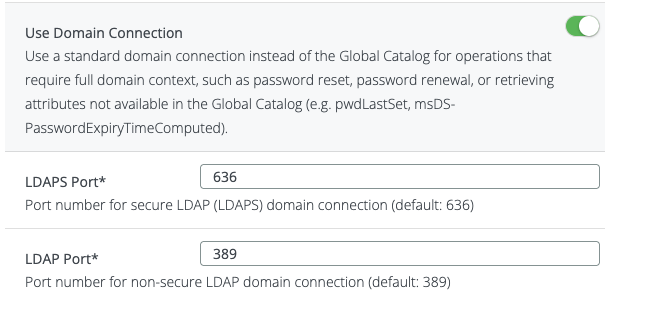
Configuration Flags
|
Setting |
Description |
|---|---|
|
Use Domain Connection |
If enabled, the system will use a standard domain connection for operations that require full domain context, such as password reset, renewal, or retrieving attributes not available in the GC. This ensures password self-management works correctly. |
|
LDAPS Port |
Port number for secure LDAP (LDAPS) domain connection. Default is 636. |
|
LDAP Port |
Port number for non-secure LDAP domain connection. Default is 389. |
Important Note:
Without enabling the Use Domain Connection flag, password self-management may fail for LDAP connections on the Global Catalog, because Global Catalog connections do not provide the necessary attributes or context required for these operations.
Security
The LDAP password reset flow follows the same security procedures as the PIN reset process. Users must complete all required security steps, including verification codes or other validation methods, before they can reset their LDAP password. This ensures that password changes are performed securely and only by authorized users.
Configuration
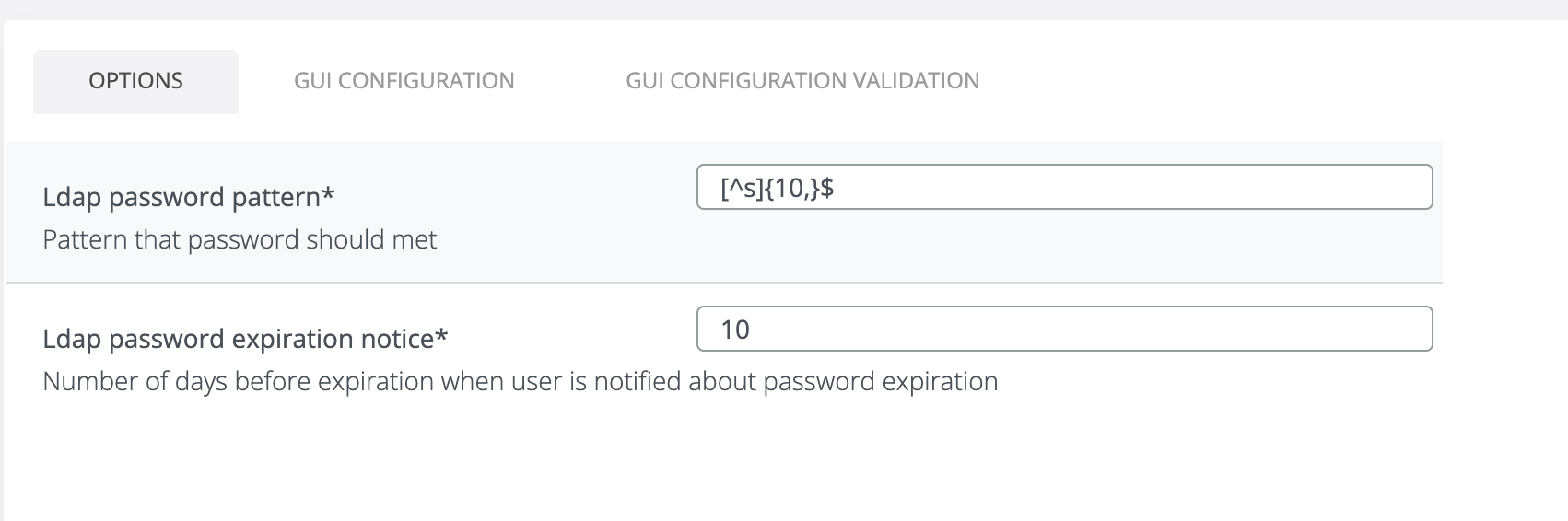
LDAP Password Pattern
Description
The LDAP password pattern enforces a specific format that user passwords must follow. The pattern is defined using a regular expression (regex), allowing you to control password complexity and structure.
Behavior
-
Users must create passwords that match the configured pattern.
-
The system will reject any passwords that do not comply with the pattern.
Important Considerations
-
The pattern configured in Veridium (VID) must be at least as restrictive as the Active Directory (AD) password policy.
-
This setting does not synchronize automatically with AD; changes in AD password policies must be reflected manually in Veridium if needed.
LDAP Password Expiration Notice
Description
The LDAP password expiration notice determines when users are prompted that their password is approaching expiration. This allows users to proactively renew their passwords within the Veridium self-service flow.
Behavior
-
Enter the number of days before expiration to trigger the notification.
-
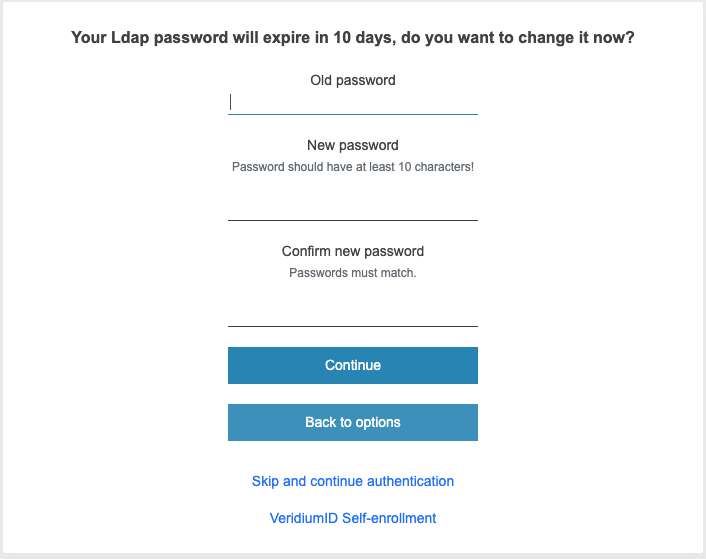
For example, if the field is set to 11, and a user’s password is set to expire in fewer than 11 days, the Veridium Self Service flow will prompt the user to change the password during authentication.
Renew Password When It Is About to Expire or Has Expired
After a user successfully authenticates, the system checks the difference between the LDAP password expiration date and the authentication date.
-
If the password is approaching expiration (i.e., the difference is smaller than the configured notification threshold), the user is prompted to renew their LDAP password within the Veridium self-service flow.
-
If the password has already expired, the system requires the user to reset their password before proceeding with any other actions.
This ensures that users update their passwords in a timely manner, preventing account lockouts while maintaining a smooth self-service experience.
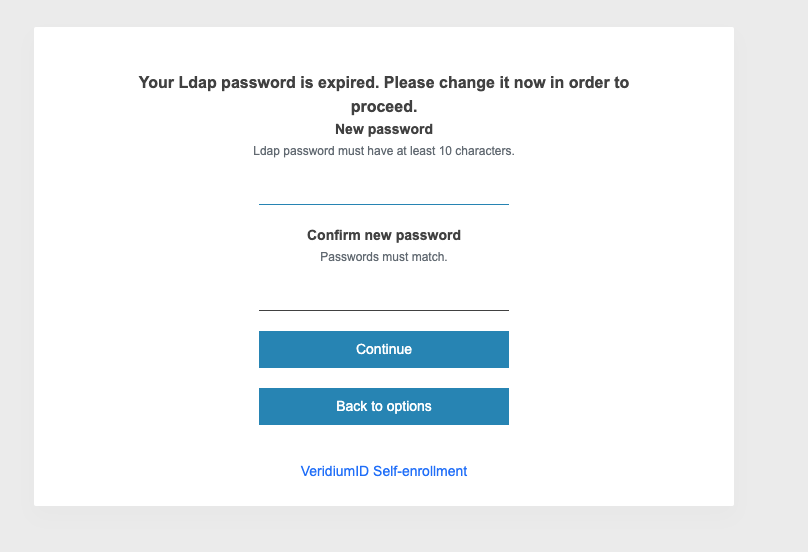
If the password is about to expire, the system will prompt the user to change their password but still allow them to continue using the system without updating it.
Technical Aspects and Key Takeaways
-
The LDAP authenticator is created or updated after each successful authentication during identity synchronization.
-
The LDAP authenticator is created only if password self-management is enabled globally and the relevant feature flags (Reset Password or Renew Password) are activated.
-
Password self-management for a user is effective only if the corresponding LDAP connection has the “Allow Password Self-Management” flag enabled. If the global flag is enabled but the LDAP connection flag is disabled, the password self-management flow will not occur.
-
Password Reset:
-
Can only be performed if the feature is enabled from the admin page (Reset Password flag).
-
In Shibboleth flows, the reset is available only when the password is already expired.
-
-
Password Renewal:
-
Can only be performed if the feature is enabled from the admin page (Renew Password flag).
-
In Shibboleth flows, renewal is available only when the password is approaching expiration.
-
The current password will be requested to perform the renewal.
-
-
For Global Catalog LDAP connections, some operations (password reset/renewal, retrieving pwdLastSet or msDS-PasswordExpiryTimeComputed) require using a standard domain connection. This is controlled via the “Use Domain Connection” flag on the LDAP connection. Without this, password self-management may fail.
To change the password, the LDAP connection must be secured.
In order to renew AD user password, the user must know the old password and it must be active.
If needed, the timeout on the http client configuration can be increased.
Some Active Directory attributes that can affect password policy if configured in Active Directory, such as “pwdINHistory” and “pwdLockout” do not return explicit error messages for the user in this release. This means that for cases in which the new user password does not meet these criteria, the flow will fail with no relevant error in GUI.
|
Use case |
Settings needed enabled |
|---|---|
|
Change AD pass via browser |
Ad Password Self Manage + Allow Idp + Ad Password Self Renewal + Allow Password Self-Management (from LDAP connection configured) |
|
Change AD pass via CP |
Ad Password Self Manage enabled + Allow Windows Logon + Ad Password Self Renewal + Allow Password Self-Management (from LDAP connection configured) |
As a general conceptual path explanation for further reference & troubleshooting, this is the logic for Accept Expired Password ON:
1. The "Enforcement Loop" (All Settings ON)
-
User Experience: Forced Password Change.
-
Why: This is the "Gold Standard" configuration. The system has permission to manage the account (
Self Manage), the portal is available (Allow IdP), and the automated task to update the password is active (Self Renewal). Even though the server can accept an expired password, the policy dictates that if the tools exist to fix it, the user must fix it before proceeding.
2. The "Gatekeeper" Bypass (Allow IdP OFF or Self-Renewal OFF)
-
User Experience: User can authenticate with expired password.
-
Why: * Allow IdP OFF: The Identity Provider (IdP) is the component that typically serves the "Password Reset" UI to the user. Without it, the system cannot present the reset forms, so it honors the
Accept Expired Password: ONsetting and lets the user in.-
Self-Renewal OFF: This flag controls the backend's ability to actually write the new password to Active Directory. If this is disabled, the system knows a reset attempt will fail, so it allows the expired login to proceed to avoid a total lockout.
-
3. The "Method Block" (Self-Management OFF)
-
User Experience: AD password fails; other methods work for "Expiring" status only.
-
Why: When
Allow Password Self-Managementis OFF, the Veridium orchestrator is essentially "blind" to remediation steps. It sees an expired credential and, lacking the authority to manage it, simply rejects the AD method as a failure. The user is then forced to use secondary methods (like FIDO or Bio) if they are in an "Expiring" (but not yet hard-expired) state.
4. Credential Provider (CP) Context
-
User Experience: Mandatory change triggered only if all CP flags are ON.
-
Why: In version 3.8.4, the Windows Credential Provider requires a "Tight Loop" of configuration to trigger a change. This is to ensure that if a user changes their password, the new registry key
WorkstationLockAfterPasswordChangecan successfully trigger a lock to refresh the certificate in the offline cache. If any flag is missing, the CP defaults to standard Windows behavior to prevent a "broken" reset flow at the login screen.
4-1. The "All-or-Nothing" Enforcement
-
Logical Reason: For a password that is merely Expiring (not yet expired), the Credential Provider acts as a proactive tool. The logic requires a "Perfect Path" to be available.
-
Why it works: Because every management flag is enabled, the system has full authority to:
-
Recognize the expiring state (
Self Manage). -
Use the Windows login UI for the flow (
Allow Windows Logon). -
Write the change back to AD (
Self Renewal). -
Allow the user to initiate the action (
Self-Management).
-
-
Technical Context: This ensures that when the user changes the password, the new v3.8.4 registry key
WorkstationLockAfterPasswordChangecan trigger correctly to refresh the certificate in the offline cache.
4-2. The "Expiring Bypass"
-
Logical Reason: If even one link in the management chain is missing, the CP prioritizes user availability over proactive maintenance.
-
Why it works: If
Self Renewalis OFF, the CP knows it cannot successfully complete the write-back to AD. Rather than starting a process that will eventually fail and frustrate the user, it allows the "Expiring" password to work normally, assuming the user will fix it via another channel (like a web portal or office PC).
4-3. The "Expired" Hard-Stop
-
Logical Reason: Security Policy vs. User Convenience.
-
Why it works: Unlike an expiring password (which is still technically valid), an expired password is a security violation.
-
Technical Enforcement: In the CP context, the "Expired" status triggers a kernel-level rejection from Active Directory. Veridium intercepts this and, regardless of the individual "Self Manage" toggles, enforces a reset. An expired pass is never allowed to "bypass" into a session because that would compromise the integrity of the Windows workstation lock and the user's primary identity.