

As part of your deployment resources, VeridiumID provides an “out-of-the-box” OVA image. This image (available through the Veridium Sales Engineering team or Professional Services) can be used for Proof-of-Concept (PoC) or Production environments.
Before proceeding, ensure you have already imported the OVA (see the section on “How to Import an OVA File”). After import, begin the setup and installation. Make sure your server has a Fully Qualified Domain Name (FQDN) in DNS (and ideally a correct PTR record).
1. Virtual Console Setup
Connect to the VM’s console, authenticate, then change default credentials, hostname and IP address:
-
Default login credentials for VeridiumID_OVA_384_280.ova:
-
Username:
rocky -
Password:
VeridiumID123!
-
-
Change the password:
passwd -
View current network configuration:
sudo ifconfig -
Use Network Manager TUI for static IP/hostname setup:
sudo nmtuiSet a static IP and appropriate hostname from the interface.
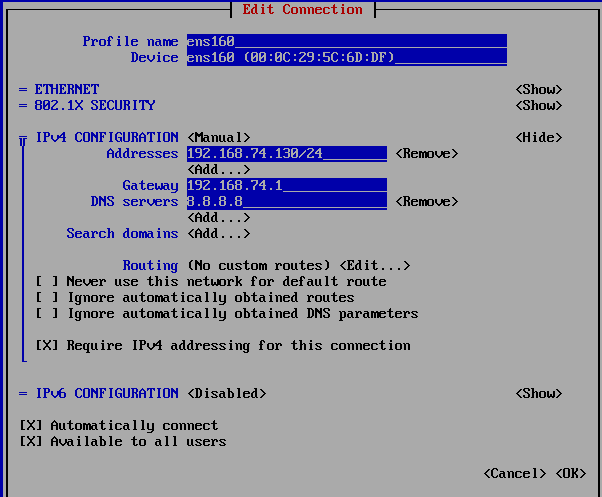
-
Reboot the VM (you can use
sudo rebootor reboot via VMware tools). -
Configure NTP/Time sync (Chrony):
sudo systemctl status chronyd
sudo systemctl enable chronyd
sudo systemctl start chronyd
sudo chronyc -a sources
sudo timedatectl list-timezones | grep Europe/Bucharest
sudo timedatectl set-timezone Europe/Bucharest
If no NTP server is available, a manual date set is possible.
-
Verify the timezone and local zone are correctly defined:
sudo timedatectl
2) Run the ILP installer
-
It is necessary to have already deployed the VeridiumID.
Please see chapter ILP Documentation → Installation of version