

VeridiumID 3.9.1 extends the FreeRADIUS authentication plugin with additional multi-factor authentication options combining an LDAP or Active Directory password with Veridium authentication.
The new supported flows include:
-
LDAP/AD Password + OTP submitted together in a single RADIUS request.
-
LDAP/AD Password + Push, where the password is validated before Veridium starts the Push authentication.
These capabilities are opt-in. Existing FreeRADIUS configurations continue to use their previous authentication behavior unless one of the new modes or command options is explicitly configured.
Authentication behavior
For both new authentication flows, the LDAP or Active Directory password is validated first.
Veridium continues with OTP or Push authentication only after the password has been successfully validated.
The following rules apply:
-
an invalid LDAP/AD password immediately rejects the authentication;
-
OTP validation is not performed if password validation fails;
-
a Push session is not created if password validation fails;
-
Access-Acceptis returned only when all required authentication factors succeed; -
authentication failures return
Access-Reject; -
sensitive credential values are not written to logs.
Password + OTP
The Password + OTP mode is designed for RADIUS clients that cannot perform multiple authentication rounds.
The user's LDAP/AD password and Veridium OTP are submitted together in the RADIUS password field using the following format:
<password><otp>
No separator is required.
For example, with an OTP length of six characters:
MyPassword123456
is interpreted as:
|
Credential |
Value |
|---|---|
|
LDAP/AD password |
|
|
OTP |
|
Veridium determines how to split the submitted value using the configured OTP length. The specified number of characters is taken from the end of the value as the OTP, while the remaining prefix is processed as the LDAP/AD password.
Authentication flow
The processing sequence is:
-
The RADIUS client submits the username and combined Password + OTP value.
-
Veridium extracts the OTP according to the configured OTP length.
-
The remaining value is treated as the LDAP/AD password.
-
The password is validated against the configured LDAP or Active Directory service.
-
If password validation succeeds, Veridium validates the OTP.
-
Access-Acceptis returned only when both validations succeed.
If either factor fails, the request is rejected.
Configure the OTP length
The configured OTP length must match the OTP length generated by Veridium.
For example, if Veridium generates a six-character OTP, the RADIUS configuration must also use an OTP length of six.
An incorrect value can cause part of the password to be interpreted as the OTP, or part of the OTP to be interpreted as the password, resulting in authentication failure.
Password + Push
The Password + Push flow validates the LDAP or Active Directory password before sending an authentication request to the user's enrolled mobile device.
The authentication sequence is:
-
The RADIUS client submits the username and password.
-
Veridium validates the password against LDAP or Active Directory.
-
If the password is invalid, the authentication is immediately rejected.
-
If the password is valid, Veridium creates a Push authentication session.
-
A Push notification is sent to the user's enrolled device.
-
The RADIUS authentication waits for the user's response.
-
The request is accepted only when the Push authentication is successfully approved.
A denied, expired, timed-out, or unsuccessful Push request returns Access-Reject.
RADIUS timeout and retry considerations
Password + Push should only be used with RADIUS clients and upstream systems that can keep the authentication request open long enough for the user to respond to the Push notification.
If an upstream component times out before Veridium receives the Push result, the RADIUS authentication can fail even if the user subsequently approves the request.
RADIUS retry behavior should also be considered.
Some clients resend an authentication request if a response is not received quickly enough. Repeated requests can result in:
-
multiple Push authentication sessions;
-
multiple notifications being sent to the mobile device;
-
stale or confusing approval requests;
-
different RADIUS requests being associated with different authentication results.
RADIUS client, network appliance, and Veridium timeout and retry settings should therefore be configured consistently.
Configure OTP credential selection
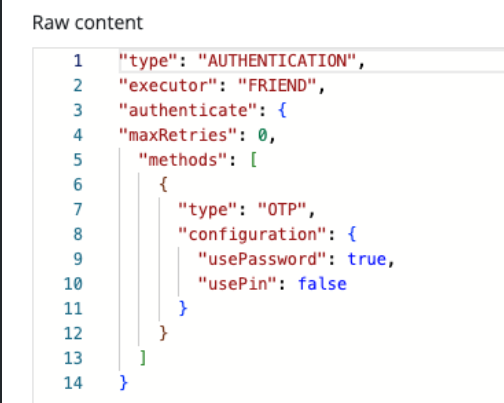
The OTP authentication command in Orchestrator provides two optional settings that determine what type of credential can accompany the OTP:
usePin = true|false
usePassword = true|false
These settings allow an administrator to explicitly distinguish between:
-
OTP + Veridium PIN
-
OTP + LDAP/Active Directory password
OTP + Veridium PIN
Use:
usePin = true
usePassword = false
The credential preceding the OTP is always interpreted as a Veridium PIN.
OTP + LDAP/AD password
Use:
usePin = false
usePassword = true
The credential preceding the OTP is always interpreted as an LDAP or Active Directory password.
Automatic credential detection
If both options are unset or configured as false:
usePin = false
usePassword = false
Veridium automatically determines the expected credential type from the submitted value.
A numeric prefix is interpreted as a PIN, while a prefix containing other characters is interpreted as an LDAP/AD password.
For production environments where the expected authentication method is known, explicit configuration is recommended to avoid ambiguity.
Do not normally enable both options
If both options are set to true:
usePin = true
usePassword = true
PIN authentication has priority.
If PIN validation fails, the same value is not automatically retried as an LDAP/AD password.
For predictable behavior, configure only the authentication method required by the intended RADIUS flow.
Important: LDAP Password and Push in the same challenge
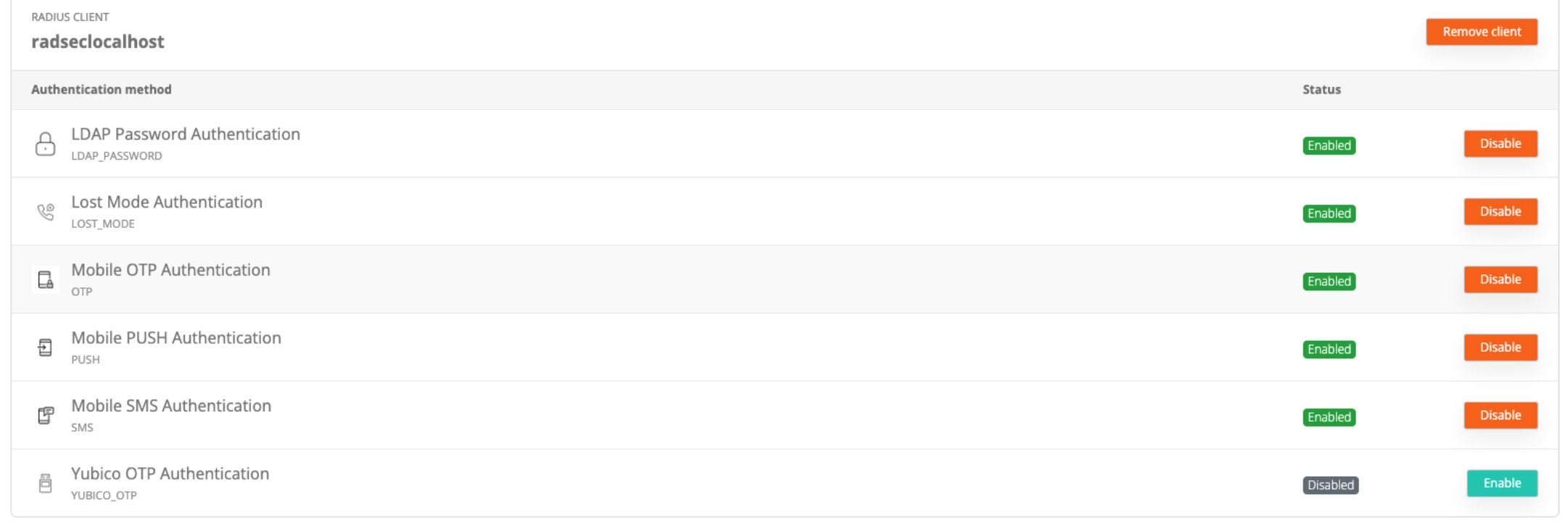
Do not configure LDAP Password and Push as alternative authentication methods within the same challenge.
For example, the following configuration is not supported:
Challenge:
- LDAP Password
- Push
When both methods are offered as alternatives in a single challenge, Veridium cannot reliably determine whether the received input should be treated as an LDAP password or as a request to continue using Push. The input can therefore be processed as a password and the Push authentication may not start.
If LDAP password validation must occur before Push authentication, configure an explicit Password + Push flow instead.
Conceptually: LDAP Password → Password valid → Push Authentication -> Authentication success.
Use separate challenges or authentication flows when the two methods are intended to operate independently.
Recommended configuration
For predictable production behavior:
-
use the dedicated Password + Push flow when LDAP/AD password validation must precede Push;
-
do not offer LDAP Password and Push as alternatives in the same challenge;
-
configure
usePin = trueandusePassword = falsefor OTP + PIN; -
configure
usePin = falseandusePassword = truefor OTP + LDAP/AD password; -
use automatic credential detection only when it is specifically required;
-
ensure the configured OTP length matches the OTP generated by Veridium;
-
verify timeout and retry behavior for each RADIUS client or network appliance used in the deployment.
Backward Compatibility
The new authentication options are opt-in.
If the new modes and command options are not configured:
-
existing FreeRADIUS authentication behavior is preserved;
-
existing RADIUS clients do not need to change how they submit credentials;
-
existing automatic credential detection remains available where already supported.