
Notifications are typically email/SMS notifications send in case of different actions. Following steps shows how to modify default templates texts.
-
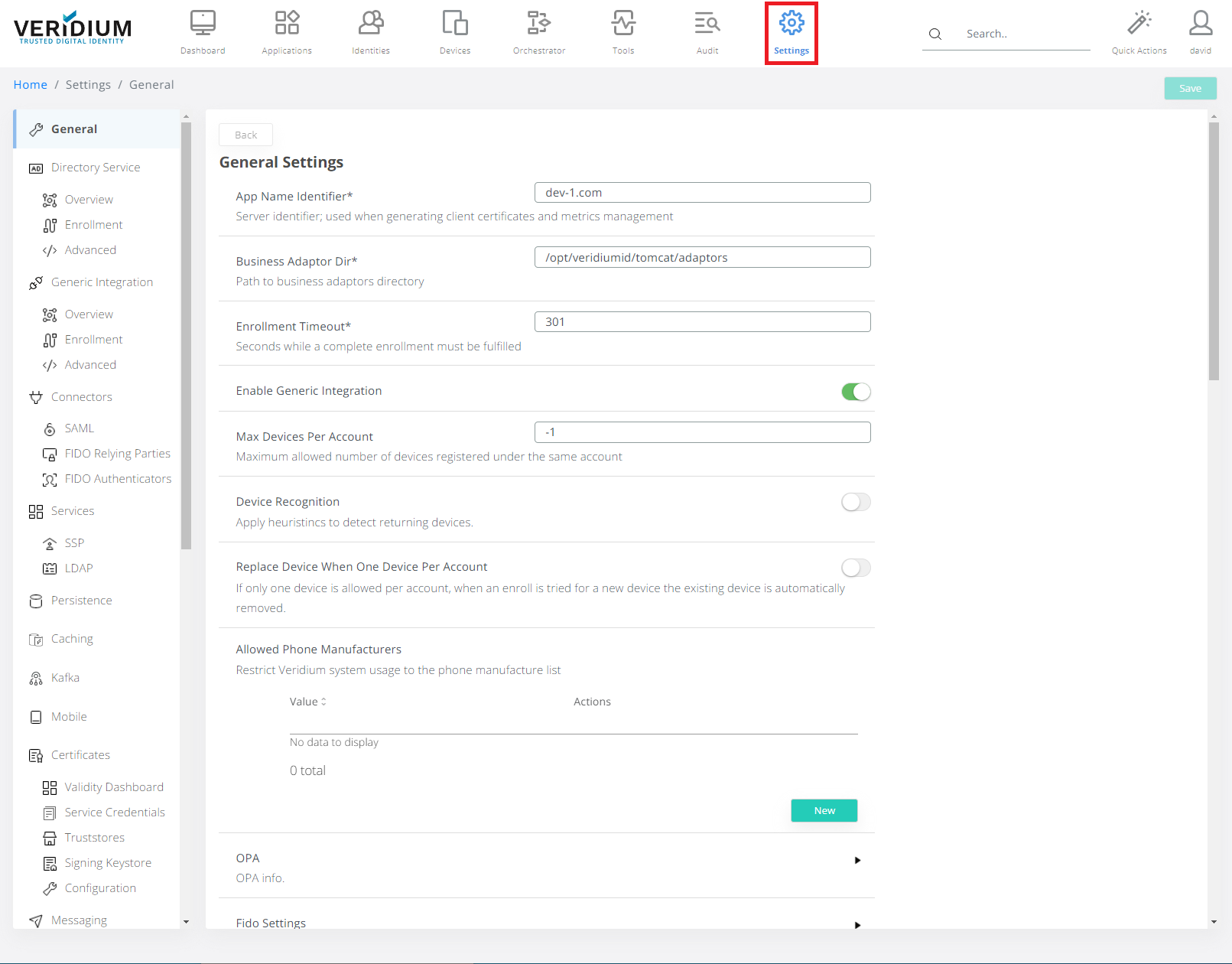
In Veridium Manager, click Settings on top navigation.
-
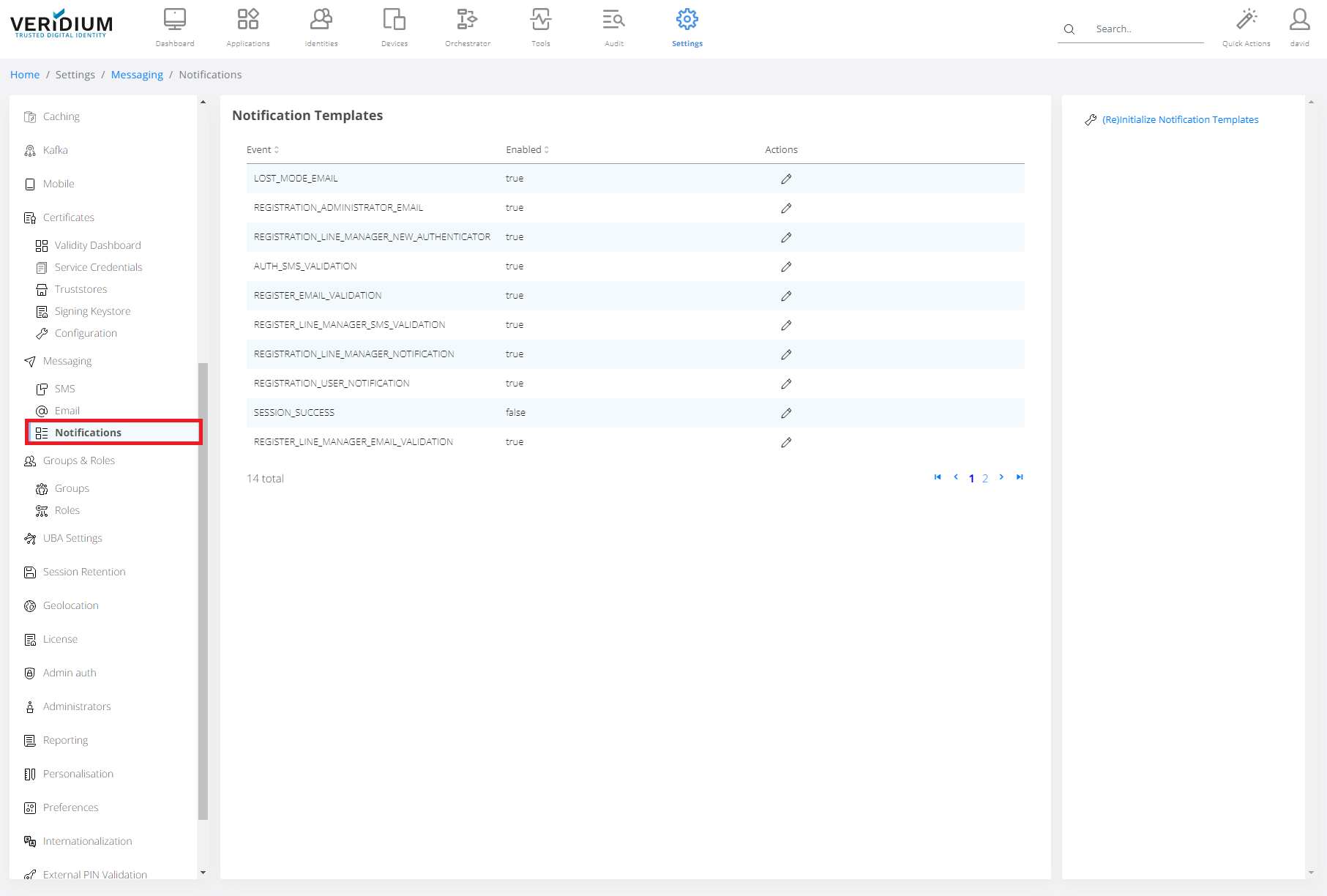
Click Notification on the left-side container.
-
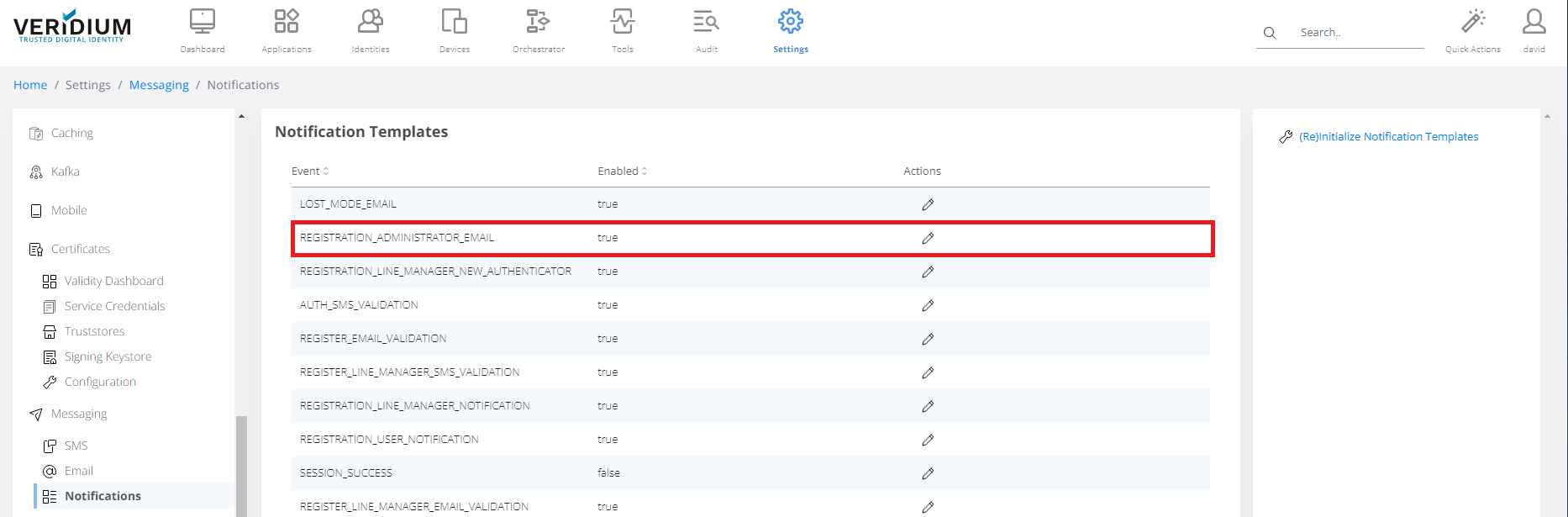
Click on Template.
-
Set Settings, set Mail Subject and set Email Body. Click Validate Body and Save.
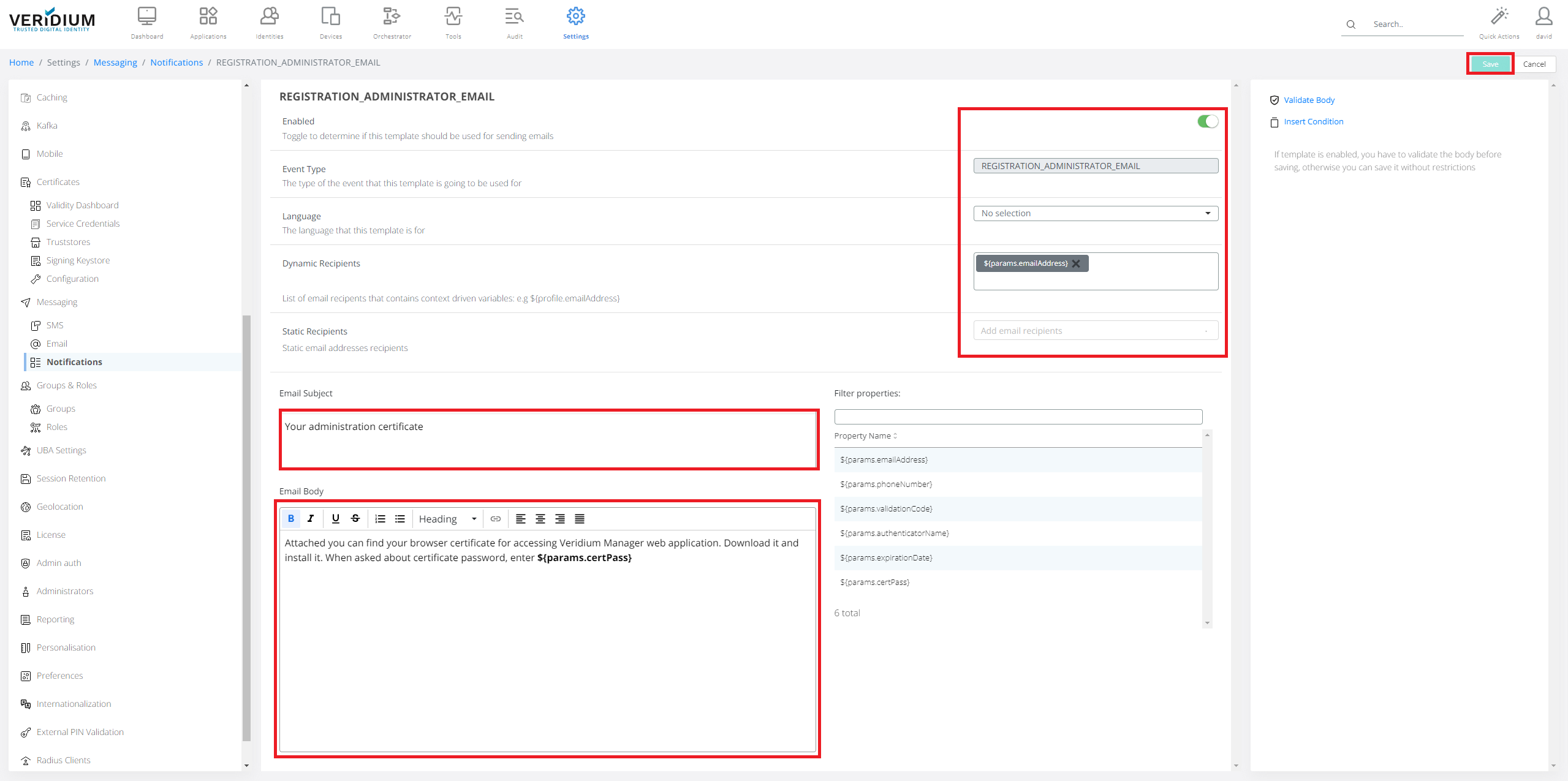
Using the “(Re)Initialize Notification Templates” will revert all custom modifications done for the templates.
-
Email templates advanced formatting
For complex template a user can use HTML, as well as directives (IF, IF ELSE and so on):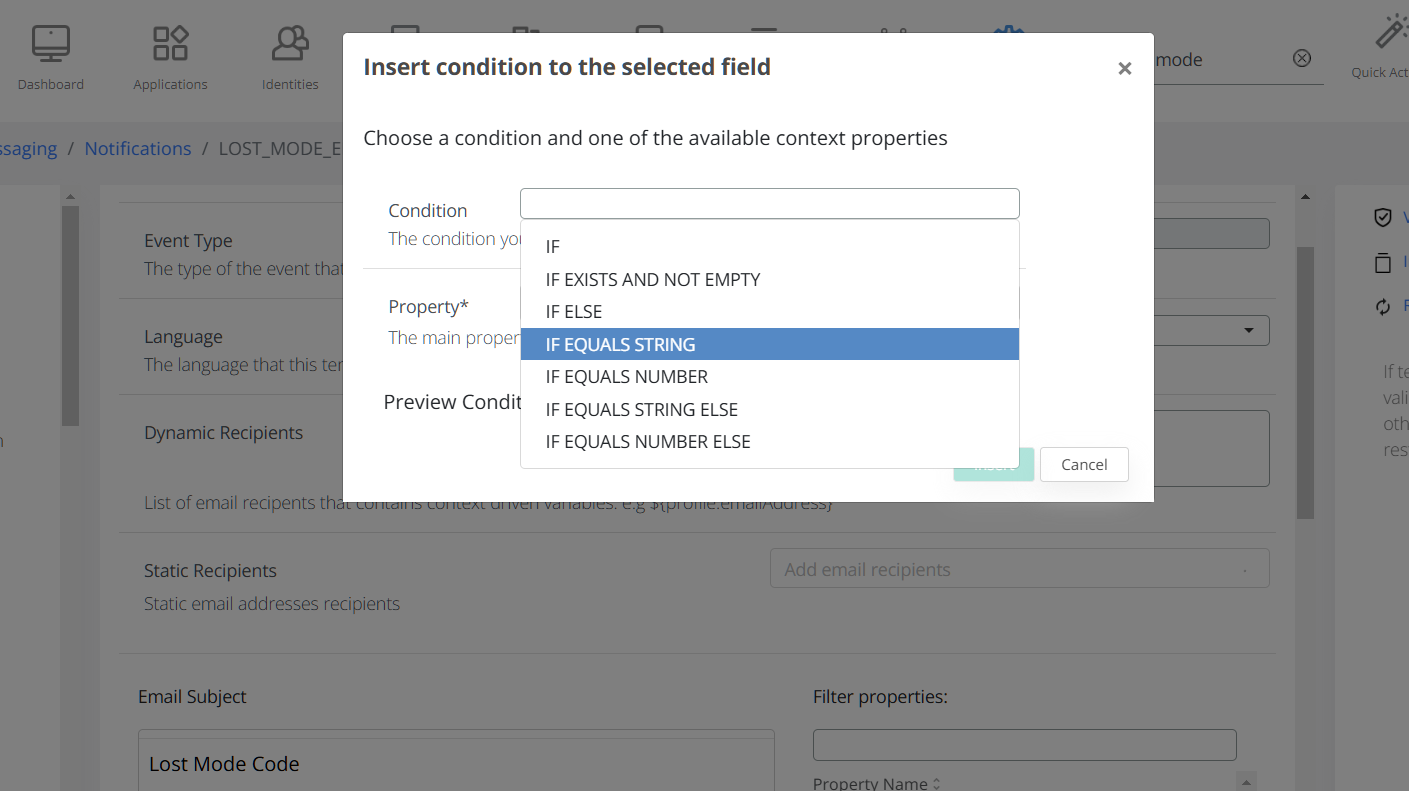
For basic operation please take a look here:
https://freemarker.apache.org/docs/dgui_quickstart_template.html
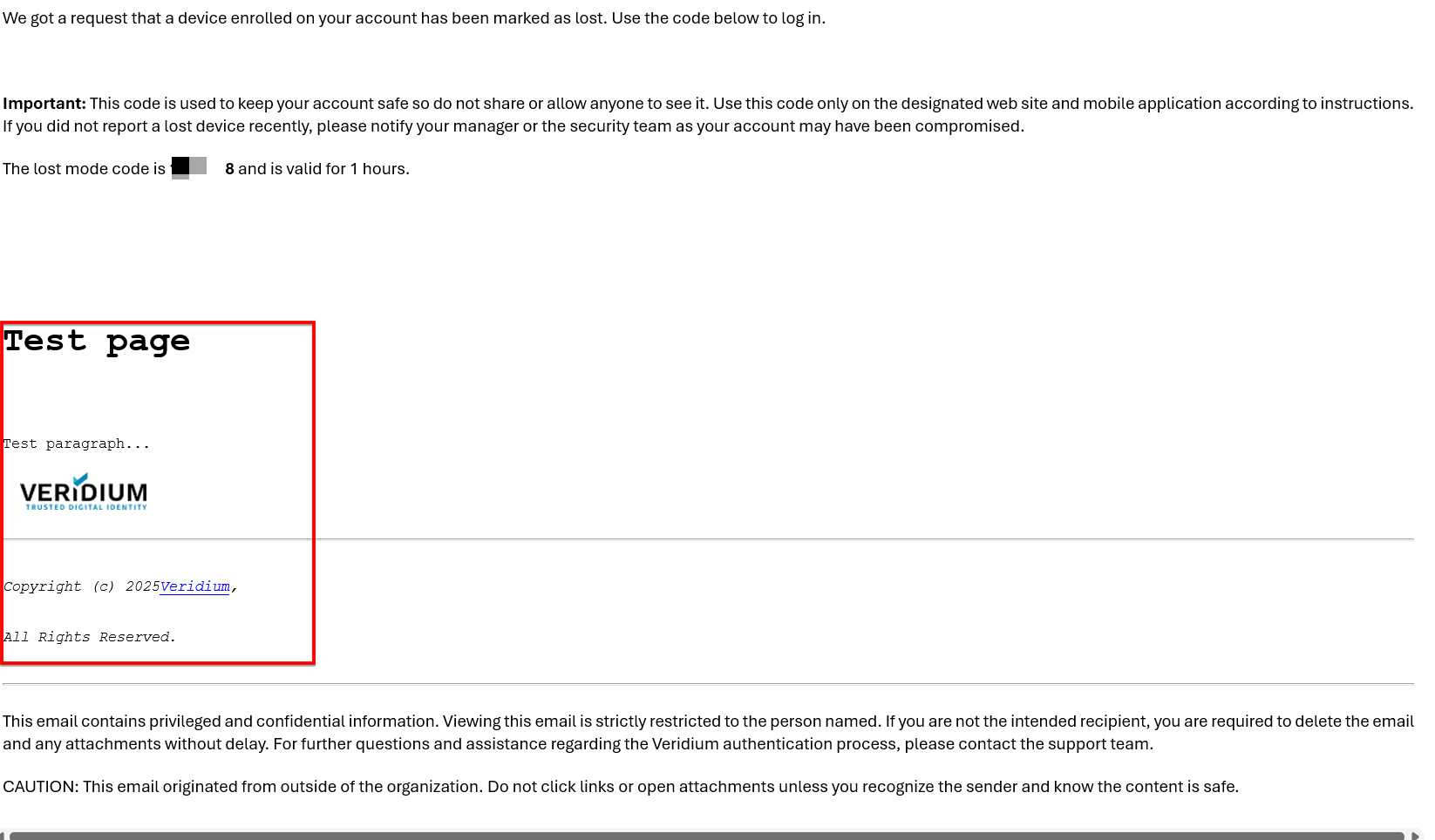
Below is a sample HTML block that displays regular formatting samples inside an email template - such as font control,, paragraph markup and image insertions.HTML<html> <head> <title>Test Template Demo</title> </head> <body> <h1>Test page</h1> <p>Test paragraph... <img src="https://docs.veridiumid.com/__assets-12b7f037-8432-444f-b666-2ec4549e2b11/image/veridium-logo-color%20-%20Copy25.png" alt="Pt IonutD"> <hr> <i> Copyright (c) 2025 <a href="https://www.VeridiumID.com">Veridium</a>, <br> All Rights Reserved. </i> </body> </html>For example, integrating this block in the LOST_MODE_EMAIL template will make it look like this:
Do not forget to Validate Body and Save.