

Description
VeridiumID requires a connection to an user repository in order to be able to enroll and authenticate users. This article will provide a step by step procedure for configuring LDAP connection used to interrogate the user repository and how to debug the most common issue with said configuration.
Configuring the LDAP connection
In this section all existing methods to configuring a LDAP connection will be presented.
All methods will be done using VeridiumID’s Administration dashboard.
1) Configuring the default LDAP connection using the ‘Quick Actions’ tab
Connect to the Administration Dashboard and click the Quick actions button in the right side of the screen.

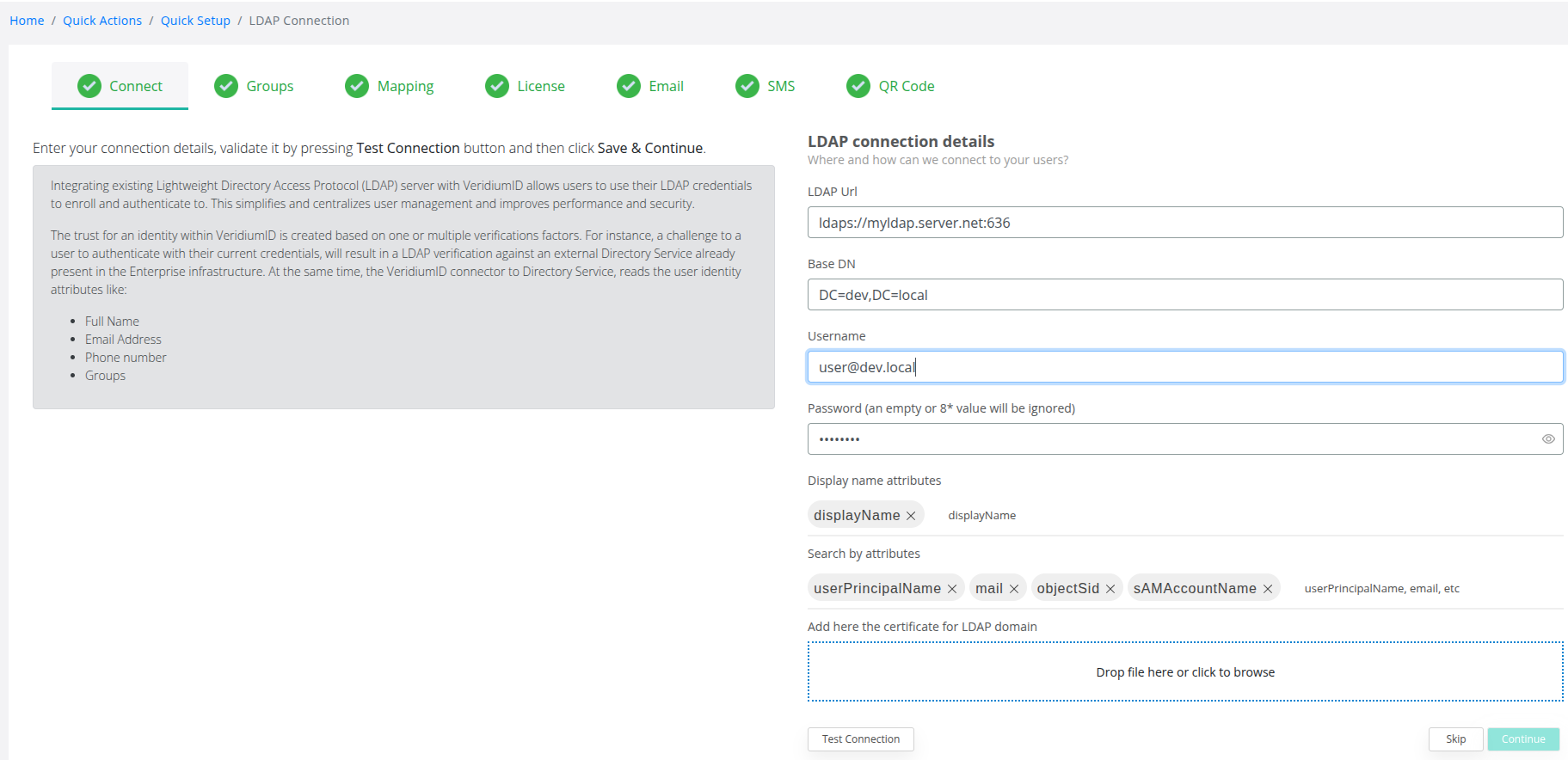
In the Connect section the user will have to configure the following values:
-
LDAP Url: The URL used to connect to the LDAP server preceded by the protocol (ldap/ldaps) and ending with the port (389/636 - default ports or 3268/3269 - Global catalog ports). In case of having multiple LDAP servers that provide the same user repository, the user can add all existing URLs delimited by spaces, for example: ldaps://server1.ldap:636 ldaps://server2.ldap:636
-
Base DN: The Base Distinguished Name is the starting point for directory searches
-
Username: The user that will be used to search in the LDAP server (it requires only ‘read’ permissions)
-
Password: The password configured for the username
-
Display name attributes: Which attributes will be used to display the user names in the Dashboard (default value: displayName)
-
Search by attributes: User attributes that will be used to create user queries
-
Ldap domain certificate: In case of using FQDN instead of an IP address for LDAP URL, the public certificate of the domain certificate will need to be added into VeridiumID server’s internal truststore.
To test the connection after configuring all required values press the Test Connection button.
This method will only configure the main (default) LDAP connection.
2) Configuring LDAP connections from the ‘Settings’ tab
Connect to the Administration Dashboard and navigate to Settings → Services → LDAP
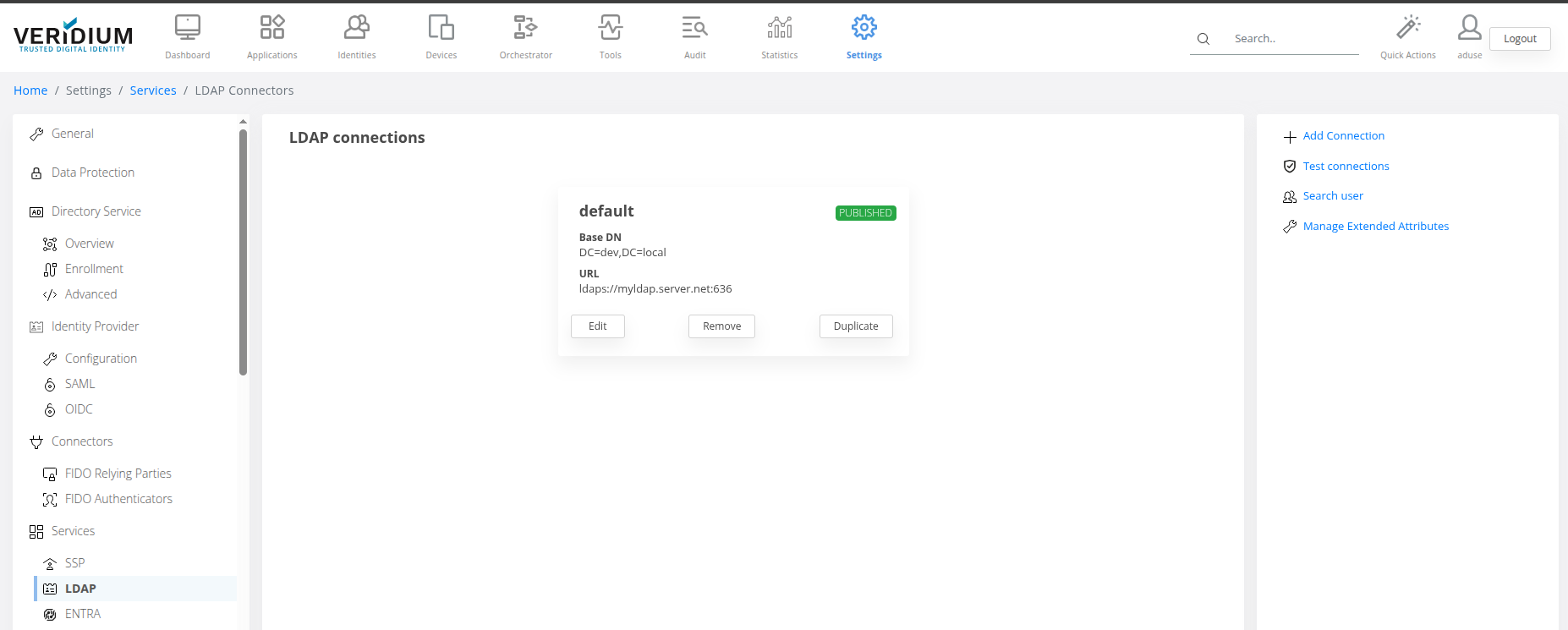
To configure an existing LDAP connection press on the Edit button of that connection.
To create a new connection use the Duplicate button in order to make a copy of the current connection alongside existing attributes used for the connection.
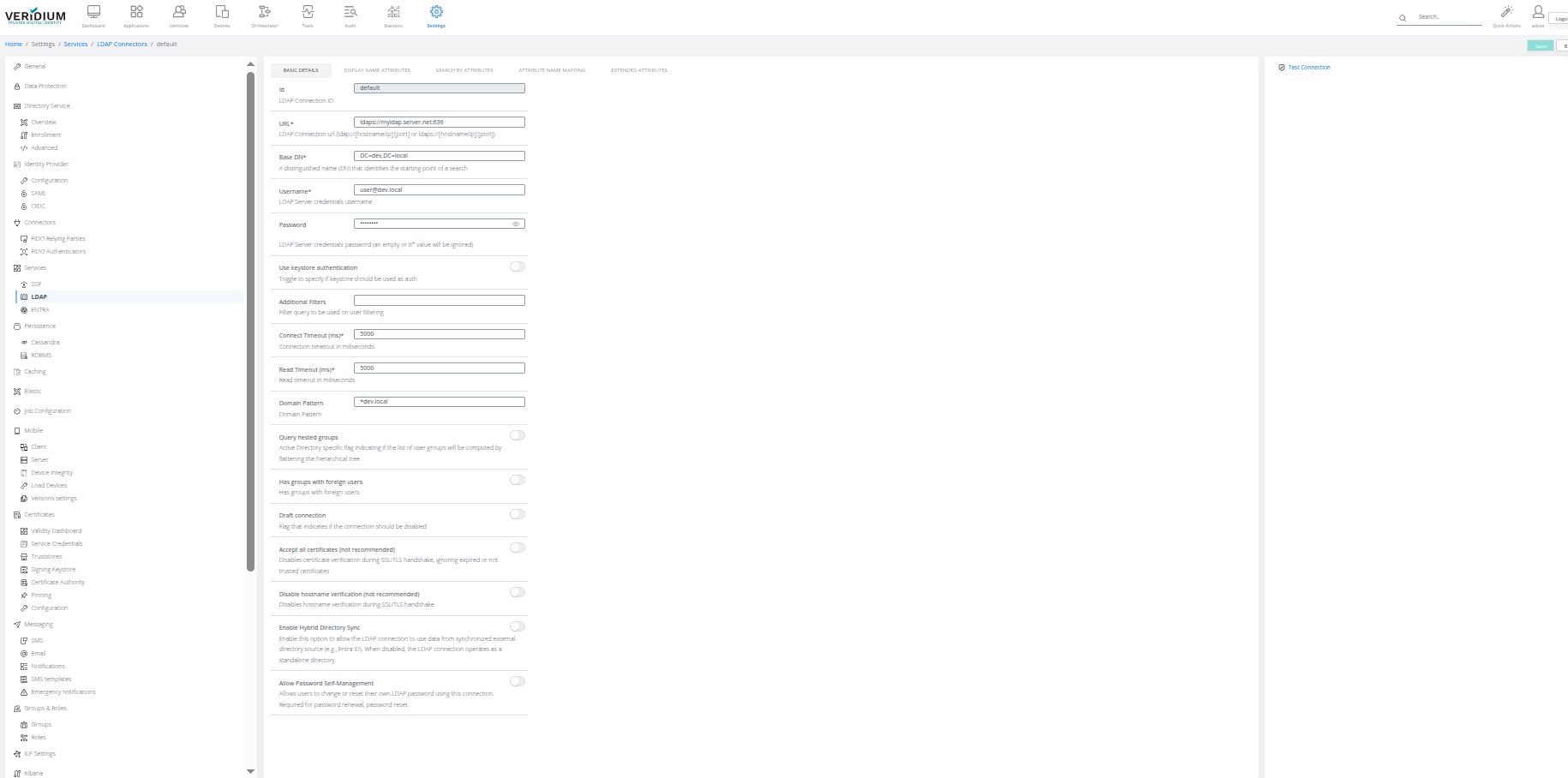
In this section the same values will be configured as in the previous method.
To test the current connection click on Test Connection from the right side of the screen.
To save the connection click on the Save button from the top right side of the screen.