
-
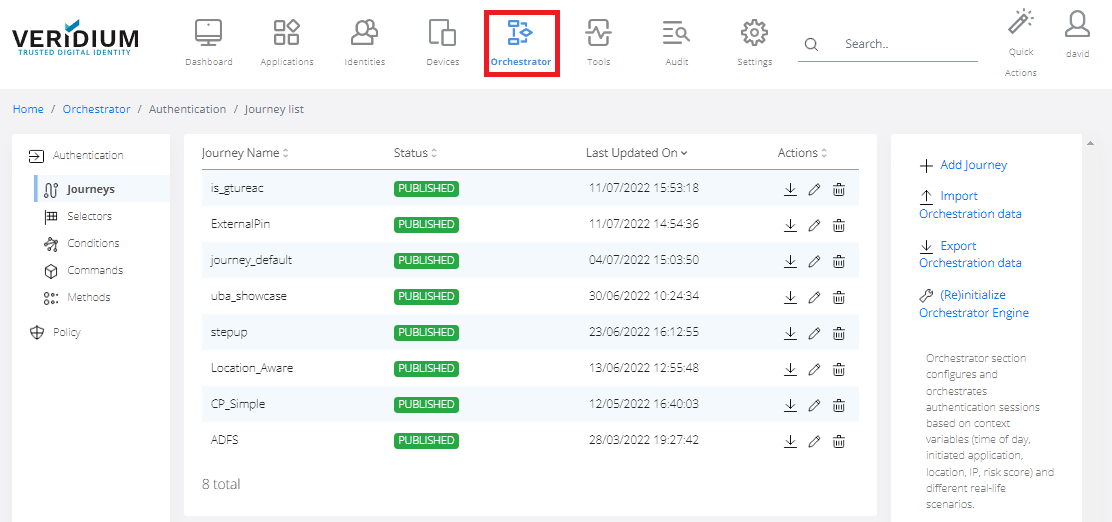
In Veridium Manager, click Orchestrator on top navigation. The list of existing journeys is displayed.
-
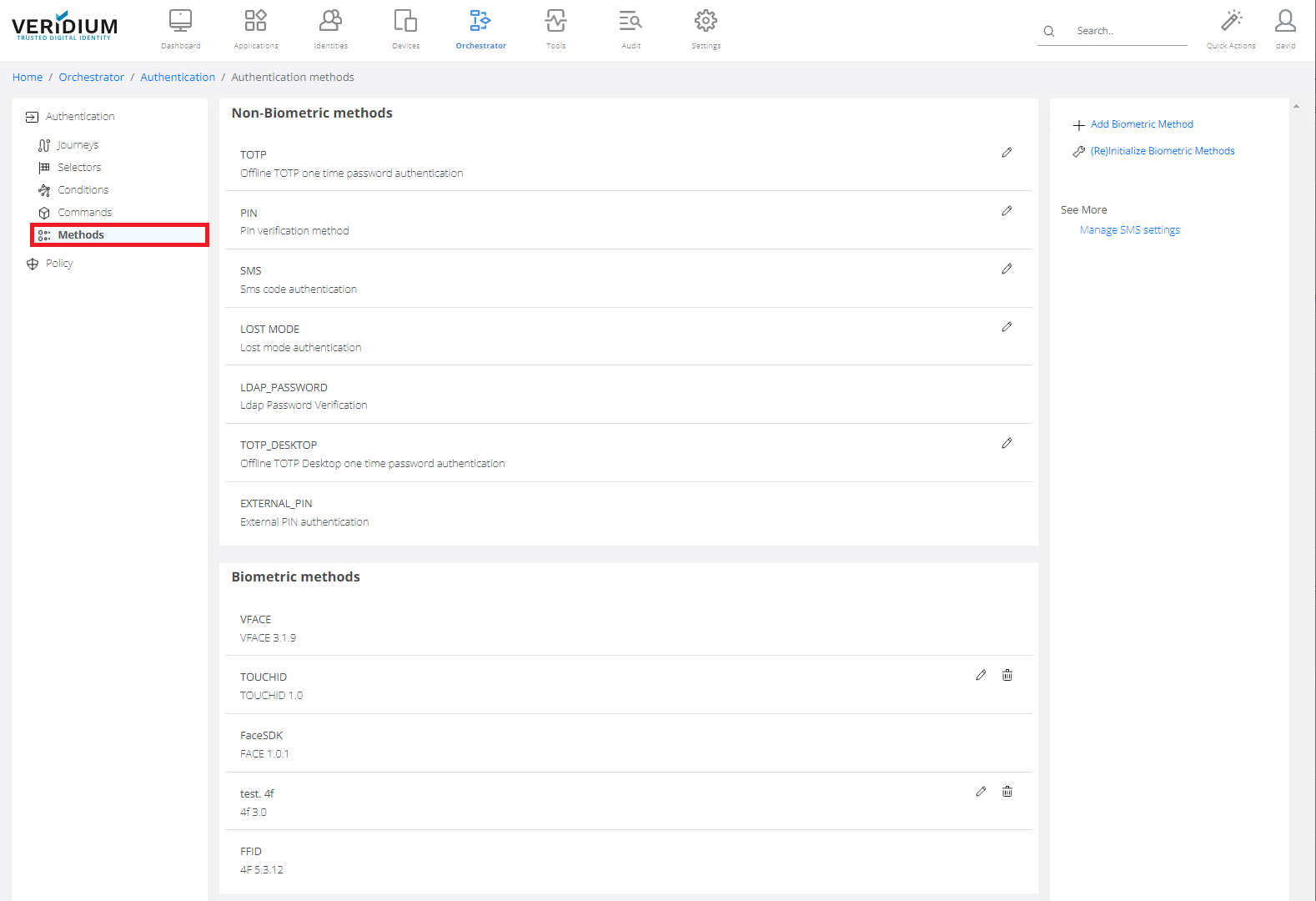
Click Methods on the left-side container.
-
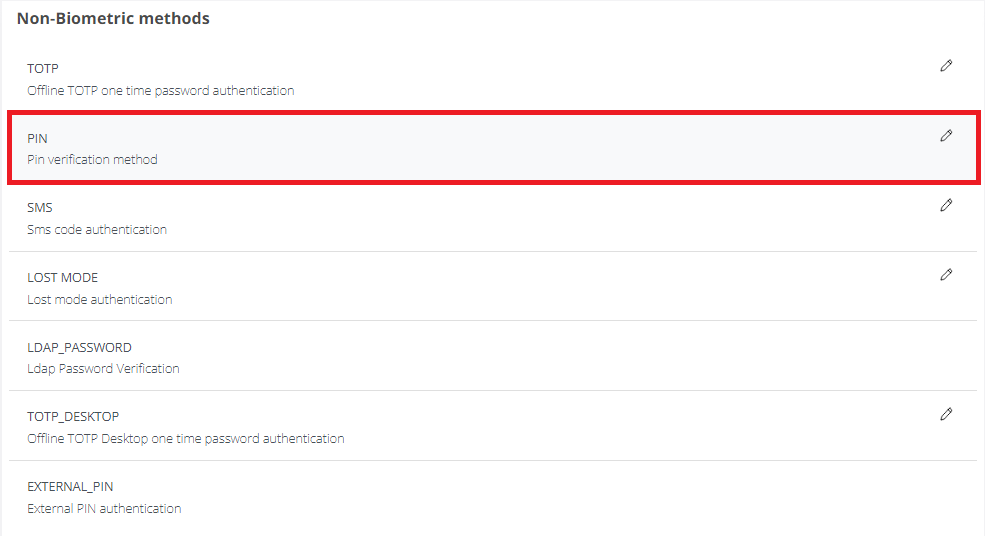
Double-click on PIN.
-
Options tab. PIN length: PIN length.
PIN Validity: Number of days the PIN is valid. Value 0 means pin never expires. Negative numbers mean pin is always considered expired (used mainly for testing purposes)
Extra authentication allowed after expiry: 50. When PIN is expired, how many times user can still logon with old/expired PIN.
Validation with blacklist: Default setting is not enabled. Blacklist contains most common PINs, like 123456, 000000, etc.
Validation with user pin history: Default setting is not enabled. When PIN change, user must enter new PIN not used in the past.
History Size: 1 - how many PINs are checked in the history.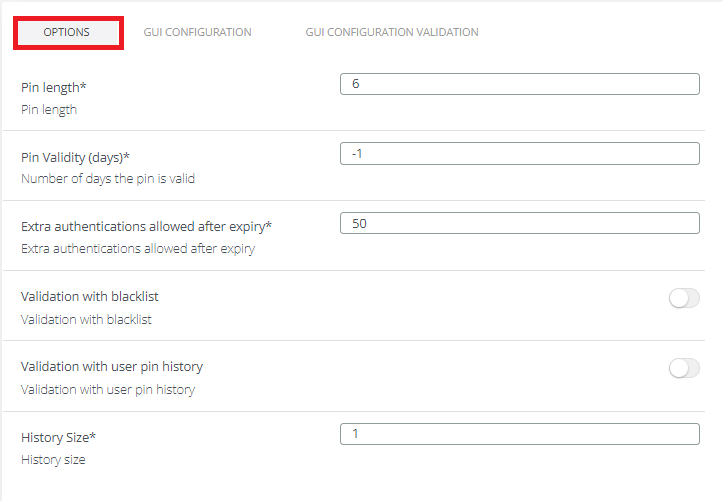
-
GUI Configuration tab.
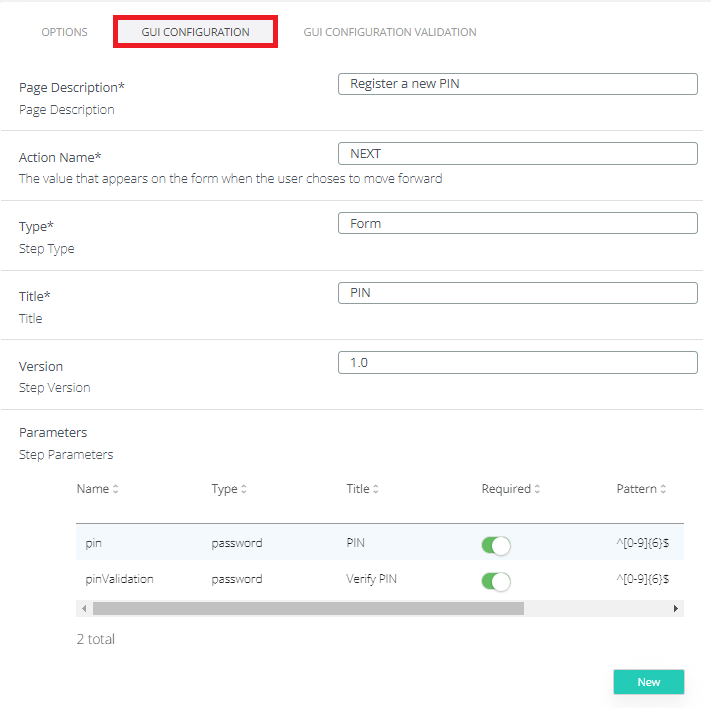
Values in the form are used in PIN registration process in SSP and Shibboleth.
-
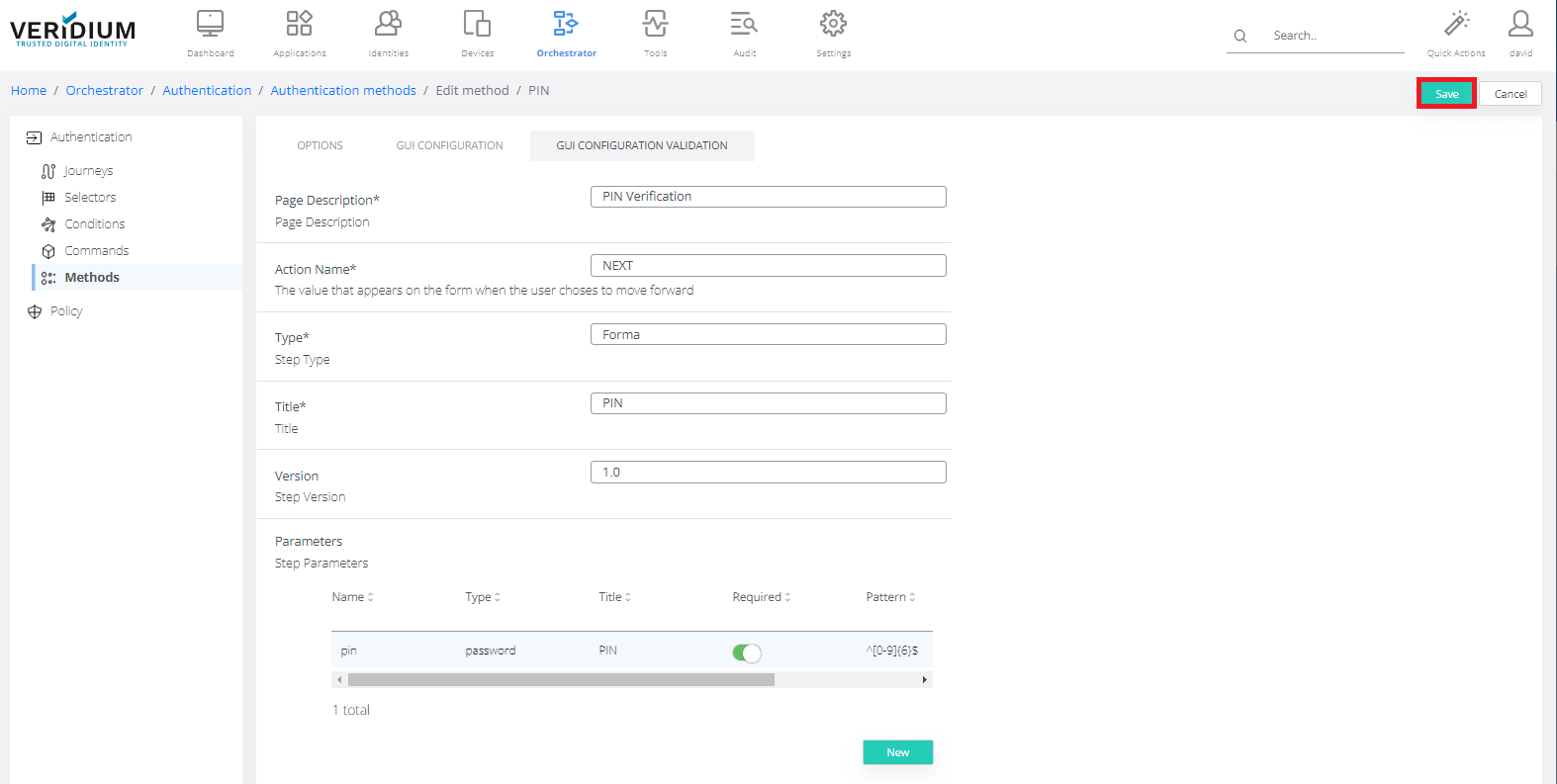
GUI Configuration Validation tab.
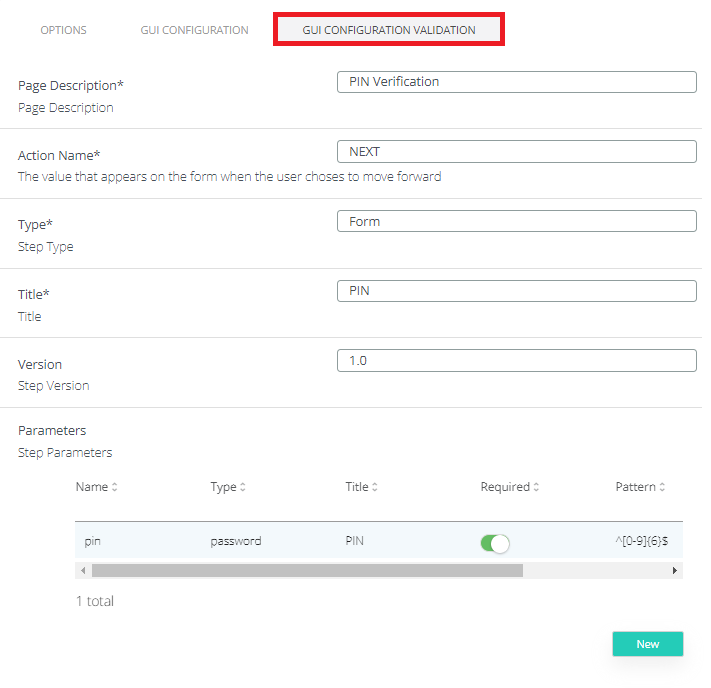
Values in the form are used in PIN verification process in Shibboleth.
-
Click Save.