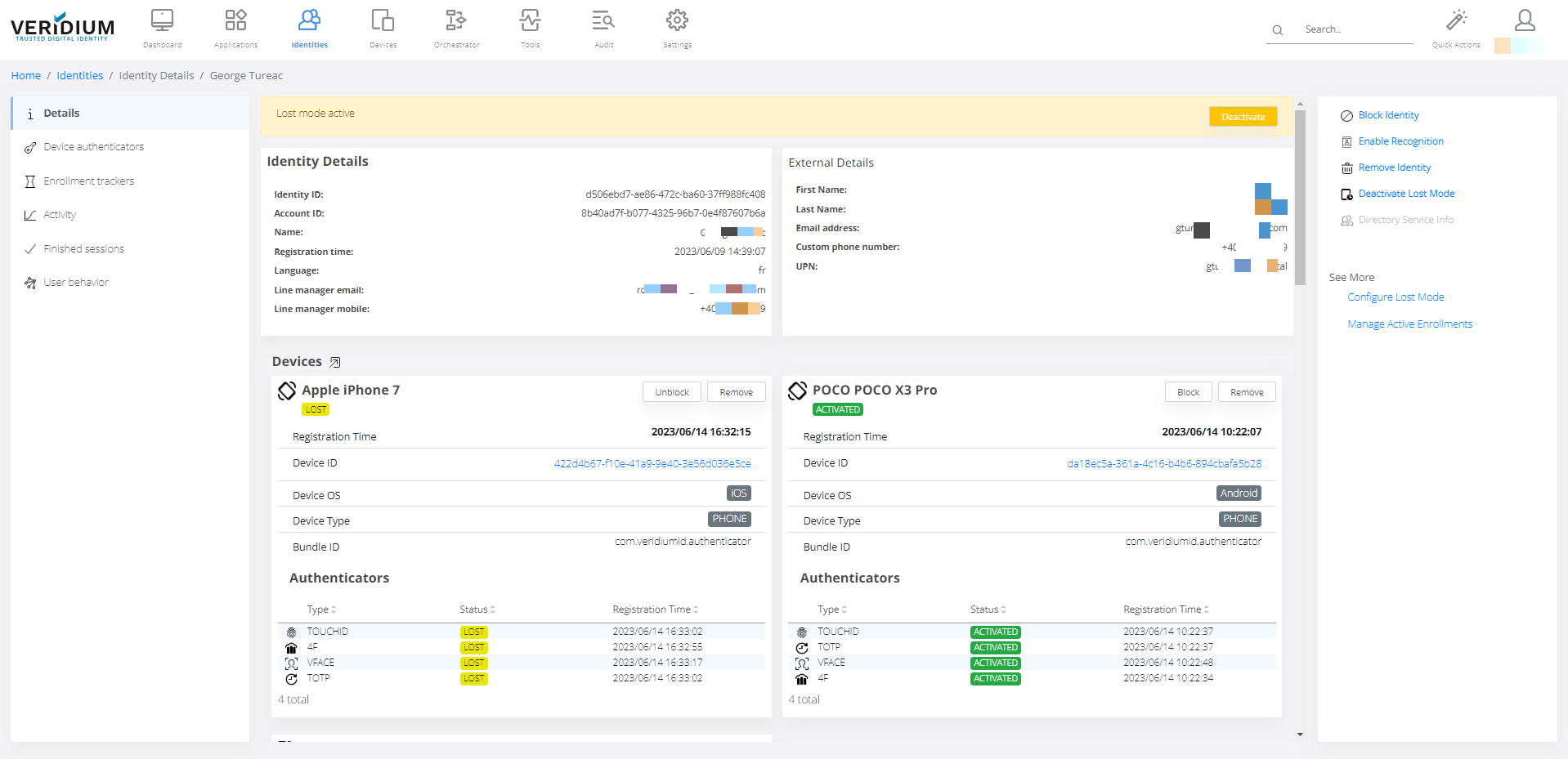

Activate Lost Mode is used when a user (identity) has lost one authenticator. In order to restrict possible use of unwanted user, the authenticator can be marked as lost.
-
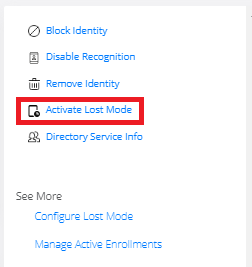
Click on Activate Lost Mode.
-
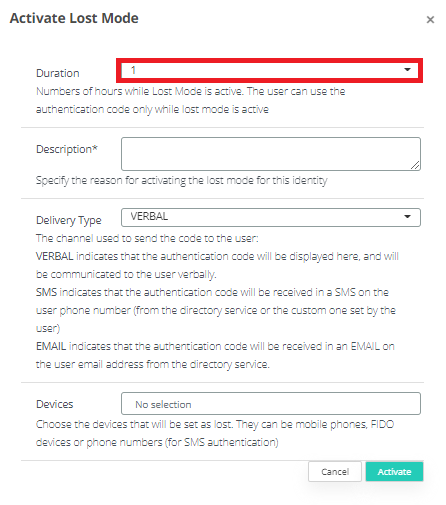
Choose the Duration of Lost Mode.
-
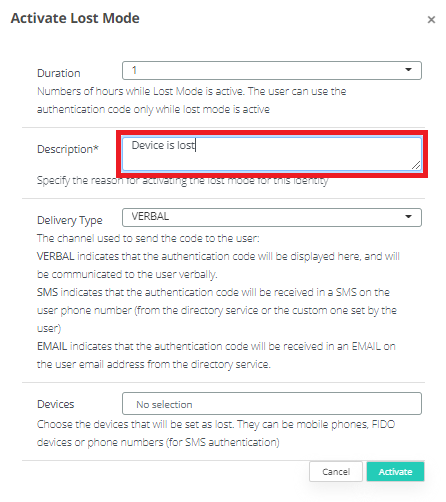
Type Description why do you want to activate Lost Mode.
-
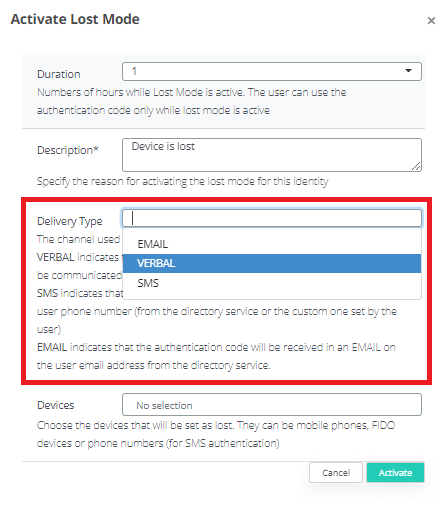
Select Delivery Type. Selecting SMS or email Email means the authentication code will be sent to the inserted phone no/email; and Verbal means the code will appear in Admin Console and needs to be sent to the user.
-
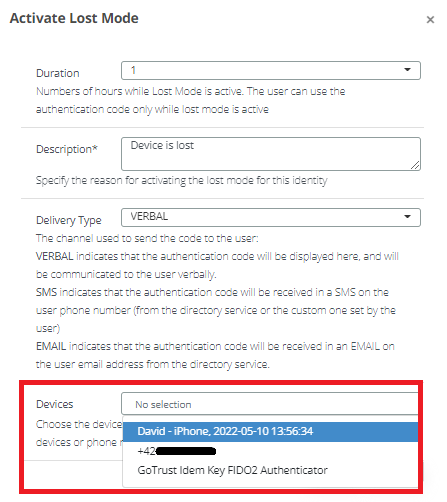
Choose Device that you want to activate Lost Mode on.
-
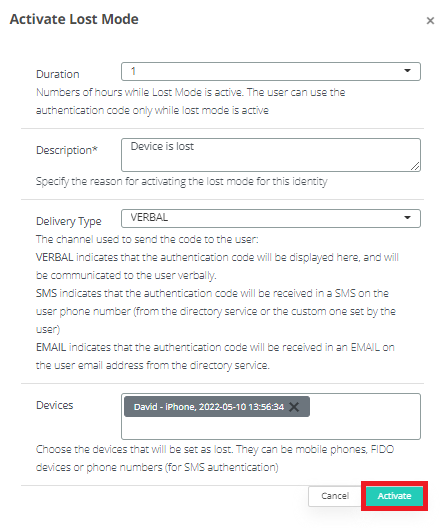
Click Activate.
-
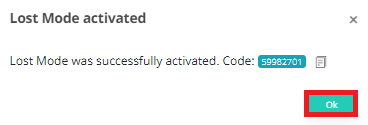
If you selected VERBAL, this is how Code is shown, click OK.
-
Device is marked as lost.