

Certificate Based Authentication is integrated in the Veridium Orchestrator and may be used as an alternative for SPNEGO/Kerberos authentication providing enhanced configuration and flexibility of the authentication workflow.
Overview
CBA requires client certificate validation during the TLS connection and this should be configured on the service that provides SSL termination. The client certificate should be forwarded in base64 encoding using the X-SSL-Client-Der to the IdP connector.
Since the every browser will reuse the TLS connections if already setup, new IdP endpoints may be required to provide optional certificate validation. We recommend to use distinct connectors/hostnames to integrate for certificate based authentication to enforce certificate validation on the SSL Termination service. (if the idp is set on https://idp.veridiumid.local we may set the CBA service on https://cert.idp.veridiumid.local)
Server Configuration
Using Veridium Manager admin dashboard:
Parameters detailed above in the configuration file have a GUI controller also, found in Settings / Identity Provider / Configuration / Authentication tab:
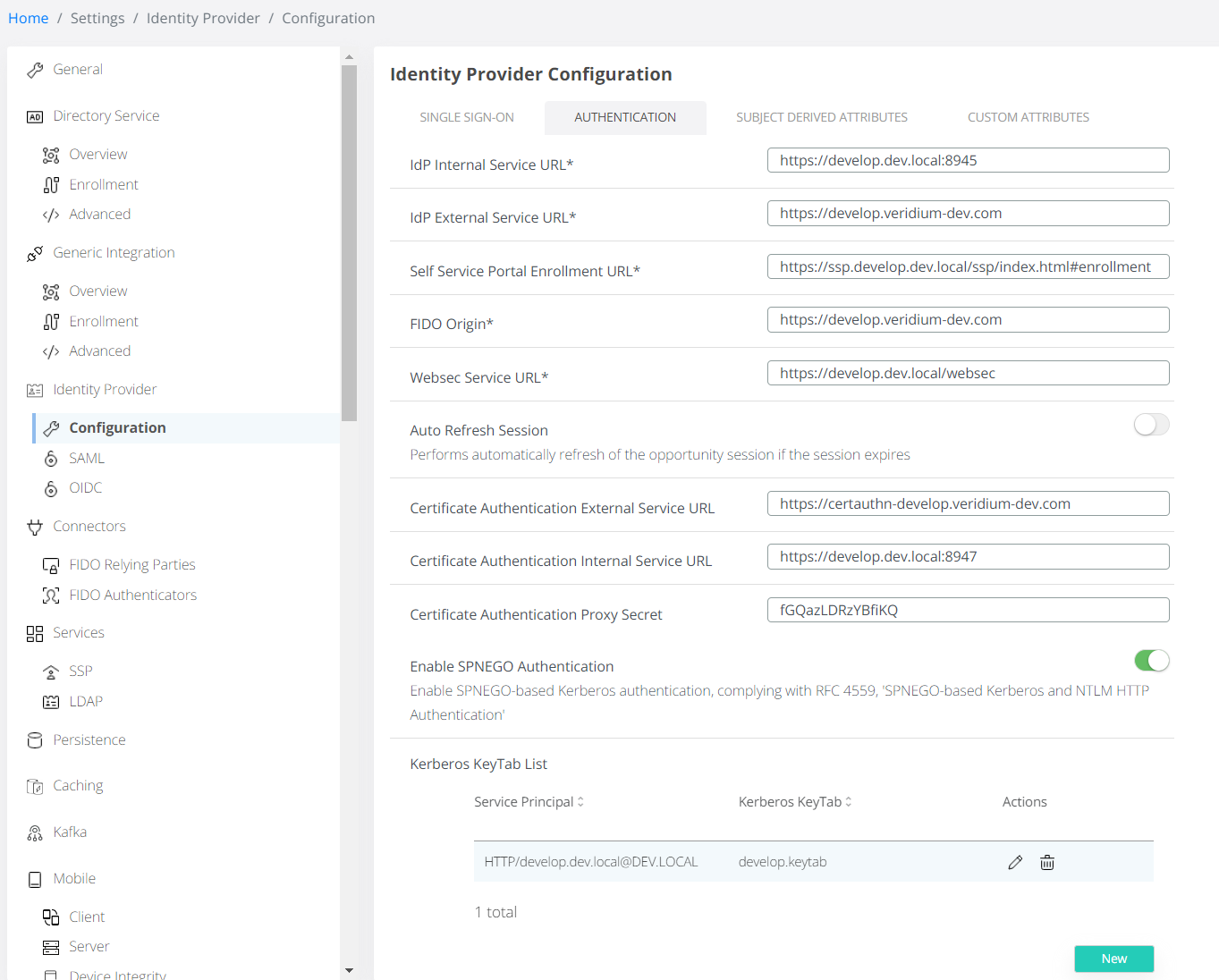
Authentication Method Configuration
Configure Certificate Authorities
In Veridium Manager navigate to Orchestrator / Authentication / Methods / Certificate and setup the following fields. Please add all CA certificates in the chain.
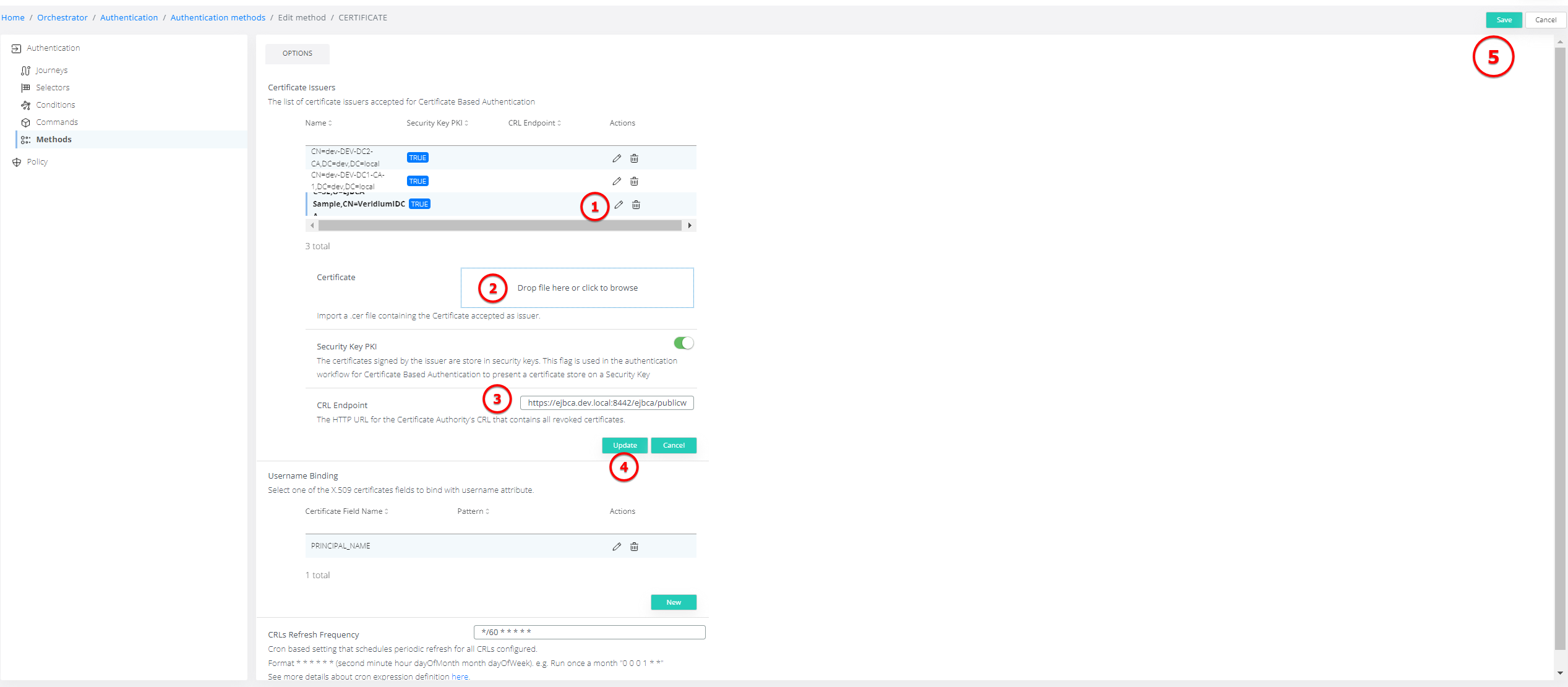
Publish Certificates to Nodes
-
After saving, click Publish CA Certificates to Nodes.
-
This action will:
-
Copy the configured CA certificates to all WebApp services.
-
Restart the HAProxy service on each node to apply the new configuration.
-
Verify Deployment Status
-
Navigate to:
Tools → Nodes
-
Check the execution status of the changeCbaCertificate operation.
-
Verify that the operation completed successfully on all nodes.
Certificate Issuer
-
PEM encoded Certificate Issuer of the User Certificates.
-
Security Key PKI - configures if the issuer is used for certificates stored on the Security Keys for Certificate Based Authentication. This flag allows the Veridium Authenticator to be used for authentication and use a security key for completion (e.g. Yubikey with PIV configured)
-
CRL Path - the CRL path URI used for certificate revocation. Only HTTP(S) is supported. The CRL server certificates must be imported in the Veridium Truststore.
Username Binding
Provides binding between the certificate field and the username. The username will be used further for identity lookup in the configured Directory Service. We recommend to use Principal Name or RFC822 Name
-
Principal Name - extract from Subject Alternative Names from the Other Name field. In general this is configured in the PKI to user principal name.
-
RFC822 Name - extract from Subject Alternative Names using RFC822 Name field. In general this is configured in the PKI to email address of the user.
-
Subject- extract from the certificate’s Subject field. Also a pattern (Regular Expression) to extract the username (e.g.
CN=([^,\\\\/]+).
CRLs Refresh Frequency
The CRLs are cached in Veridium Datalayer and are used during the authentication to validate the certificate revocation status. This filed allows configuration for the refresh intervals.
-
Change of CRL cache refresh frequency requires either application restart for websecadmin service. If the CRL cache refresh frequency is already configured, the new frequency is taken into consideration for the next cache refresh execution.
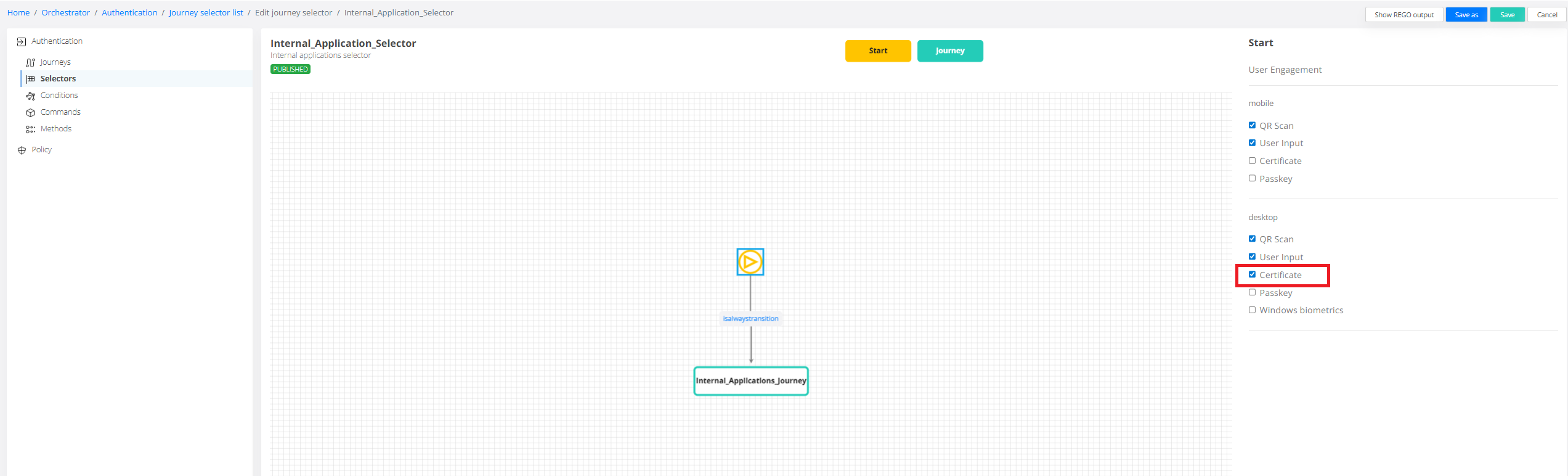
Set in Selector to be prompted from Certificate:
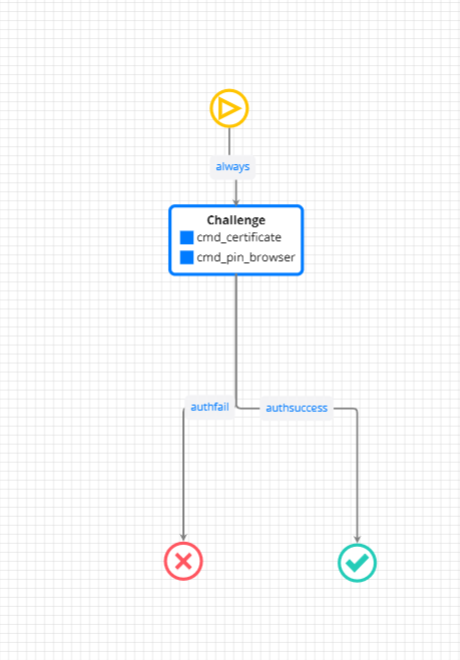
Also add certificate authentication Commands in the journey.
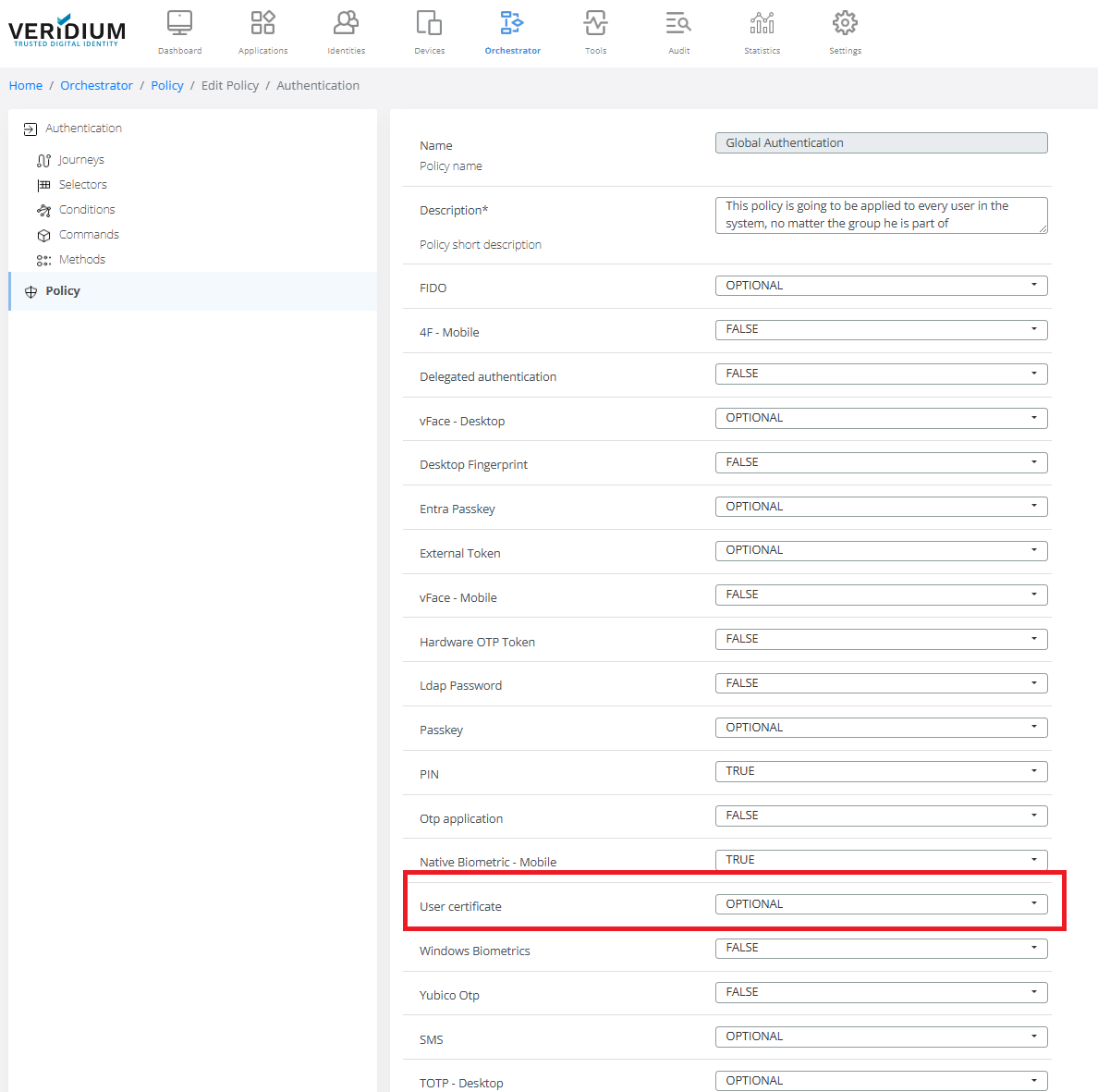
Enable in policy the User certificate to OPTIONAL or to TRUE.
Orchestration
Certificate Based Authentication may be used at any time in the authentication workflow as single factor or as a second factor in an MFA journey. Based on this the following configuration orchestrator configuration were introduced:
CBA as single/first factor
When using CBA as Single Factor or as First Factor, the Veridium Orchestrator Selector has now the option to use Certificate as User Engagement. Also in the Journey, the first challenge should contain certificate method.
Auto select client certificate policy
For Chrome:
https://chromeenterprise.google/policies/?policy=AutoSelectCertificateForUrls
example:
set AutoSelectCertificateForUrls

##Applies to all users on the computer.Requires Administrator privileges to create or modify
reg add "HKLM\SOFTWARE\Policies\Google\Chrome\AutoSelectCertificateForUrls" /v 1 /t REG_SZ /d "{\"pattern\":\"https://*\",\"filter\":{}}" /f
##Applies only to the currently logged-in user.Does not require Administrator privileges.
reg add "HKCU\SOFTWARE\Policies\Google\Chrome\AutoSelectCertificateForUrls" /v 1 /t REG_SZ /d "{\"pattern\":\"https://*\",\"filter\":{}}" /f

## remove the applied rules
Remove-ItemProperty -Path "HKLM:\SOFTWARE\Policies\Google\Chrome" -Name "AutoSelectCertificateForUrls" -ErrorAction SilentlyContinue

Remove-ItemProperty -Path "HKCU:\SOFTWARE\Policies\Google\Chrome" -Name "AutoSelectCertificateForUrls" -ErrorAction SilentlyContinue
For firefox:
about:config
-> network.cors_preflight.allow_client_cert -> true.
-> security.default_personal_cert -> Select Automatically
Auto select client certificate policy for Citrix Workspace (double hop scenario)
-
Open regedit and navigate to Computer\HKEY_LOCAL_MACHINE\SOFTWARE\Policies\Microsoft\
-
A key called Edge should be present. If it’s not, then create it.
-
Under Computer\HKEY_LOCAL_MACHINE\SOFTWARE\Policies\Microsoft\Edge create a new key called WebView2
-
Under Computer\HKEY_LOCAL_MACHINE\SOFTWARE\Policies\Microsoft\Edge\WebView2 create a new key called AutoSelectCertificateForUrls
-
Under Computer\HKEY_LOCAL_MACHINE\SOFTWARE\Policies\Microsoft\Edge\WebView2\AutoSelectCertificateForUrls create a String entry called 1 and set its value to either "{"pattern":"IDP_FQDN","filter":{"ISSUER":{"CN":"<CA_NAME>", "DC": "<domain>", "DC": "<local>"}}}" or "{"pattern":"IDP_FQDN","filter":{"ISSUER":{"CN":"CA_NAME"}}}" - replace CA_NAME with the issuer of the certificate used for login and IDP_FQDN with the fqdn of the Veridium IDP.
Notes:
by default the CBA is exposed on ports 8947 (internal) or 8946 (external) for Ports implementation or on shib-cert.FQDN for FQDN implementation (see file haproxy.cfg for how it is implemented in Websecamin → Tools → Tenant Configuration → Templates → haproxy.cfg ).
If something the port of FQDN needs to be changed, then haproxy.cfg needs to be changed and applied to nodes.
Troubleshooting Certificate-Based Authentication (CBA)
-
Access the following URL:
https://URL:8947/idp/profile/veridiumid/certAuthn -
Verify whether you are prompted to select a user certificate.
-
If you are prompted for a certificate, the client certificate authentication endpoint is reachable and working.
-
If you are not prompted, one of the following is likely true:
-
No valid user certificate is installed on the workstation.
-
The Certificate Authority (CA) used to issue the certificate is not configured correctly on the server.
-
-
-
Configure the SSP journey to use the Certificate-Based Authentication (CBA) method and test the authentication flow.
-
If authentication does not work:
-
Open the browser's Developer Tools (F12).
-
Go to the Network tab.
-
Check whether the
certAuthnrequest is being invoked.
Results:
-
If the
certAuthnrequest is not triggered, the issue is most likely related to the SSP journey configuration and should be reviewed. -
If the
certAuthnrequest is triggered, continue investigating the request and response details.
-
-
Check for CORS-related errors:
-
Open the browser's Developer Tools and review the Console tab.
-
Look for any CORS error messages.
If CORS errors are present, update the Shibboleth integration configuration by adding the required CORS headers in:
shibboleth/veridium-integration.json -