
The VeridiumID passwordless Windows logon uses the RA (Registration Authority) to issue smart-card-logon certificates for users after VeridiumID has authenticated them biometrically. To do that it acts as an Enrollment Agent on the customer’s Microsoft CA. This process needs two templates: BopsRA and either BopsUser or BopsUserMKSP.
The schematic below offers a high level overview of the entire process.
-
Steps A - B - C show the user computer acquiring a device certificate from the VeridiumID server through the Veridium EP (Enrollment Proxy). This certificate is used to communicate with the VeridiumID server to start new user authentication sessions and to verify they have been successfully completed one the user has performed authentication using the Veridium Authenicator phone app.
-
Steps 1 through 8 show the user login process using certificates built using the BopsUser and BopsRA certificate templates.
BopsRA template
The BopsRA template lets the Veridium Registration Authority request login certificates on behalf of Active Directory users. It is a duplicate of the default ADCS Enrollment Agent (Computer) template and enrolls a certificate into the RA server’s Personal store.
BopsUserMKSP template
Either the BopsUser or the BopsUserMKSP template are used to generate user certificates used to login to Active Directory without requiring a user password. The RA signs the requests using it’s BopsRA certificate.
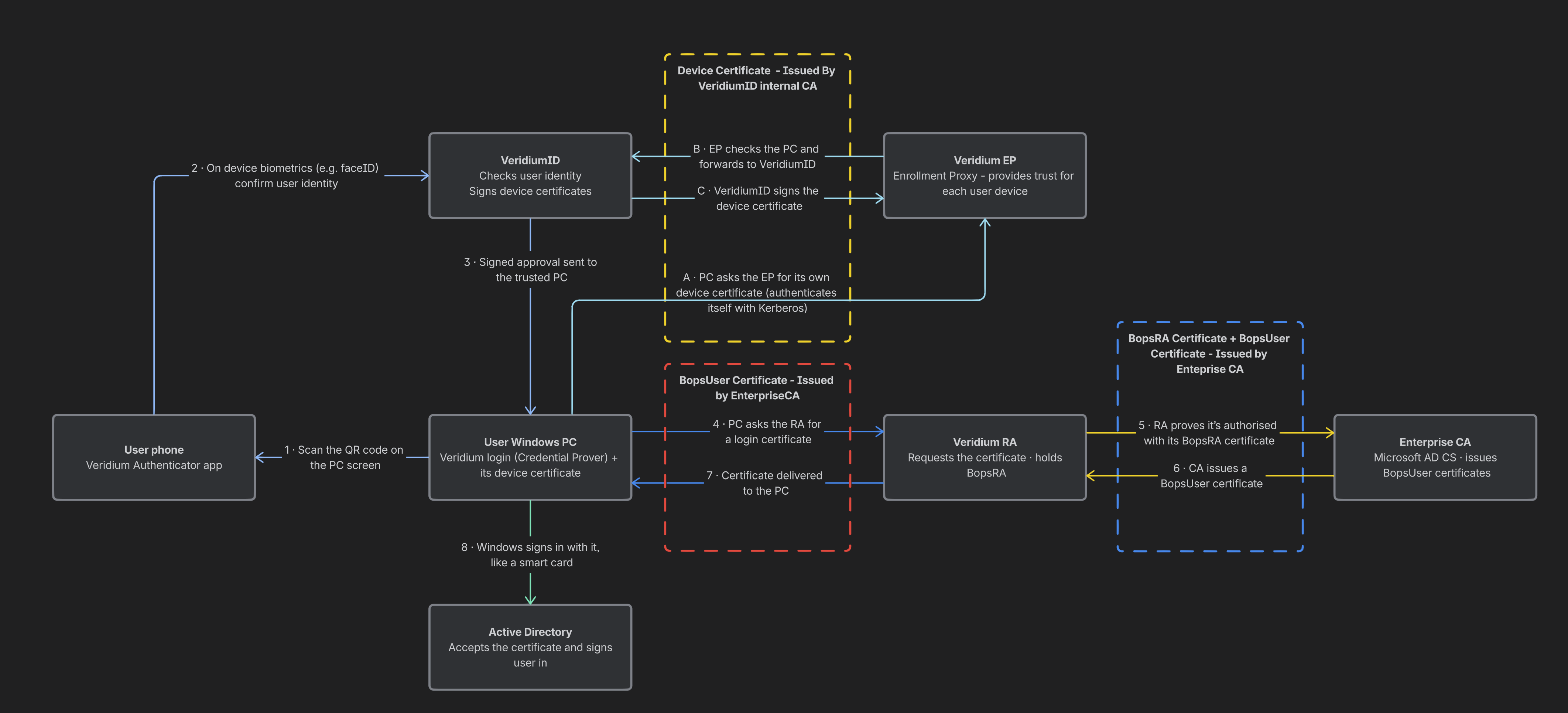
VeridiumID Passwordless Windows Logon Process
-
Once the user has selected VeridiumID authentication at the Windows login screen, the Veridium Credentials Provider (CP) starts a new authentication session. The user scans the QR code with the Veridium Authenticator app
-
The app performs on-device biometrics to confirm the user’s identity
-
The VeridiumID server confirms the session is valid to the Windows PC.
-
The Veridium CP on the user’s PC forwards the VeridiumID JWT token issued after the previous biometrics authenticaton to the Veridium Registration Authority (RA).
-
The RA checks the JWT is valid and creates a key pair and a CSR signed with it’s BopsRA enrollment agent certificate. It forwards this request to the Enterprise CA (ADCS).
-
The EnterpriseCA checks the request and issues the BopsUser certificate that is sent to the VeridiumRA.
-
The RA packs the certificate in a P12 and optionally stores it in it’s encrypted cache for faster subsequent logins. It then sends it back to the CP.
-
The CP imports the certificate to the User’s personal store and presents it to the AD Domain Controller for user login.