
The BopsUserMSKSP is used to generate the user certificates that can log a user into his Windows workstation without a password. It stores the certificate’s key in the MSKSP (Microsoft Software Key Storage Provider).
Creating and Issuing the BopsUserMSKSP Certificate Template
To manually configure the BopsUserMSKSP template follow these steps:
1. Open Certificate Template Management
-
On the Certificate Authority (CA) server, open Server Manager.
-
Click Tools → Certification Authority.
-
In the CA console, right-click Certificate Templates and select Manage.
-
The full list of certificate templates will appear.
-
2. Duplicate the User Template
-
Locate User in the template list.
-
Right-click it and select Duplicate Template.
3. Configure the New Template
Set the template parameters to match the following screenshots:
-
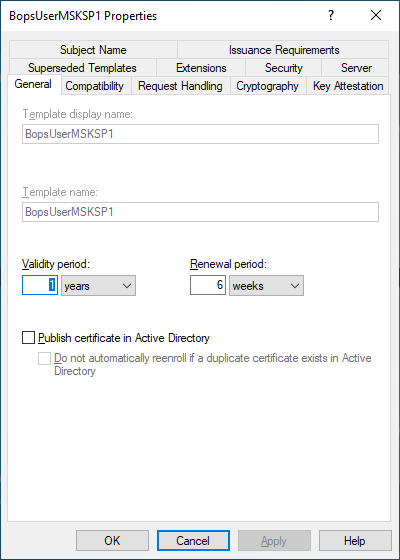
General
-
Validity period: 1 year - how long the certificate lasts
-
Renewal perios: 6 weeks - how long before expiry renewal is allowed
-
Publish certificate in Active Directory: No - there is no need to store the issued certificate on the account’s AD object
-
-
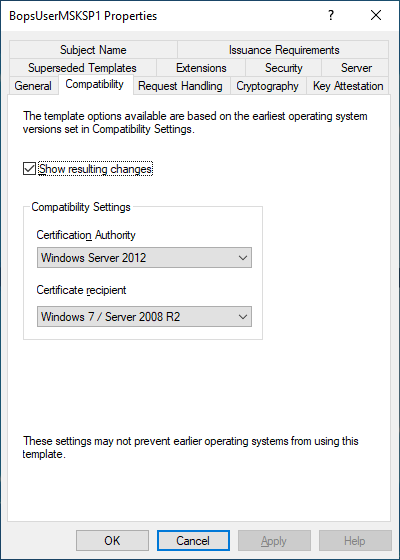
Compatibility
-
Certification Authority: Windows Server 2012
-
Certificate recipient: Windows 7 / Server 2008 R2
-
These settings control which options appear on the other tabs and which schema version the template becomes. Configure these settings exactly, as the RA expects a particular template version.
-
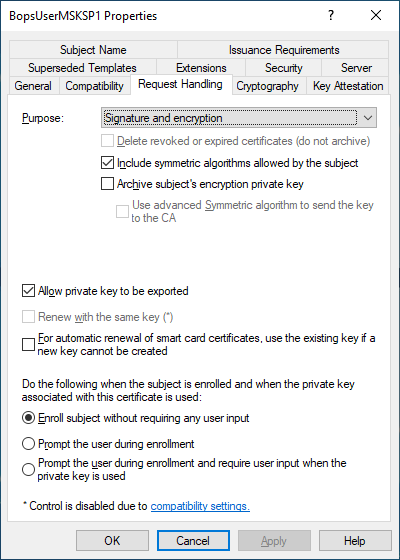
Request Handling
-
Purpose: Signature and encryption
-
Include symmetric algorithms allowed by the subject: Yes
-
Archive subject’s encryption private key: No
-
Allow private key to be exported: Yes
-
For automatic renewal of smart card certificates, use the existing key if a new key cannot be created: No
-
Enroll subject without requiring any user input: Yes
-
-
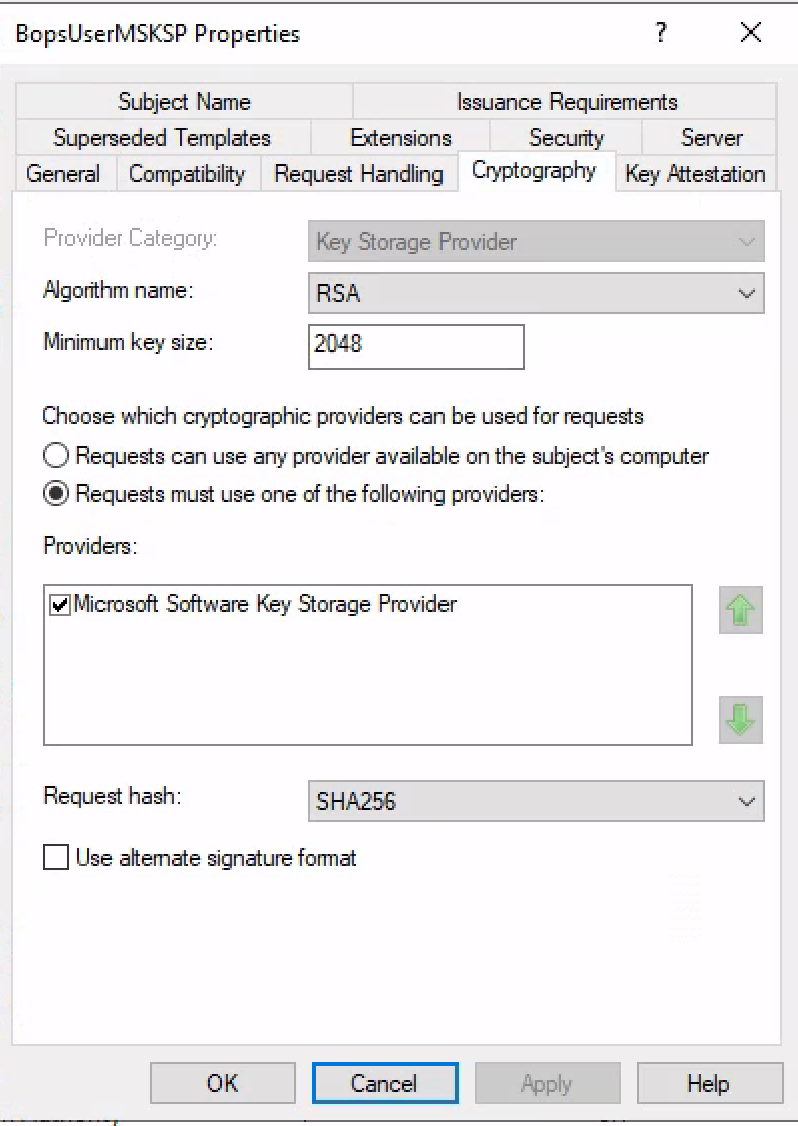
Cryptography
-
Algorithm name: RSA
-
Minimum key size: 2048
-
Requests must use one of the following providers:
-
Microsoft Software Key Storage Provider
-
-
Request hash: SHA256
-
Use alternate signature format: No
-
-
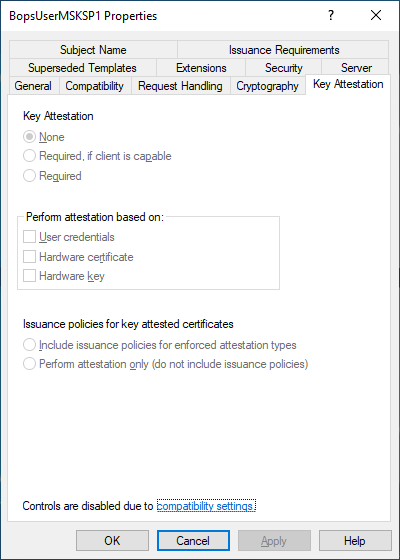
Key Attestation
-
None
-
-
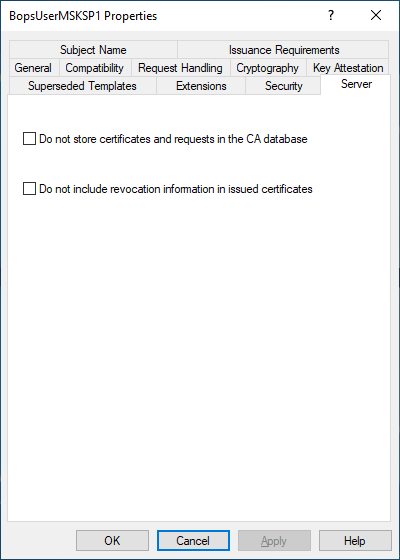
Server
-
Do not store certificagtes and requests in the CA database: No
-
Do not include revocation information in issued certificates: No
-
-
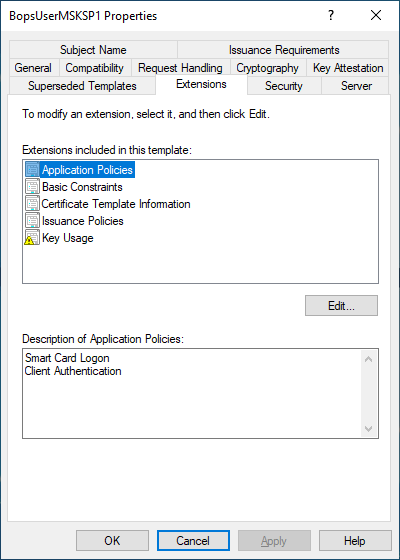
Extensions
-
Application Policies:
-
Smart Card Logon
-
Client Authentication
-
-
-
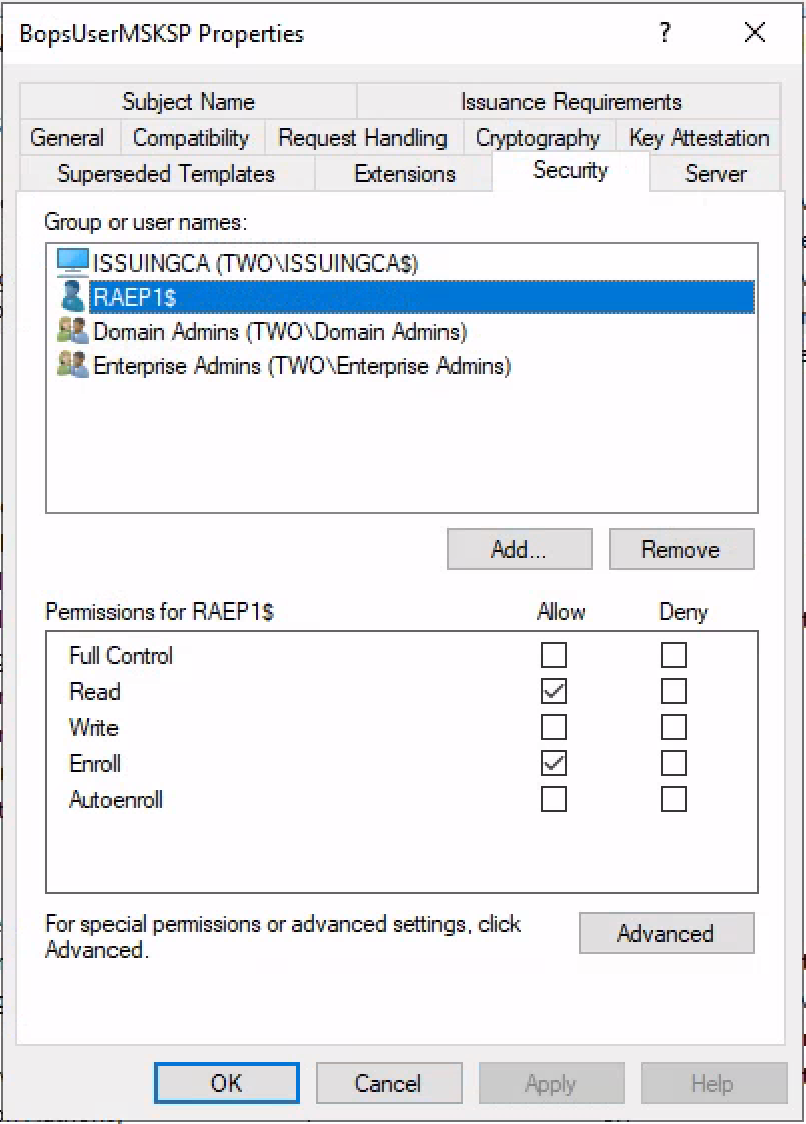
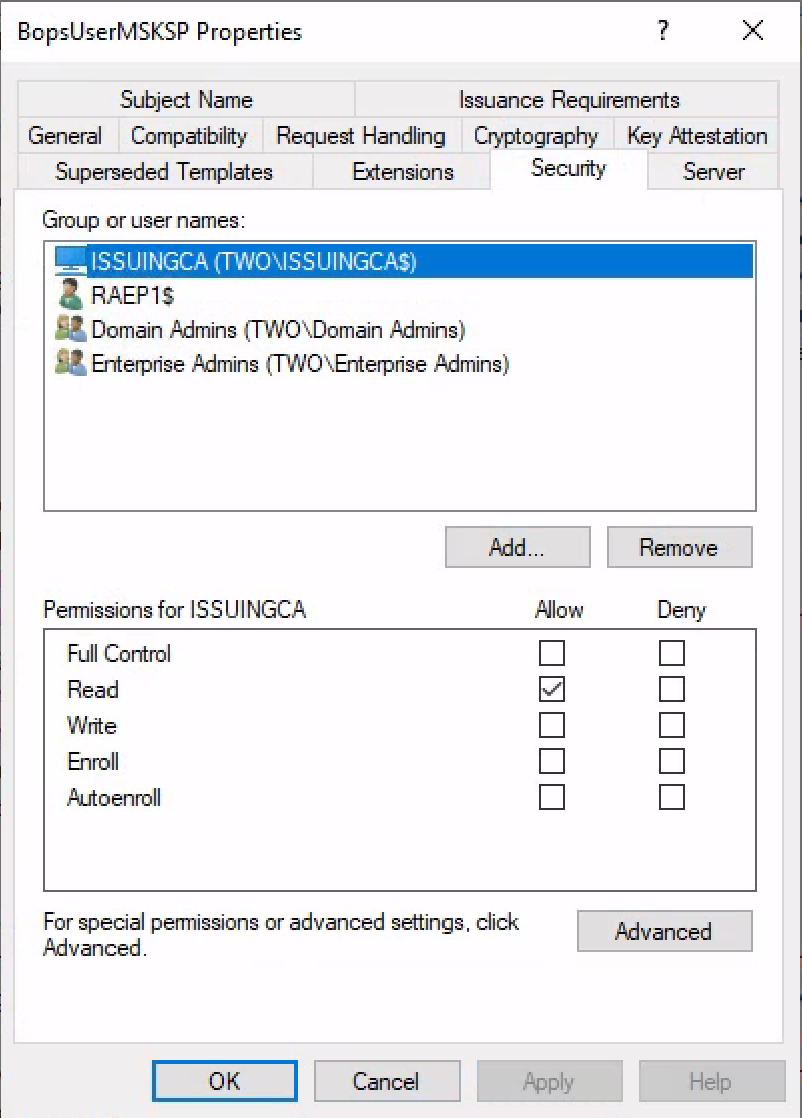
Security
-
Allow only the following security principals:
-
Domain Admins - Full Control
-
Enterprise Admins - Full Control
-
All RA servers - Read, Enroll
-
The issuing certification authority computer account - Read permission
-
For ease of deployment, the administrator account that will perform the RAEP configuration should also have Read permissions at least during setup
-
-
-
-
-
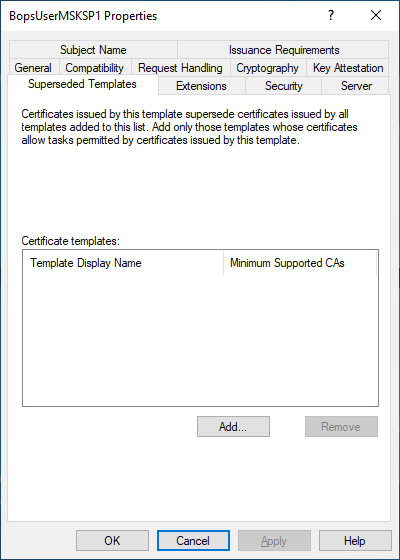
Superseeded Templates
None
-
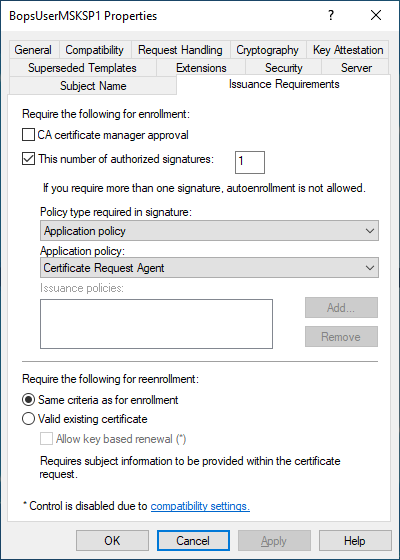
Issuance Requirements
-
This number of authorized signatures: 1
-
Policy type required in signature: Application policy
-
Application policy: Certificate Request Agent
-
Require the following for re-enrollment: Same criteria as for enrollment.
-
-
Subject Name
You can chose either option:
-
If you chose “Supply in the request” there are no special requirements.
-
If you chose “Build from this Active Directory Information” you must also add: <add key=”AddAccountName” value=”true”> in the Veridium RA web.config file. We recommend this option as it is more secure.
-
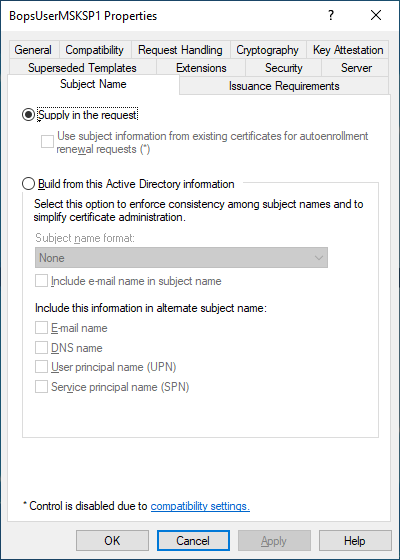
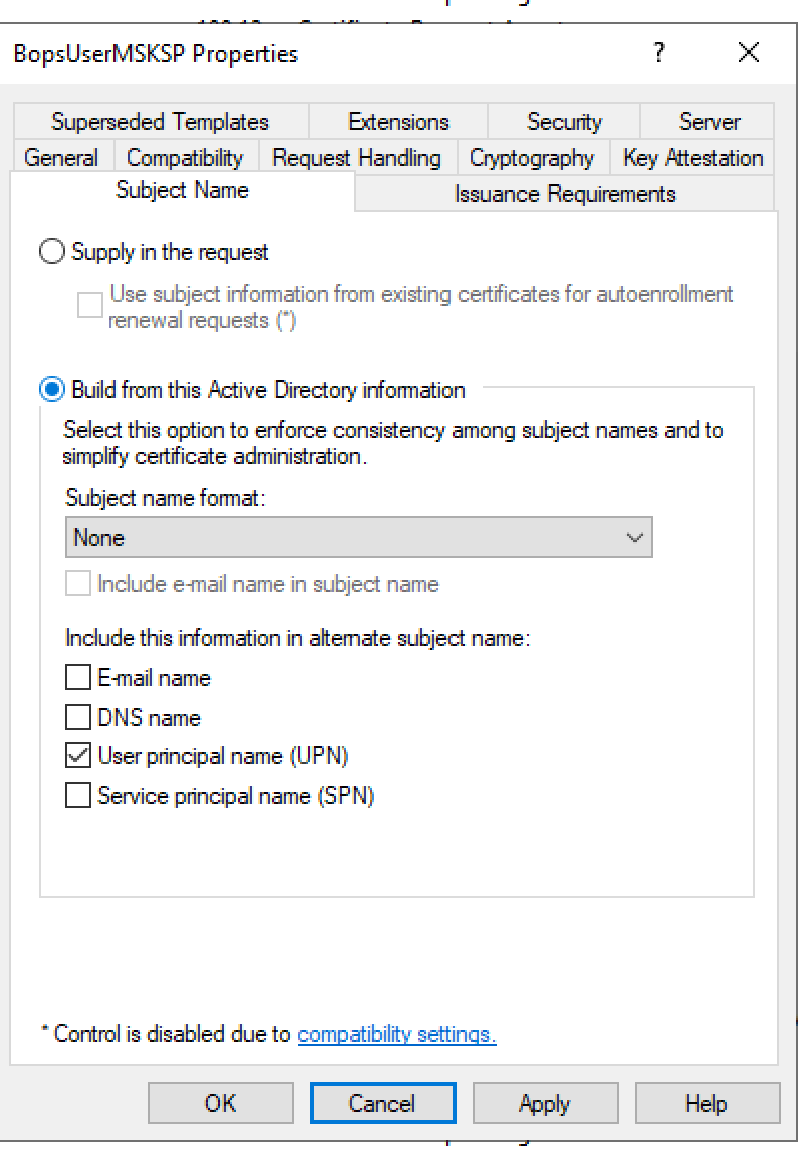
After adjusting all settings, click Apply and close the Certificate Templates Console.
4. Issue the New Template
-
In the CA console, right-click Certificate Templates → New → Certificate Template to Issue.
-
From the list, select BopsUserMSKSP.
-
Click OK.
5. Check Issuing CA present in NTAuth store
Before proceeding please check the Issuing CA used to generate user certificates is present in the NTAuth store: https://docs.veridiumid.com/docs/v3.9.1/ca-cert-present-on-ntauth-store