

Procedure:
-
Login to Server as local administrator and copy VeridiumRAEPx64 version .msi for example VeridiumRAEP_x64_x.x.x.msi
-
Right-click VeridiumRAEP_x64_x.x.x.msi and choose Run as administrator.
-
Follow the installer instructions:
-
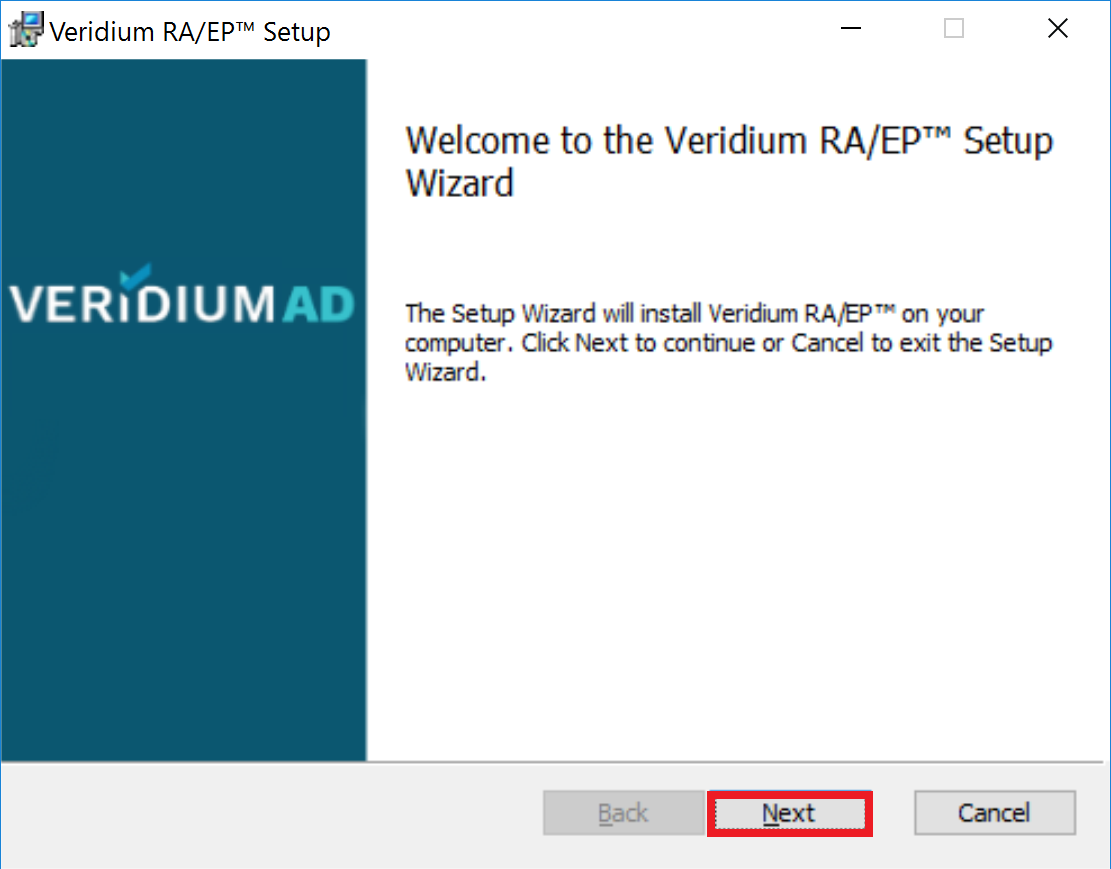
The welcome screen will appear, continue by pressing "Next" button.
-
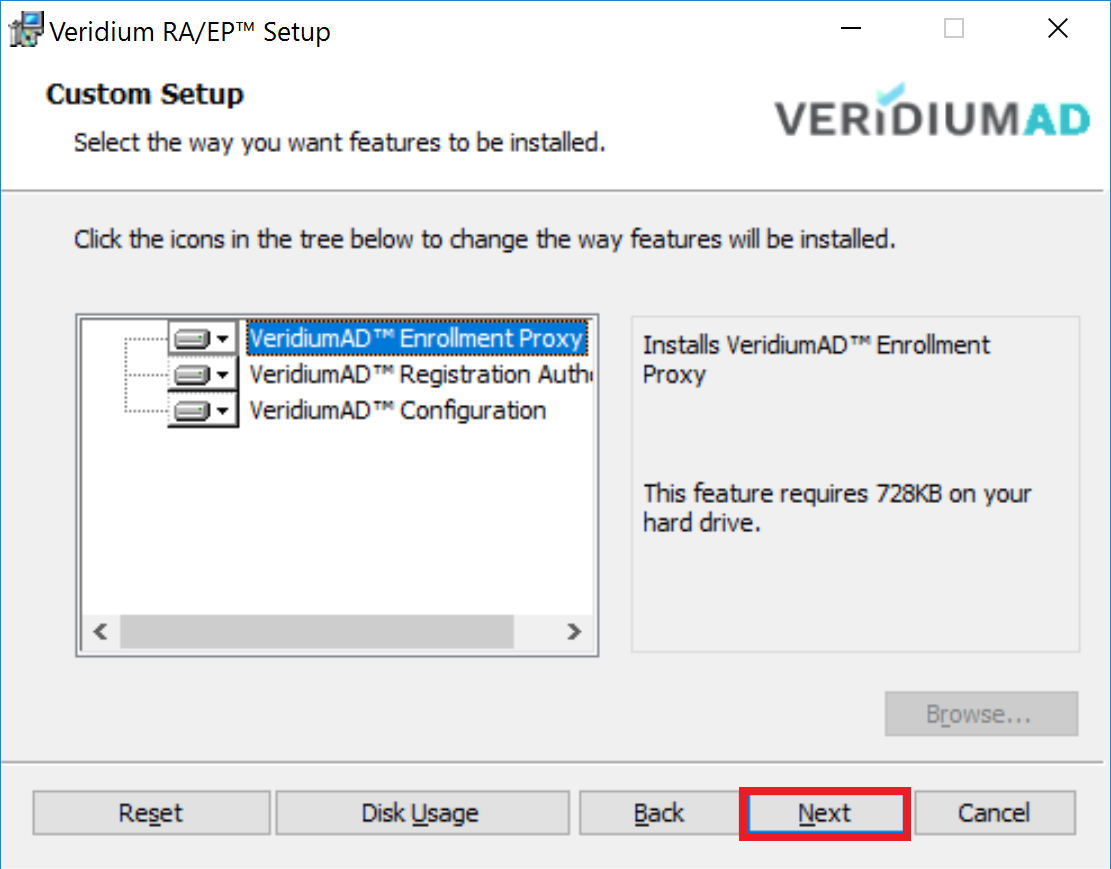
Click Next button to continue.
-
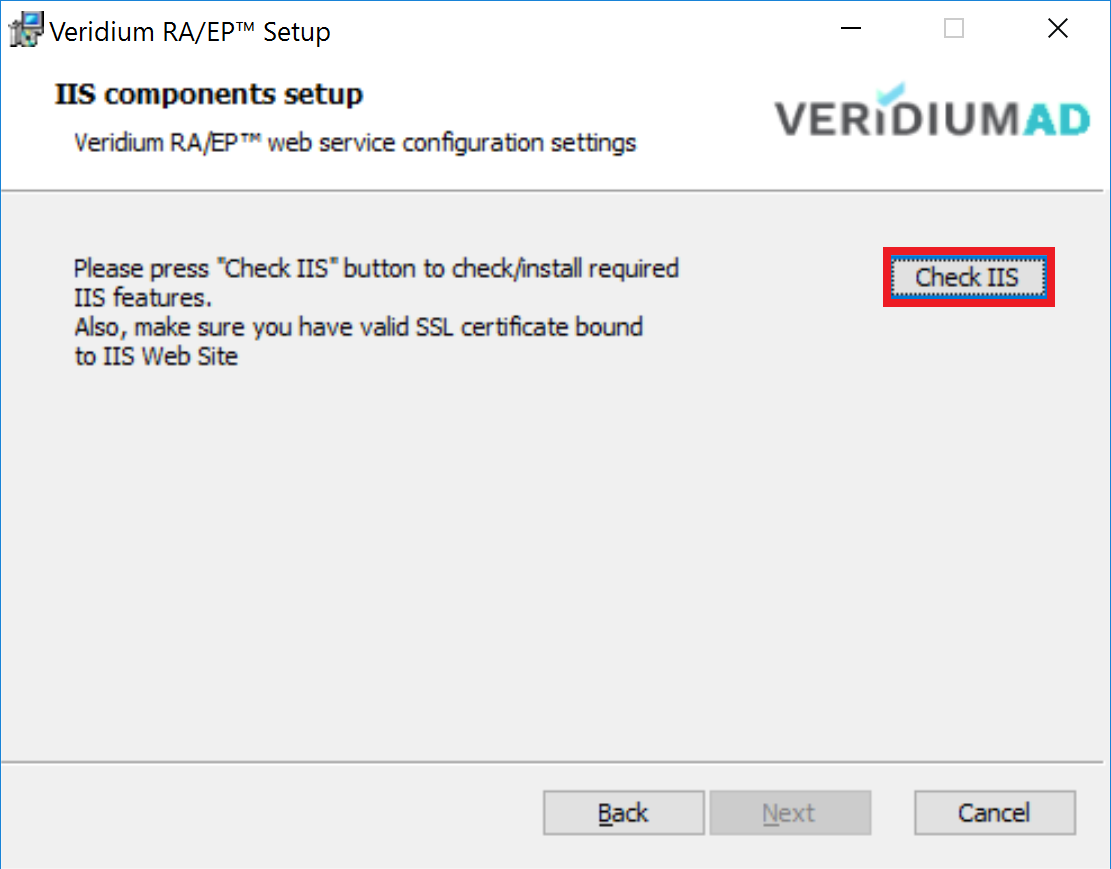
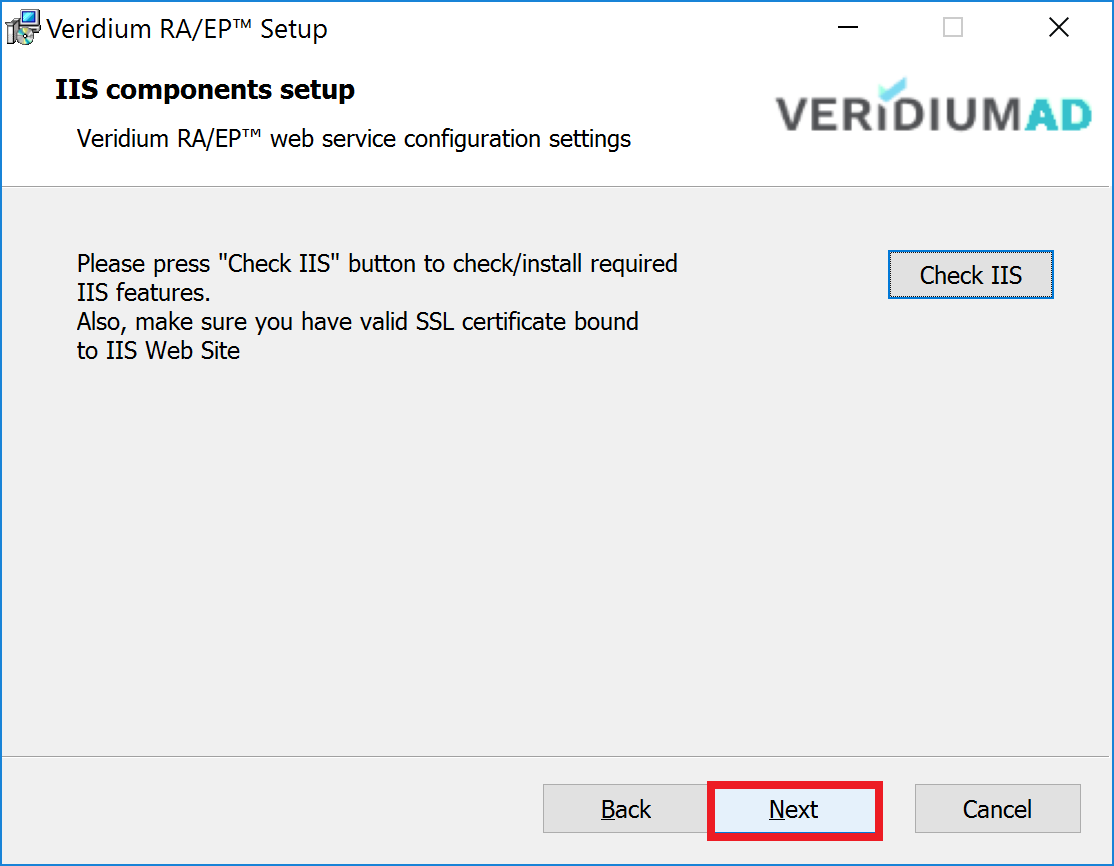
Press "Check IIS" button.
-
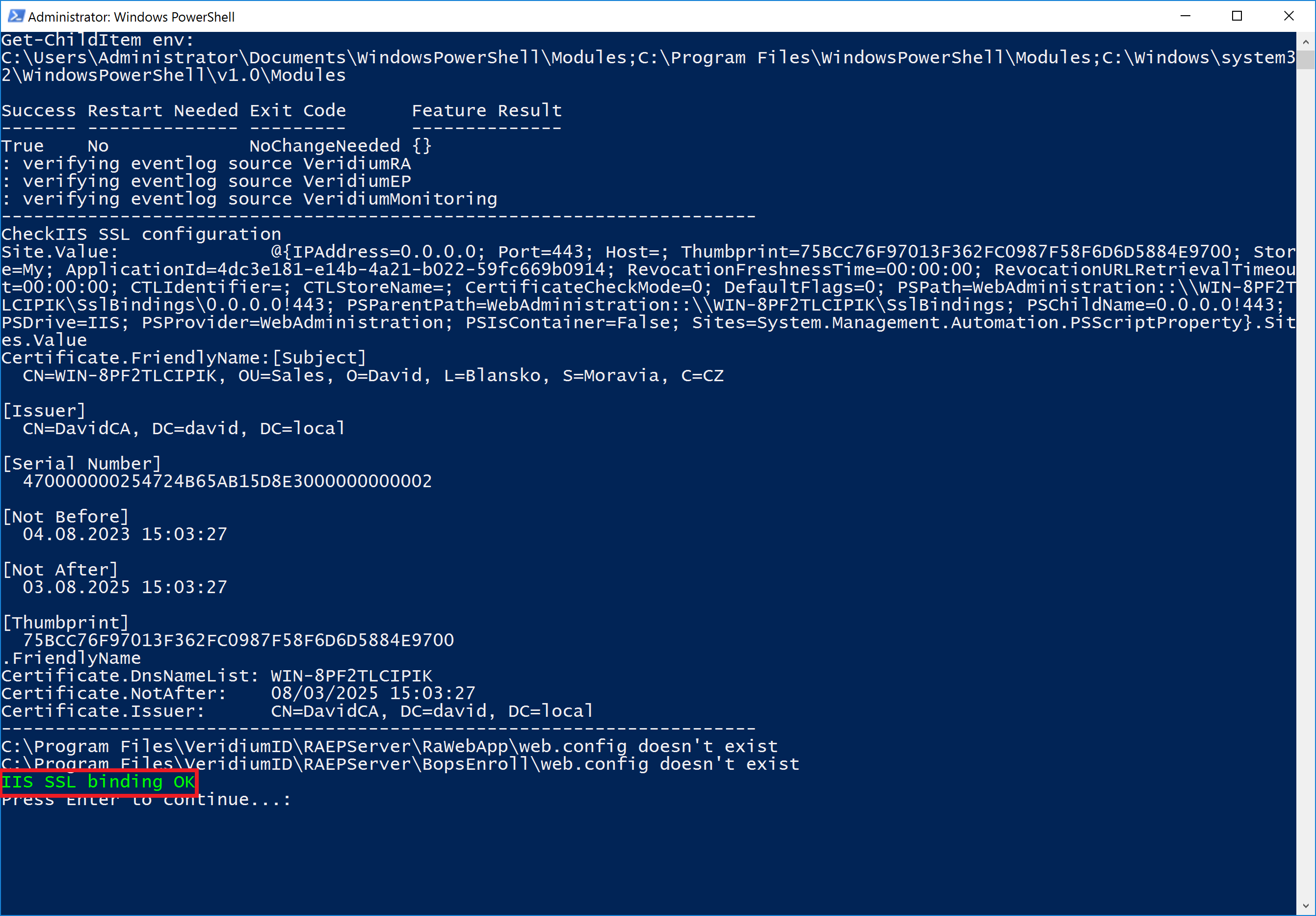
The following PowerShell window will appear. PowerShell script checks and install missing Windows components and check IIS certificate. Press any key to close PowerShell window and continue.
-
Press "Next" button to continue.
-
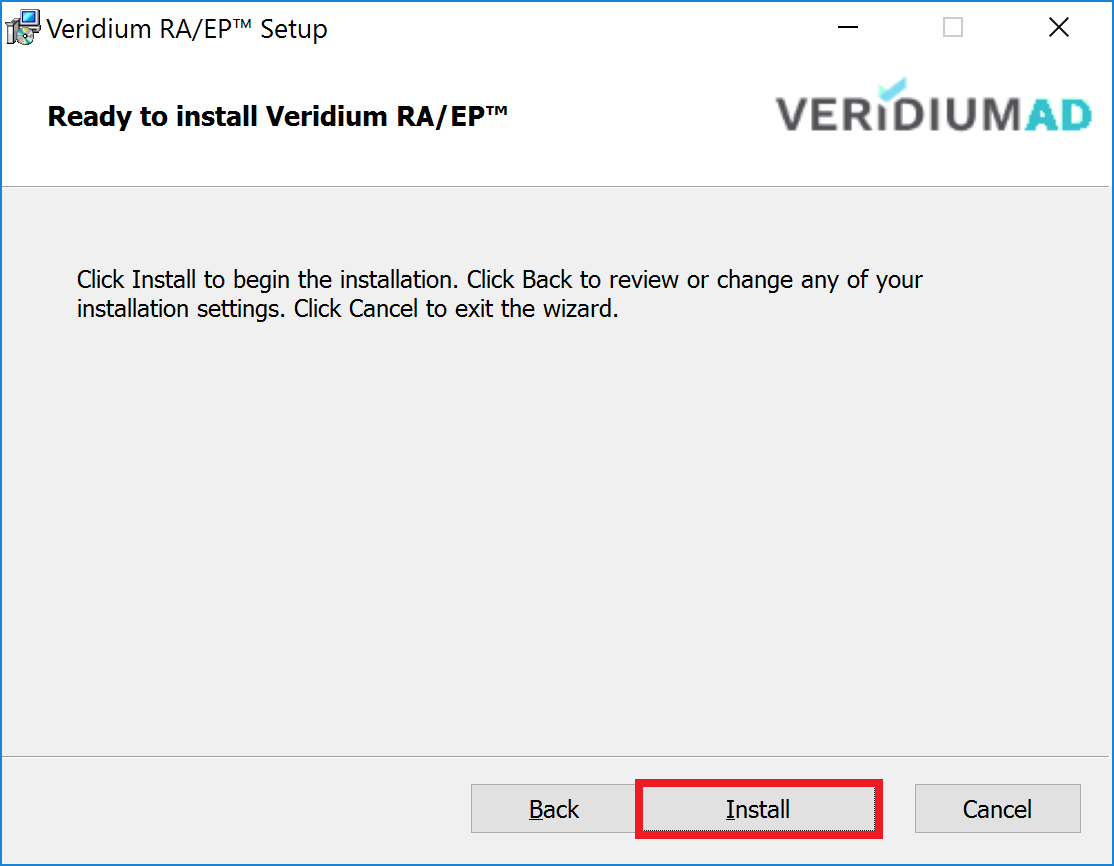
Press "Install" button to continue.
-
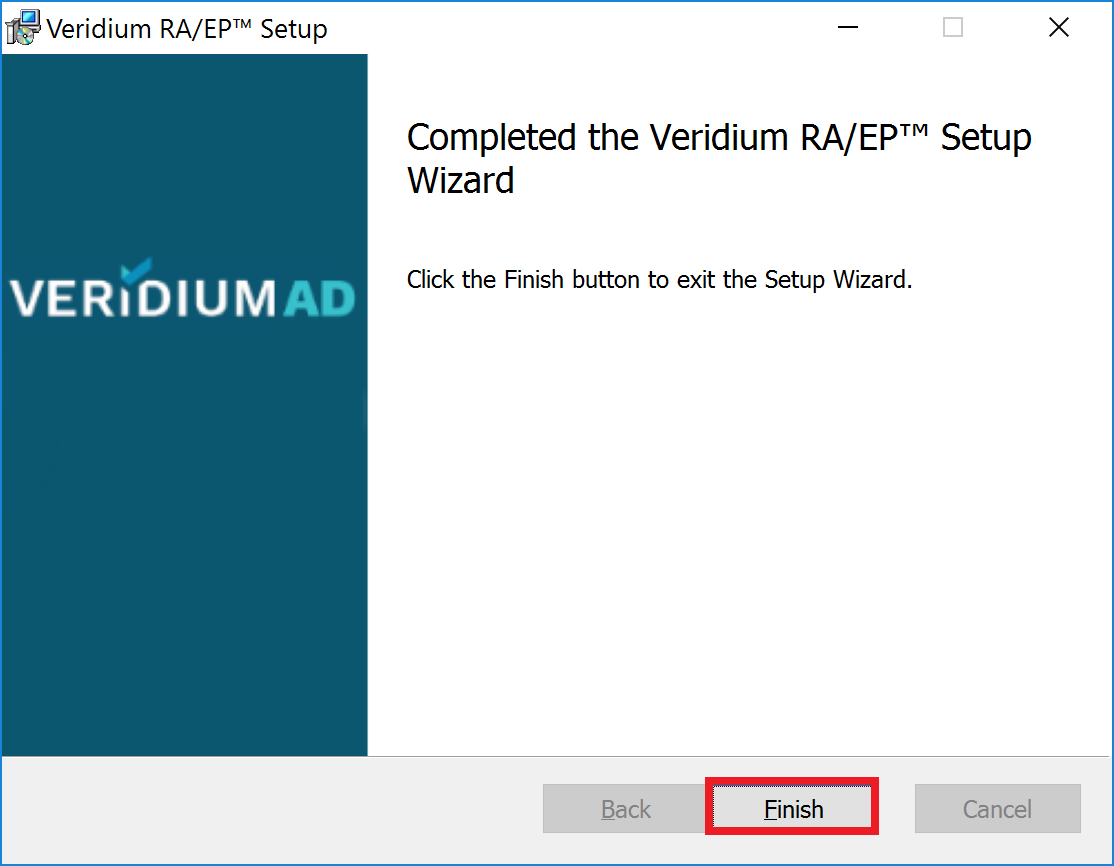
Click “Finish“.
-
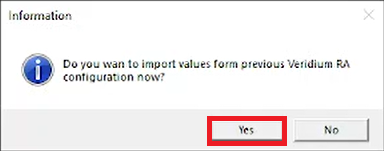
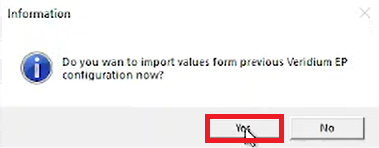
Click “Yes“.
-
Click “Yes“.
-
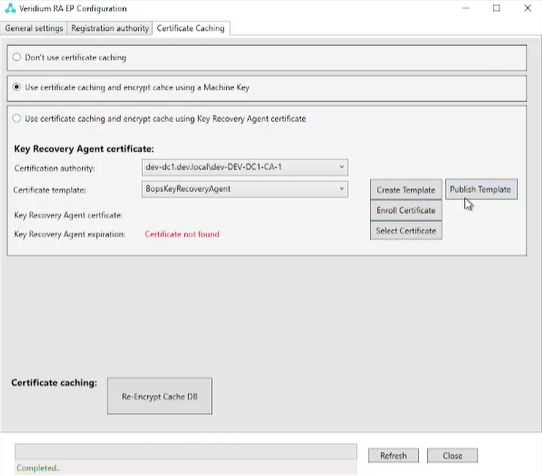
Start Veridium RA EP Configuration and there should be “new“ third tab.
-