

Overview
The Reports section in Veridium Manager provides reporting and data-export capabilities for authentication activity, identities, devices, administrators, and other supported system information.
Navigate to:
Veridium Manager → Audit → Reports
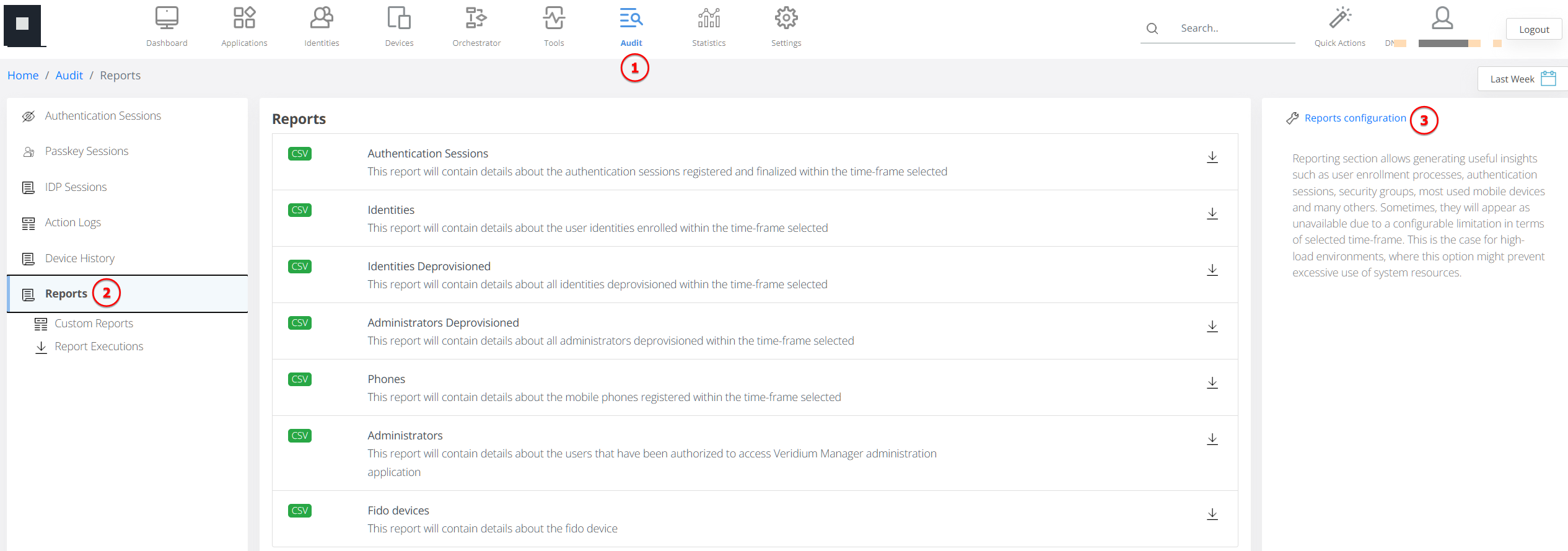
Reports can be generated for a selected time period and exported in CSV format for further analysis.
VeridiumID also supports custom report generation, allowing administrators to apply filters, select the information to include, and save report definitions for later reuse.
Report output and processing parameters are configured separately under:
Settings → Reporting
Available Reports
The Reports section provides reporting for several areas of VeridiumID, including:
-
Authentication Sessions;
-
enrolled and deprovisioned Identities;
-
registered Mobile Devices;
-
Veridium Manager Administrators;
-
other supported audit and system information available in the reporting interface.
The available report categories and fields depend on the type of data being reported.
Generate a Report
To generate a report:
-
Navigate to Audit → Reports.
-
Select the required report or report category.
-
Select the time period to include.
-
Apply the required filters.
-
Select the information to include in the report, where field selection is available.
-
Generate the report.
Report generation uses the filters and data selections configured by the administrator.
This makes it possible to generate reports focused on the information required for a particular audit, investigation, or operational task instead of exporting all available information.
Custom Reports
Custom reports provide more flexibility than predefined report exports by allowing administrators to define the data set that should be included.
Depending on the selected report type, an administrator can:
-
filter the available data;
-
select the information required in the output;
-
restrict the report to a specific time period;
-
save the configured report definition for later use;
-
generate the resulting report as a CSV file.
This can be useful when the same combination of filters and report fields must be used regularly.
Saved Report Definitions
A configured report can be saved so that the same report criteria can be reused later.
Saved report definitions retain the report configuration rather than requiring the administrator to recreate the filters and data selection for every execution.
To reuse an existing configuration, open the corresponding saved report/search from the Reports interface and run it for the required data or time period.
Where report sharing is enabled for the applicable configuration, saved definitions can also be made available for reuse by other authorized administrators.
Report Execution
Report generation can require additional processing time, particularly for larger data sets.
Generated reports and report-processing tasks can be monitored from the Report Execution area.
Use this view to:
-
review submitted report executions;
-
monitor the processing status;
-
identify completed reports;
-
access the generated output when processing has finished.
This allows report generation to continue without requiring the administrator to remain on the report-definition page.
CSV Export
Reports are generated in CSV format.
The CSV output can be used for:
-
offline analysis;
-
auditing;
-
troubleshooting;
-
importing data into spreadsheet or analytics tools;
-
maintaining external reporting records.
The formatting and processing limits applied to CSV reports are controlled from:
Veridium Manager → Settings → Reporting
Reporting Configuration
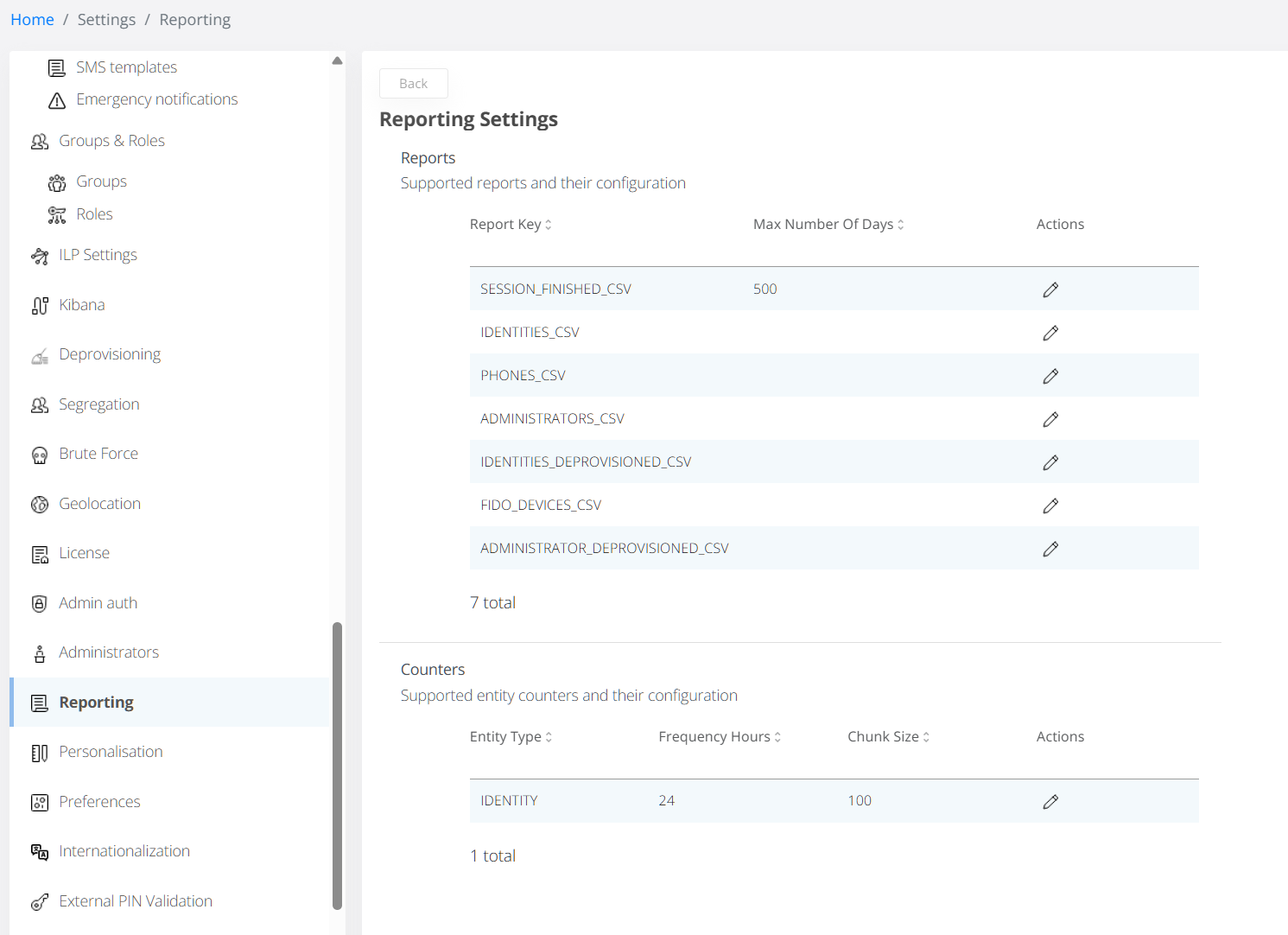
The Settings → Reporting page controls common reporting parameters used by reports generated from Audit → Reports.
These settings include:
|
Setting |
Description |
|---|---|
|
Report key |
Identifies the supported report configuration. |
|
Max no. of days |
Limits the maximum time period that can be requested for the report. This helps prevent large report requests from placing excessive load on the system. |
|
Chunk Size |
Controls the number of records retrieved and processed in each batch. |
|
Delimiter |
Defines the delimiter used in generated CSV files. |
|
Report Name Prefix |
Defines the prefix used when generating the report filename. |
Reporting configuration also contains settings for entity counters:
|
Setting |
Description |
|---|---|
|
Entity Type |
Defines the entity for which counters are calculated. |
|
Frequency Hours |
Defines how frequently counter data is recalculated. |
|
Chunk Size |
Defines the number of records processed in each counter-calculation batch. |
Increasing processing values such as Chunk Size can affect report-generation performance, particularly in environments containing large amounts of data.
Administrator Report
The Administrators report provides information about accounts that can access Veridium Manager.
To generate it:
-
Navigate to Audit → Reports.
-
Select Administrators.
-
Select the required time period.
-
Generate or export the report.
The selected time period determines the administrator data included in the resulting report.
Recommended Usage
For routine reporting:
-
save commonly used custom report definitions rather than recreating the same filters each time;
-
select only the information required for the report;
-
use appropriate time ranges, particularly in environments containing large volumes of session data;
-
review Report Execution when generating larger reports;
-
adjust Settings → Reporting only when the default processing or CSV-output configuration does not meet deployment requirements.