

Renew the Veridium Persistence CA and Replace Persistence Service Certificates
Overview
A standard Veridium deployment uses separate Certificate Authorities for different purposes.
One CA is used for certificates associated with Veridium application services and clients, such as administrators, mobile devices, and Windows components.
A separate Persistence CA is used for certificates securing communication with the Veridium persistence layer and between persistence components.
This document describes two different maintenance operations:
-
Replacing the certificates presented by persistence services while keeping the existing Persistence CA.
-
Renewing/replacing the Persistence CA and subsequently replacing certificates issued by that CA.
These procedures should be treated separately. Replacing only a service certificate is considerably simpler because the trust anchor remains unchanged. Replacing the Persistence CA requires a staged trust migration.
Before you begin
Before changing certificates:
-
Verify the expiry dates of the current Persistence CA and persistence service certificates.
-
Confirm which certificates and CAs are currently present in the relevant truststores and keystores.
-
Back up the existing keystores, truststores, and certificate configuration.
-
Verify that the new certificate:
-
is valid;
-
contains the expected hostname/SAN entries;
-
has the correct certificate chain;
-
includes the corresponding private key where required.
-
-
Make sure administrative access to all persistence nodes remains available in case rollback is required.
For clustered persistence services, perform the procedure one node at a time whenever possible. Verify that the node has returned to a healthy state before continuing with the next node.
1. Replace the certificates presented by persistence services
Use this procedure when the existing Persistence CA remains unchanged and only the certificates issued to persistence services need to be replaced.
1.1 Upload the new persistence service certificate
Upload/import the new persistence service certificate using the appropriate Veridium administration operation.
[existing screenshot]
Do not activate the new service identity everywhere immediately.
1.2 Propagate the trust configuration first
Before a persistence service starts presenting the new certificate, make sure that all Veridium components communicating with that service trust the CA/chain that issued it.
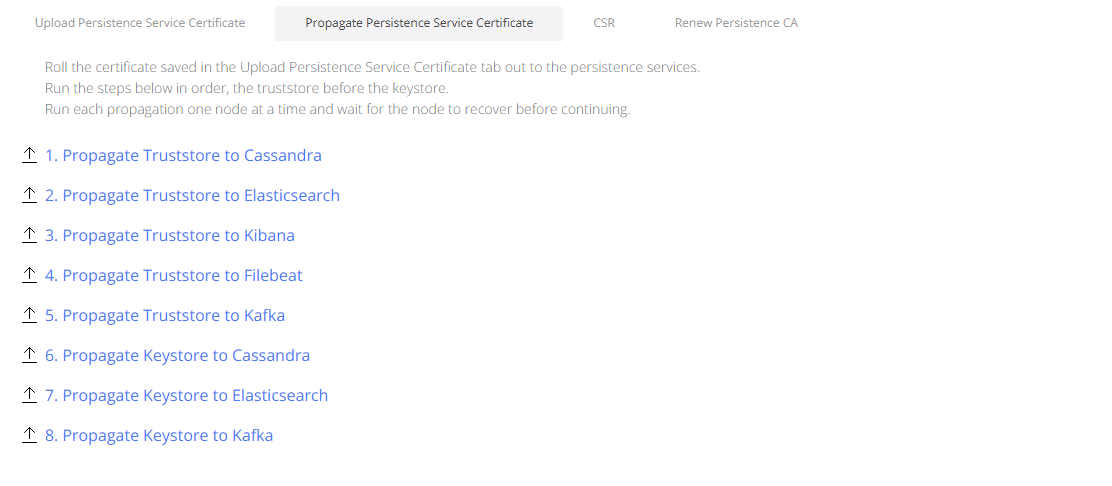
Propagate the required certificate chain to the appropriate truststores.
Where the persistence migration utility is used, truststore and keystore updates are distinct operations; the utility provides commands such as addTruststore and changeKeystore.
1.3 Propagate the new service certificate/keystore
After the trust configuration has been successfully distributed, propagate the new certificate and private key/keystore to the persistence service.
[existing screenshot]
The recommended sequence is therefore:
Truststore → verify → Keystore/service certificate → restart/reload → verify
This ordering reduces the risk of TLS failures caused by a service presenting a certificate that its clients do not yet trust.
1.4 Rolling deployment
For clustered persistence services, update one node at a time.
For each node:
-
Apply the required truststore changes.
-
Apply the new keystore/service certificate.
-
Restart or reload the affected service if required.
-
Verify that the node rejoins the cluster and is healthy.
-
Verify TLS connectivity from the relevant Veridium services.
-
Continue with the next node only after validation succeeds.
This approach minimizes or avoids service downtime.
1.5 Validate the new certificate
After the operation, verify:
-
certificate subject and SAN;
-
issuer;
-
validity period;
-
certificate chain;
-
TLS handshake;
-
application/persistence connectivity;
-
cluster health.
Also check the service logs for TLS errors such as:
-
PKIX path building failed -
unable to find valid certification path -
certificate_unknown -
hostname/SAN mismatch
-
private-key/certificate mismatch
2. Renew or replace the Veridium Persistence CA
Replacing the Persistence CA is more sensitive because the CA is the trust anchor for persistence communication.
A direct replacement of the old CA with the new CA can cause an outage if some components still use certificates issued by the old CA.
For this reason, use a staged transition.
[existing screenshot showing available actions]
Recommended CA rotation sequence
Phase 1 – Introduce the new CA
Generate or upload the new Persistence CA.
At this stage, do not remove the old Persistence CA.
Phase 2 – Distribute the new CA to truststores
Add the new Persistence CA certificate to every component that communicates with the persistence layer.
During the migration period, truststores should normally contain:
-
the current/old Persistence CA; and
-
the new Persistence CA.
This allows services using certificates from either CA to continue communicating while the rotation is in progress.
Phase 3 – Issue and deploy new persistence service certificates
Generate new persistence service certificates signed by the new Persistence CA.
Deploy them using a rolling procedure:
-
update one persistence node;
-
restart/reload the affected service;
-
verify TLS connectivity;
-
verify cluster health;
-
continue with the next node.
Run the operation one node at a time whenever the persistence technology and topology allow it.
Phase 4 – Update certificates used by Veridium services
Replace any client-side/service certificates used when Veridium application services authenticate to persistence components.
Again, perform the change incrementally and verify connectivity after each step.
Phase 5 – Validate the complete environment
Before removing the old CA, confirm that:
-
all persistence services present certificates issued by the new CA;
-
all Veridium services use the expected new certificates;
-
no active certificate still depends on the old CA;
-
Cassandra/Elasticsearch/ZooKeeper/Kafka and other applicable persistence services are healthy;
-
application authentication and persistence operations work normally.
Phase 6 – Remove the old Persistence CA
Only after the migration has been fully validated should the old Persistence CA be removed from truststores.
Removing the old CA too early can interrupt communication with components that have not yet been migrated.
Rollback
If a node fails after the certificate change:
-
Stop the affected service if necessary.
-
Restore the previous keystore/certificate configuration.
-
Restore the previous truststore if it was changed.
-
Restart the service.
-
Verify that the node reconnects to the cluster.
-
Investigate the certificate chain, SAN, truststore, private key and configuration before retrying.
Do not continue rotating additional nodes while the current node is unhealthy.
Important notes
Certificate replacement and CA replacement are not the same operation.
If the CA remains unchanged, replacing a service certificate usually requires only deploying the new certificate/key and verifying trust.
If the CA changes, use an overlapping trust period where both the old and new CA are trusted until all certificates have been migrated.
The existing related Veridium documentation also describes persistence certificate handling and certificate propagation concepts, including separate truststore and keystore operations.
This version would make the procedure substantially safer for someone following it without prior context. I have not modified the Confluence page yet; I only reviewed it and prepared the improved content.
Overview
On fresh installs Veridium generates a 2 CA’s:
-
one to generate certificates for services, administrators, mobiles, windows machines
-
one to generate certificates for persistance leyer and for communication of services to persisance leyer.
In this procedure we will document how to renew this CA and how to change the certificates exposed by persisance services.
1. Replace certificate exposed by persistance services
1.1 Upload persistence service certificate
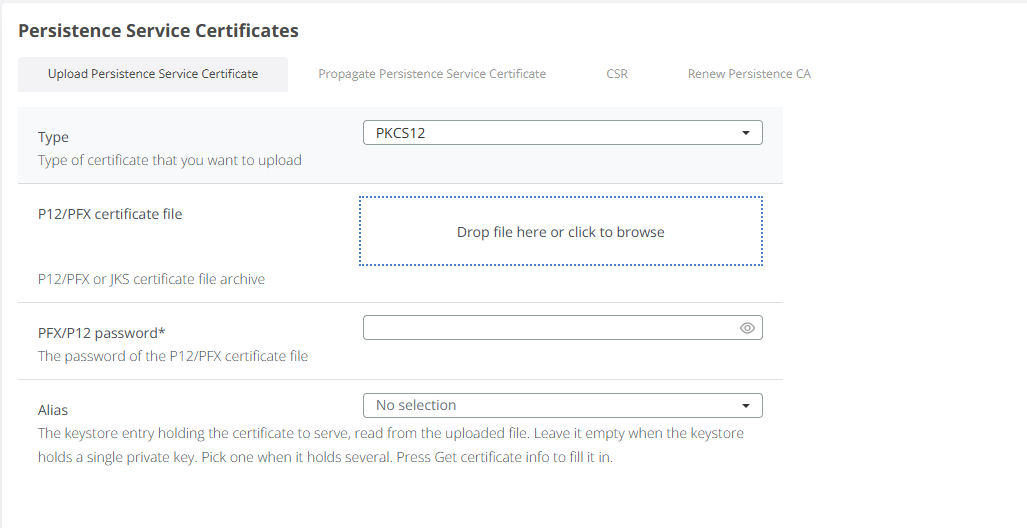
1.2 propagate persistence service certificate to services, first to truststore and later to keystore.
Run operations one node at a time, if you want to avoid downtime.
2. Renew Veridium persistance CA
All actions can be found here:
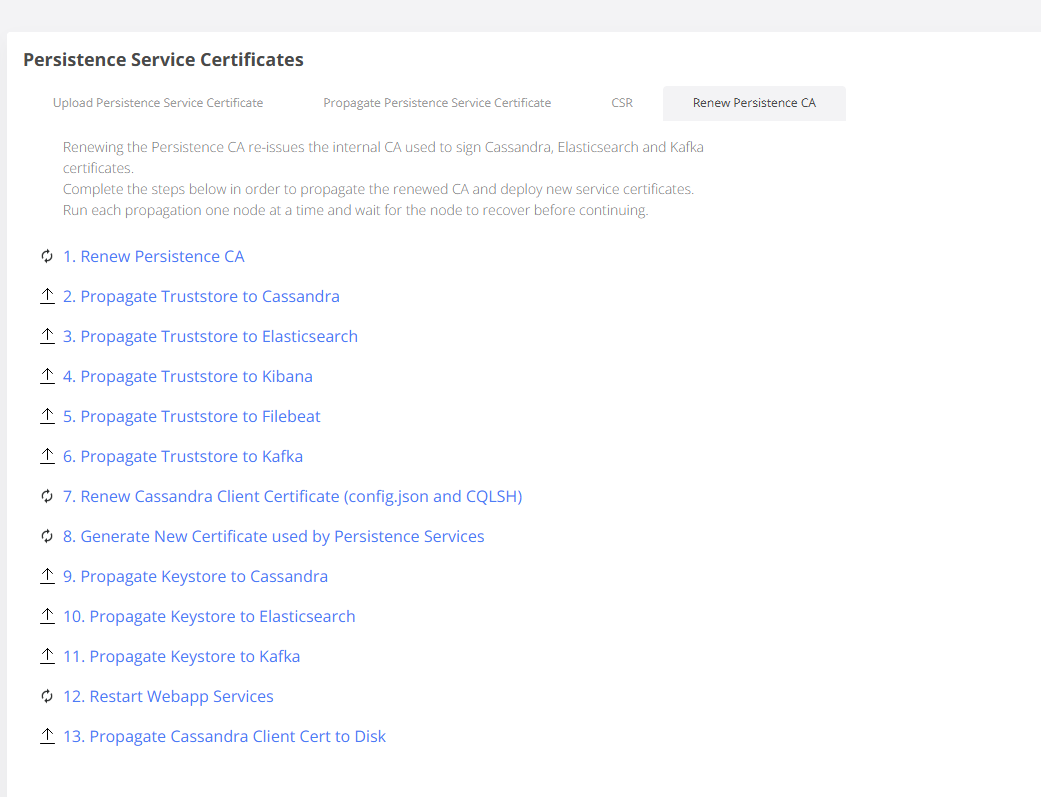
Run operations one node at a time, if you want to avoid downtime.