

Manage administrators
Veridium Manager allows authorized users to create, review, modify, block, and remove administrator accounts.
Administrator access is controlled through the VeridiumID groups and roles permission model. The Administrators list also provides a status for each account, making it easier to identify administrators that no longer meet the requirements for accessing Veridium Manager.
From this section you can:
-
add a new administrator;
-
review administrator access status;
-
edit an existing administrator;
-
block or remove an administrator;
-
renew an administrator certificate where applicable.
Administrator List
Navigate to:
Veridium Manager → Settings → Administrators
The Administrators page displays the configured administrator accounts and their current access status.
The Status column provides a quick indication of whether an administrator currently has the permissions and authentication device required to access Veridium Manager.
Administrator Status
The following statuses can be displayed:
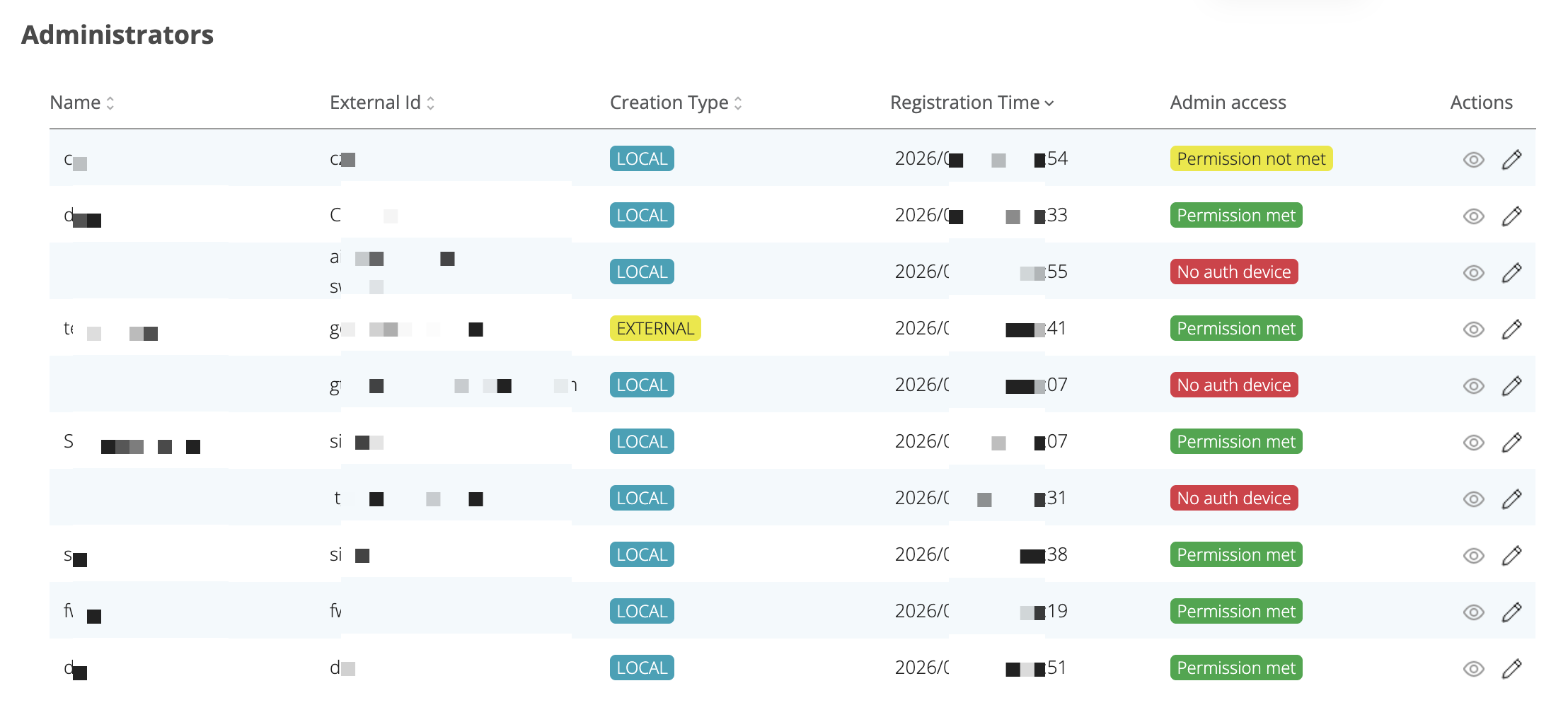
|
Status |
Meaning |
|---|---|
|
Permitted |
The administrator meets the required administrative permission and authentication-device requirements. |
|
Permission not met |
The account exists as an administrator, but its current group membership does not provide the required administrative permissions. |
|
No auth device |
The administrator does not currently have an authentication device available for Veridium Manager authentication. |
Permitted
Permitted indicates that the administrator is currently configured with the required administrative access and has an authentication device available.
The status is displayed in green.
No corrective action is normally required.
Permission not met
Permission not met indicates that the administrator account exists, but its current group membership no longer provides the permissions required for administrator access.
The status is displayed in yellow.
This can occur, for example, if:
-
the administrator was removed from the relevant administrator group;
-
an external directory group mapping changed;
-
the permissions associated with the administrator's VeridiumID group were changed.
Review the administrator's group membership and the roles assigned to those groups.
Administrator permissions are managed through the VeridiumID Groups and Roles configuration.
No auth device
No auth device indicates that the administrator does not currently have an authentication device that can be used to authenticate to Veridium Manager.
The status is displayed in red.
Review the administrator account and ensure that the required authentication device or administrator authentication credential is available.
When an account has both a permission issue and no usable authentication device, No auth device takes priority in the Administrator list so that the authentication problem is immediately visible.
Status and Administrator Access
The administrator status is an informational indication of the account's current configuration.
The status does not itself grant or revoke permissions. Effective administrator access continues to depend on:
-
the administrator account;
-
group membership;
-
roles and permissions assigned to those groups;
-
the configured Veridium Manager authentication method;
-
the availability of the required authentication device or credential.
Changes to groups, roles, mappings, or authentication devices can therefore cause the displayed administrator status to change.
Review an Administrator
To investigate an administrator that is not shown as Permitted:
-
Open Settings → Administrators.
-
Locate the administrator and review the displayed status.
-
Open the administrator details.
-
Verify the administrator's assigned groups.
-
If the status is Permission not met, review the roles and permissions associated with those groups.
-
If the status is No auth device, verify that the administrator has the required authentication device or credential.
-
Correct the configuration as required and review the administrator status again.
Add a New Administrator
Administrators can be created from an external directory or as an internal Veridium administrator.
For the complete procedure, see: Add a new administrator
When creating an administrator from an external directory, account information is populated from the selected directory identity.
For an internal administrator, the required account information is entered manually.
The administrator must be assigned to the appropriate administrative group to receive Veridium Manager permissions. Existing administrator creation also supports downloading the administrator certificate locally or sending it by email, depending on the configured authentication model.
Edit, Block, or Remove an Administrator
Existing administrator accounts can be managed from the Administrators page.
For the detailed procedure, see: Edit or delete existing administrator
Available actions include:
-
editing the administrator configuration;
-
blocking administrator access;
-
removing the administrator.
Blocking an administrator prevents access without permanently deleting the administrator account, while removing the administrator deletes the corresponding administrator configuration.
Related Configuration
Administrator permissions are configured through:
Veridium Manager → Settings → Groups and Roles
For more information, see: Users/Administrators permissions using Roles & Groups
The administrator authentication mechanism itself is configured separately according to the authentication model used by the deployment.