

In order to list all the config files from zookeeper, we need to login to a persistence node and connect to zookeeper:
/opt/veridiumid/zookeeper/bin/zkCli.sh

and then:
ls /veridiumid/<build number>

If the above command returns error: Insufficient permission : /veridiumid/11.0.15 you can bypass this in 2 ways:
-
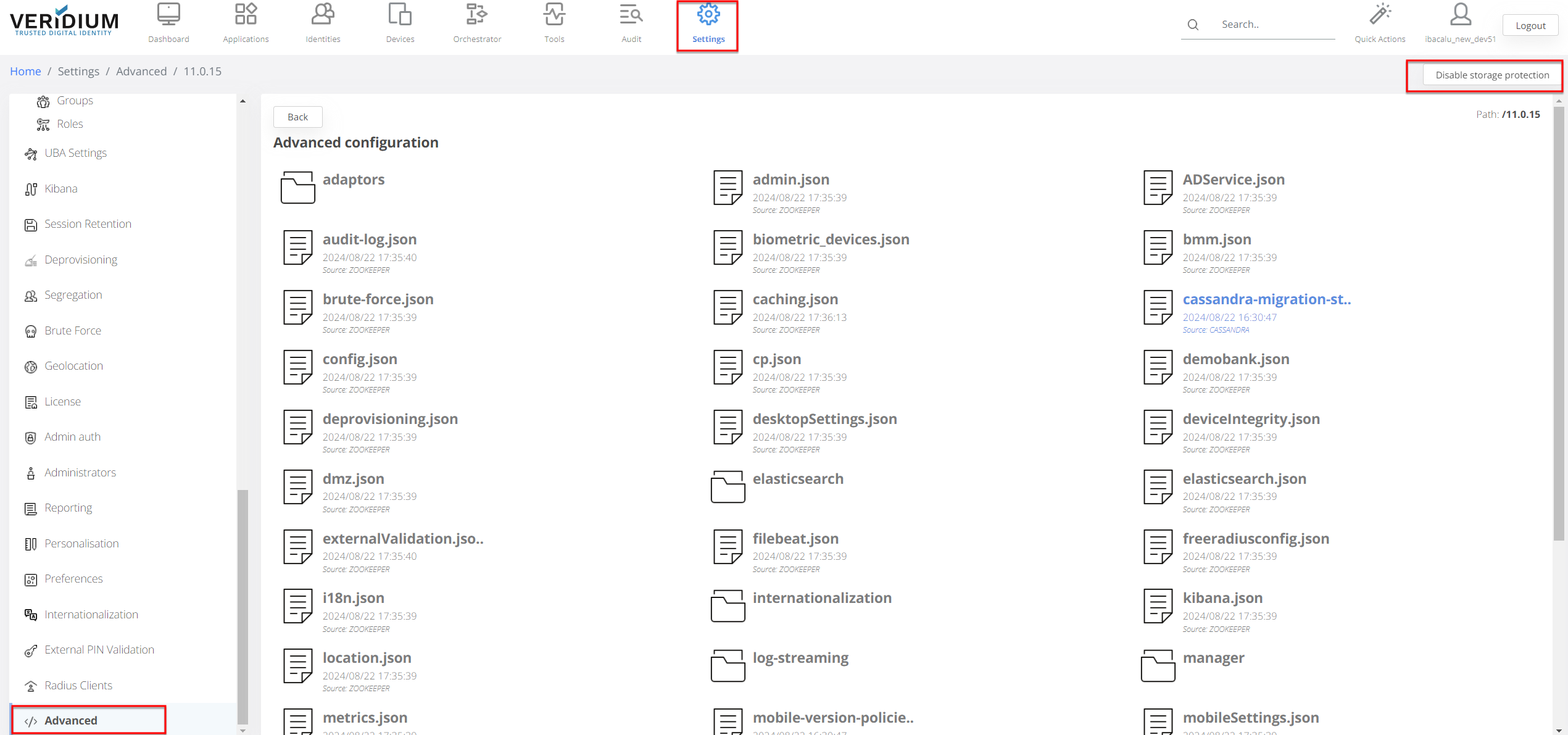
Simply Disable storage protection from Veridium-Manager interface and you should be able to list the config files:
-
Authenticate with veridiumid user and password
- Copy the username and password for Zookeeper:
cat /etc/veridiumid/zookeeper.properties
- Login to Zookeper and authenticate with the user and password you got from zookeeper.properties:
addauth digest veridiumid:<password>
And now you should be able to see the config files.
If you want to delete a config file from zookeeper:
-
Login to Zookeeper
-
Run:
delete /veridiumid/11.0.15/config.json
If you want to recreate the previous config file from zookeeper:
-
Login to Zookeeper
-
Run:
create /veridiumid/11.0.15/config.json
If you want to copy a config file from local path to zookeeper:
-
Create the new config.json file as needed
-
Run:
zkcli set /veridiumid/11.0.15/config.json "$(cat <path-to-config.json>)"