

Network ACL
-
Overview
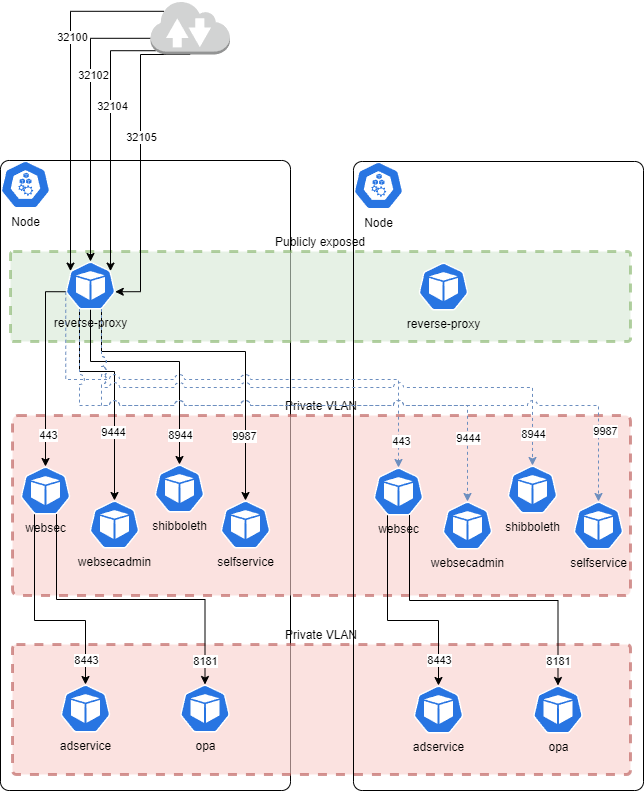
1. Ports
1.1. Incoming
|
Description |
Source |
Destination |
Ports |
Protocol |
|---|---|---|---|---|
|
Ingress traffic |
External Load Balancer / WAF |
NodePort |
32100, 32102, 32103, 32104, 32105 (*) |
TCP |
|
SSO Integration |
SSO |
External Load Balancer / WAF |
443, 8945 |
TCP |
|
CITRIX Integration |
Storefront, Netscaler |
External Load Balancer / WAF |
443, 8945 |
TCP |
|
CITRIX Integration |
VDA |
Domain Controller |
389, 636, 3268, 3269 |
TCP |
|
RADIUS |
Client Freeradius Server |
External Load Balancer / WAF |
31812 (*) |
TCP
|
(*) = These values can be set in the veridiumid-values.yaml file
1.2. Outgoing
|
Description |
Source |
Destination |
Ports |
Protocol |
|---|---|---|---|---|
|
LDAP |
All Nodes |
ADDS - LDAP |
(636, 3269) or (389, 3268) |
TCP |
|
DNS |
All Nodes |
DNS Server |
53 |
UDP |
|
NTP |
All Nodes |
NTP Server |
123 |
UDP |
|
SMTP |
All Nodes |
SMTP |
25 |
TCP |
|
SIEM |
All Nodes |
SIEM |
|
|
|
SMS Gateway - if required |
All Nodes |
SMS Gateway |
443 |
TCP |
|
Google push - Android Veridium Application |
All Nodes |
443 |
TCP |
|
|
Apple push Notifications |
All Nodes |
443 |
TCP |
|
|
Fido authenticators metadata |
All Nodes |
443 |
TCP |
|
|
Geolocation database synchronization |
All Nodes |
443 |
TCP |
|
|
Mobile Device commercial data |
All Nodes |
443 |
TCP |
|
|
Map display in Admin Dashboard and SSP frontends |
All Nodes and client computers |
443 |
TCP |
|
|
Twilio - optional, for sending SMS |
All Nodes |
443 |
TCP |
2. DNS Entries
Before starting the installation, you must configure a DNS entry that will serve as the public endpoint for the VeridiumID services.
Create a fully qualified domain name (FQDN) in the form:
<environmentName>.<domainName>
This FQDN will be used to expose multiple VeridiumID services on distinct ports.
Both components of the FQDN must be defined in the vid-installer-values.yaml file:
-
domainName- The base domain under which the installation will be accessible. -
environmentName- The unique name of this installation; this value becomes the subdomain.
Once created, ensure that the FQDN resolves correctly in your DNS before proceeding with the installation.
3. Certificates
The VeridiumID installation requires a valid SSL certificate for the FQDN you have created.
Prepare the certificate in the following format:
-
The certificate must be a PEM-encoded file named
server.pem. -
The file should contain the full certificate chain as required by your environment.
Once the certificate is available, add server.pem to the existing Secret vid-haproxy-certs. After updating the Secret, the vid-haproxy DaemonSet must be restarted to ensure the new certificate is picked up by all running pods.