

The certificate that is requested during the installation of Veridium Server has a great importance:
-
It will allow Veridium Service to work in the domain/domains of customer infrastructure as a trusted platform
-
It will allow the usage of iOS and Android Devices with Veridium Service inside on-prem setup’s
-
It will establish a trusted communication during the installation of the components stack used inside Veridium Service
The Veridium Server installer accepts multiple types of certificates:
-
W686
-
ildcard type
-
e.g: *.veridium-dev.com
where is every subdomain/suffix of server existing in the domain
.veridium-dev.com is the domain name -
subdomain
-
multidomain
-
single domain
We recomand buying a valid globaly SSL certificate instead of self-signed Certificate. Using a self-signed certificate will require configuring manually to trust the root CA that generated the certificate.
When using a certificate issued from an internal WINDOWS CA, wildcard will cause issues for OPA service. The workaround is to issue the certificate with proper SAN for your service ( WIP to resolve)
Request your certificate with csr values accordingly to your organization information
Depending on the deployment, Veridium service will be working either by:
Port Mapping - a single DNS record needs to be performed for accesing the server
e.g: vid.domain.com ( which includes endpoints like vid.domain.com:9987/ssp )
SNI Mapping - Multiple unique DNS records are required inside the certificate
-
admin-<fqdn> - e.g: admin-vid.domain.com
-
shib-<fqdn> - e.g: shib-vid.domain.com
-
dmz-<fqdn> - e.g: dmz-vid.domain.com
-
ssp-<fqdn> - e.g: ssp-vid.domain.com
-
fqdn - e.g: vid.domain.com
After aquiring the certificate, make sure you have the files either in pem format or .p12 format:
-
PEM format:
-
one file will contain the certificate and chain .pem extension together (No empty lines between them)
-
one will contain the private key with .pem extension
-
-
.P12 format which contains:
-
Root CA
-
one or more intermediate cert
-
SSL certificate + Private Key
-
-
-
Example:
|
PEM format |
.P12 format |
|---|---|
|
certificate.pem example:
|
This format is available after is created from
|
|
privatekey.pem example:
|
password is required once the .p12 is created |
After obtaining the certificate, make sure you clear the lines spaces from your certificate
|
Not OK |
OK |
|---|---|
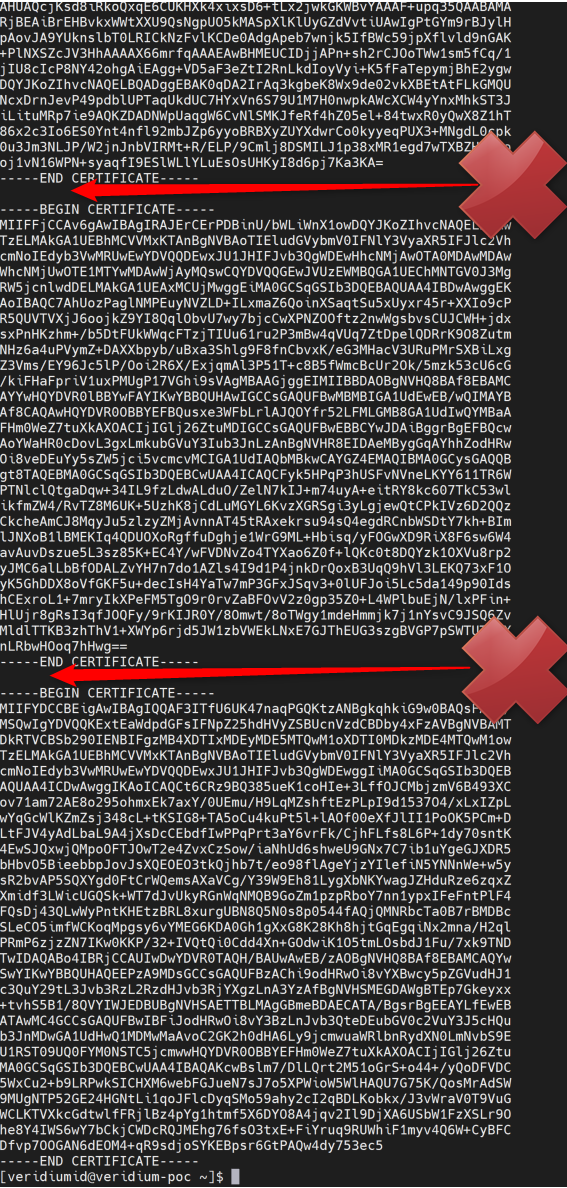
|
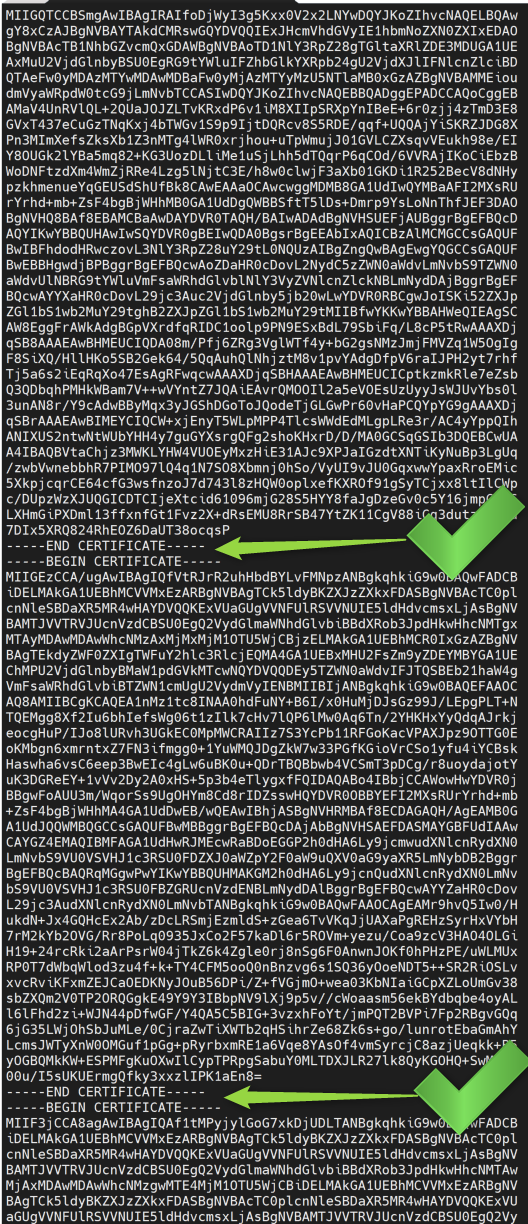
|
|
We accept encyption up until RSA 4096 |
|
Create certificate for Deployment - CONVERT instead !!
Files received when certificate is acquired: certificate.crt CertificateBundle ( chain of certificates) private.key
Edit certificate.crt and include files from CertificateBundle
Transfer to machine with openssl
PFX:
-
openssl pkcs12 -export -out *.veridium-poc.pfx -inkey private.key -in certificate.crt
-
type password
-
output file will be *.veridium-poc.pfx (or similar)
PEM:
-
openssl x509 -inform PEM -in certificate.crt > certificate.pem
-
openssl rsa -in private.key -text > private.pem