
Creating and Issuing the BopsRA Certificate Template
1. Open Certificate Template Management
-
On the Certificate Authority (CA) server, open Server Manager.
-
Click Tools → Certification Authority.
-
In the CA console, right-click Certificate Templates and select Manage.
-
The full list of certificate templates will appear.
-
2. Duplicate the Enrollment Agent (Computer) Template
-
Locate Enrollment Agent (Computer) in the template list.
-
Right-click it and select Duplicate Template.
3. Configure the New Template
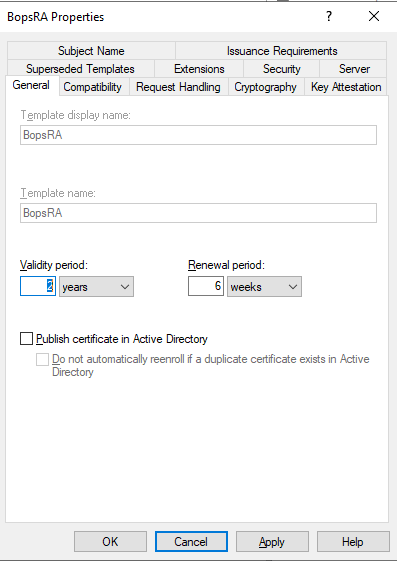
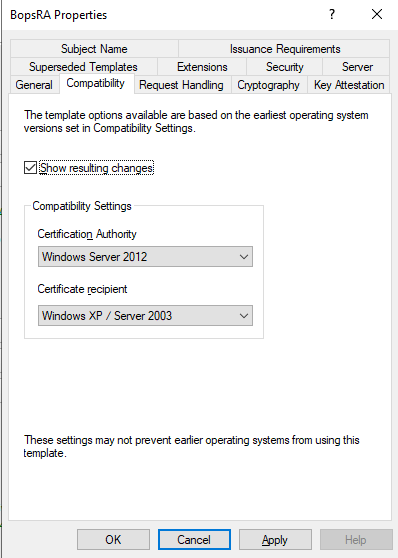
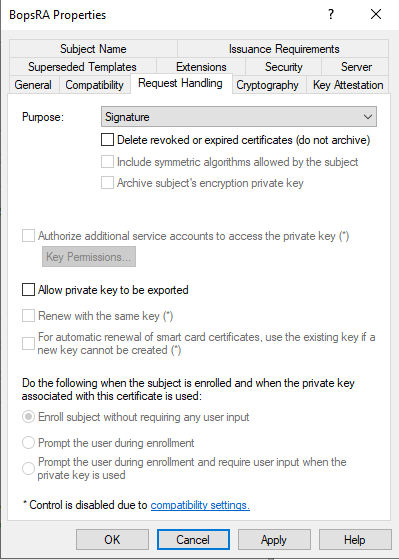
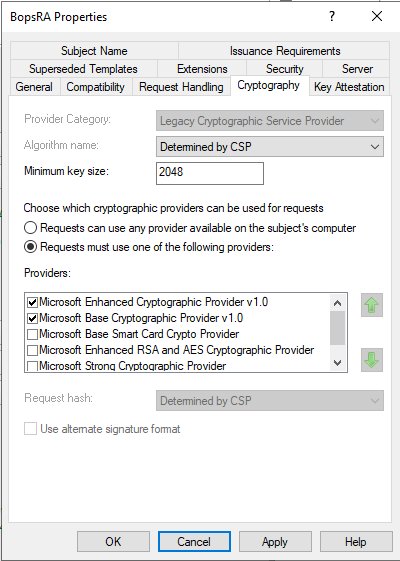
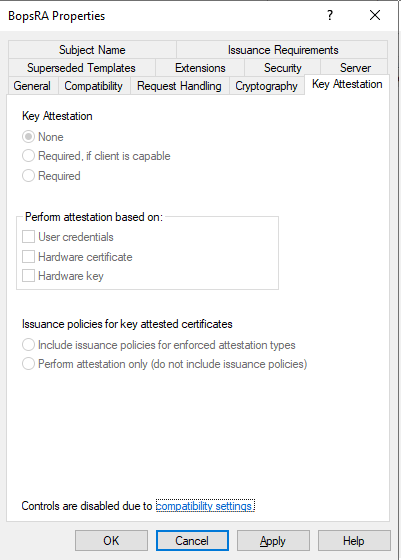
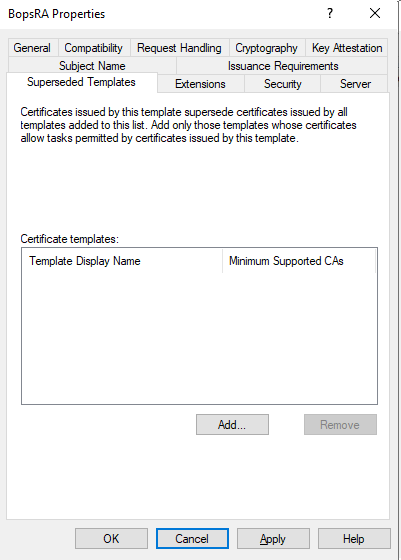
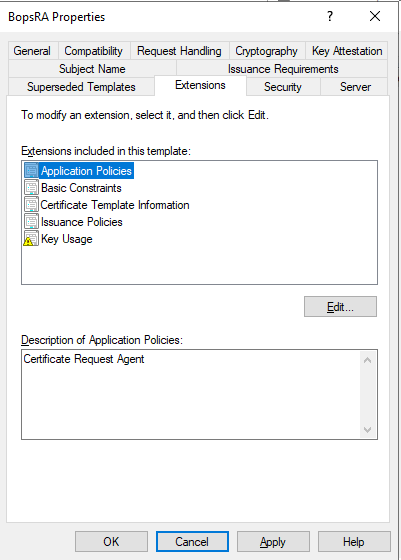
Set the template parameters to match the following screenshots:
-
General
-
Compatibility
-
Request Handling
-
Cryptography
-
Key Attestation
-
Superseded Templates
-
Extensions
-
Permissions for RA server
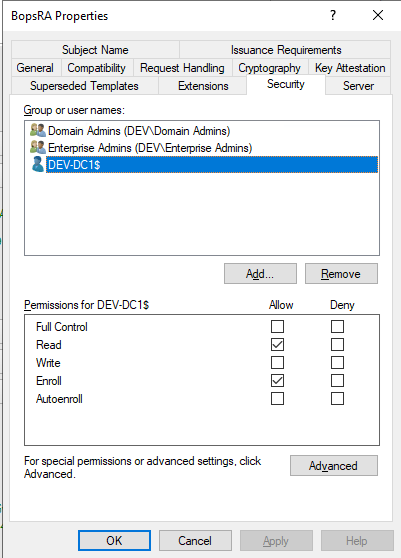
-
Server
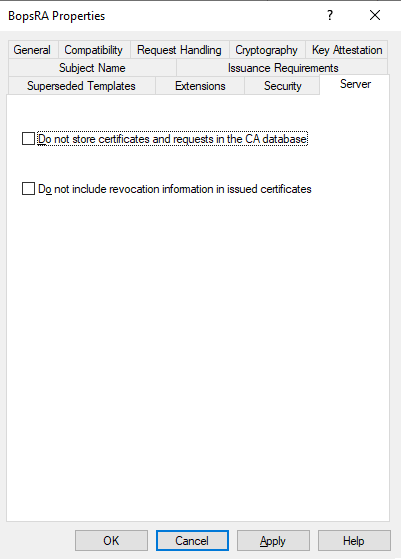
-
Subject Name
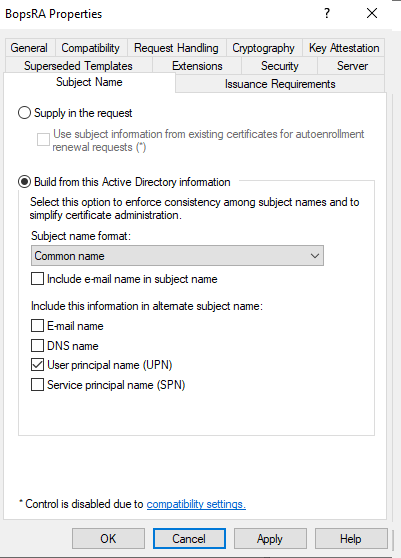
-
Issuance Requirements
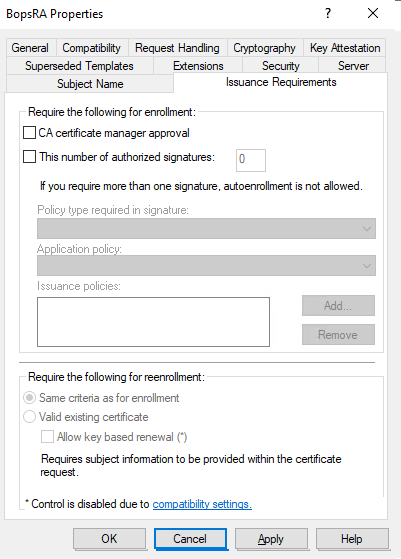
After adjusting all settings, click Apply and close the Certificate Templates Console.
4. Issue the New Template
-
In the CA console, right-click Certificate Templates → New → Certificate Template to Issue.
-
From the list, select BopsRA.
-
Click OK.
5. Request the BopsRA Certificate on the RA/EP Server
-
On the RA or EP server, open the Start menu and type
mmc, then press Enter to launch the Microsoft Management Console. -
From the File menu, choose Add/Remove Snap-in.
-
Select Certificates and click Add.
-
Choose Computer account, then click Finish.
-
Navigate to:
Certificates (Local Computer) → Personal → Certificates -
In the middle pane, right-click and choose:
All Tasks → Request New Certificate -
Follow the wizard to enroll for a BopsRA certificate.