
This guide describes how to integrate Grafana with VeridiumID using the OpenID Connect (OIDC) protocol, enabling secure Single Sign-On (SSO) authentication.
With this configuration, access to Grafana is controlled based on the user’s memberOf group membership received from VeridiumID. Only users who are part of the configured group (for example, grafana-admins) will be allowed to log in to Grafana.
Additionally, user provisioning is handled automatically: when a user successfully authenticates via VeridiumID for the first time, their account is created automatically in Grafana, eliminating the need for manual user management.
This setup ensures centralized access control, improved security, and simplified administration.
1. Create an OIDC App in Veridium Manager
From Veridium Manager, go to Applications and click “ADD OIDC APP” (not SAML).
New OIDC Application Configuration
Basic:
-
Enable or disable the OIDC service provider (enable it)
-
Client ID: Grafana
-
Client Friendly Name: Grafana
-
Response types*: Code
-
Grant types*: authorization_code refresh_token
-
Scopes*: openid email profile
-
Token endpoint authentication method: client_secret_post
-
Client secret*: OIDC_CLIENT_SECRET (we insert a secret code) it will be used in Grafana.
-
Subject type: public
-
Redirect URIs*: https://grafana.dev.local:3000/login/generic_oauth
-
(Replace
grafana.dev.localand port if needed — must match Grafana exactly.)
-
-
Click Save
Veridium:
-
Authentication Flow: we select other journey. Default is Veridium journey
-
Redirect Url: An url if the session expires and we want a custom message/page. (not mandatory)
-
Hide SSP: disabled
-
Hide SSO Redirect: enabled
Advanced:
-
Encoded Attributes: no selection
-
ID token included attributes: no selection
-
Enforce refresh token rotation: disabled
-
Access token type: JWT
-
Access token included attributes: no selection
-
Denied UserInfo attributes: no selection
-
Enable advanced options: disabled
-
Enable ID Token Hint Validation: disabled
Click Save
2. Configure OIDC Scopes in Veridium
Go to:
Veridium Manager → Settings → OIDC → Scopes
Edit the profile scope and add:
memberOf
Click Save
(This is required for role mapping in Grafana.)
2. Configure Grafana to Use Generic OAuth
Log in to Grafana as an admin.
Go to:
Administration → Authentication → Generic OAuth
Settings:
-
Display name: Grafana Veridium
-
Client ID *: Grafana (Client ID from Veridium)
-
Client secret: OIDC_CLIENT_SECRET (Client secret from Veridium
-
Auth style: AutoDetect
-
Scopes: openid email profile
Endpoints
-
Auth URL *: https://veridium-my-company.com/idp/profile/oidc/authorize
-
Token URL * https://veridium-my-company.com/idp/profile/oidc/token
-
API URL: https://veridium-my-company.com/idp/profile/oidc/userinfo
Login Settings
-
Allow sign up: enabled
-
Login prompt: Login
User Mapping
-
Role attribute path:
contains(memberOf, 'CN=grafana-admins') && 'GrafanaAdmin'
-
Allow assign Grafana admin: enabled
-
Save & Enable
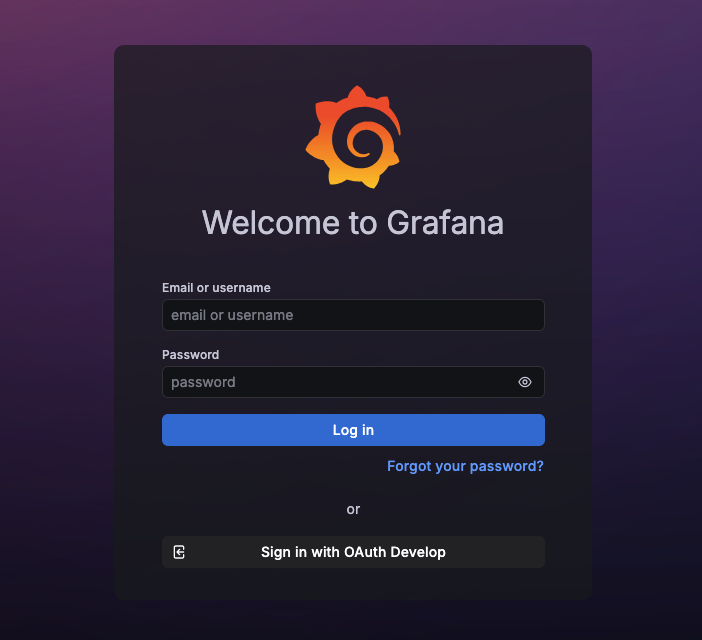
After configuration, a new login option will be available:
“Sign in with Grafana Veridium”
Users can authenticate via VeridiumID using OIDC.