

Overview
This article describe the procedure how to replace server.pem certificate that is used by haproxy service.
Procedure
During VeridiumID Server platform installation there is a self-signed certificate generated automatically for the haproxy service. This client certificate must be changed with a trusted one depending on the client’s setup.
When the existing client certificates are about to expire the admin users can change them using only the Admin manager platform.
For both procedures, the following steps must be performed based on the setup:
1. Using one certificate for Veridium
Applies on the following cases:
-
same FQDN for internal and external services
-
different FQDN for internal and external services but the SSL termination is done in a different layer for external services
If Veridium is not used as a first SSL termination layer the self signed server.pem client certificate must be changed with a trusted one.
-
In Veridium manager, navigate to Tools → Haproxy configuration
-
In the Certificates tab select the type of the trusted client certificate that needs to be uploaded. The possible options:
-
PKCS12 - upload a certificate chain that contains also the private key and add the required password
-
CERTIFICATE - upload the certificate chain and private key as separate files
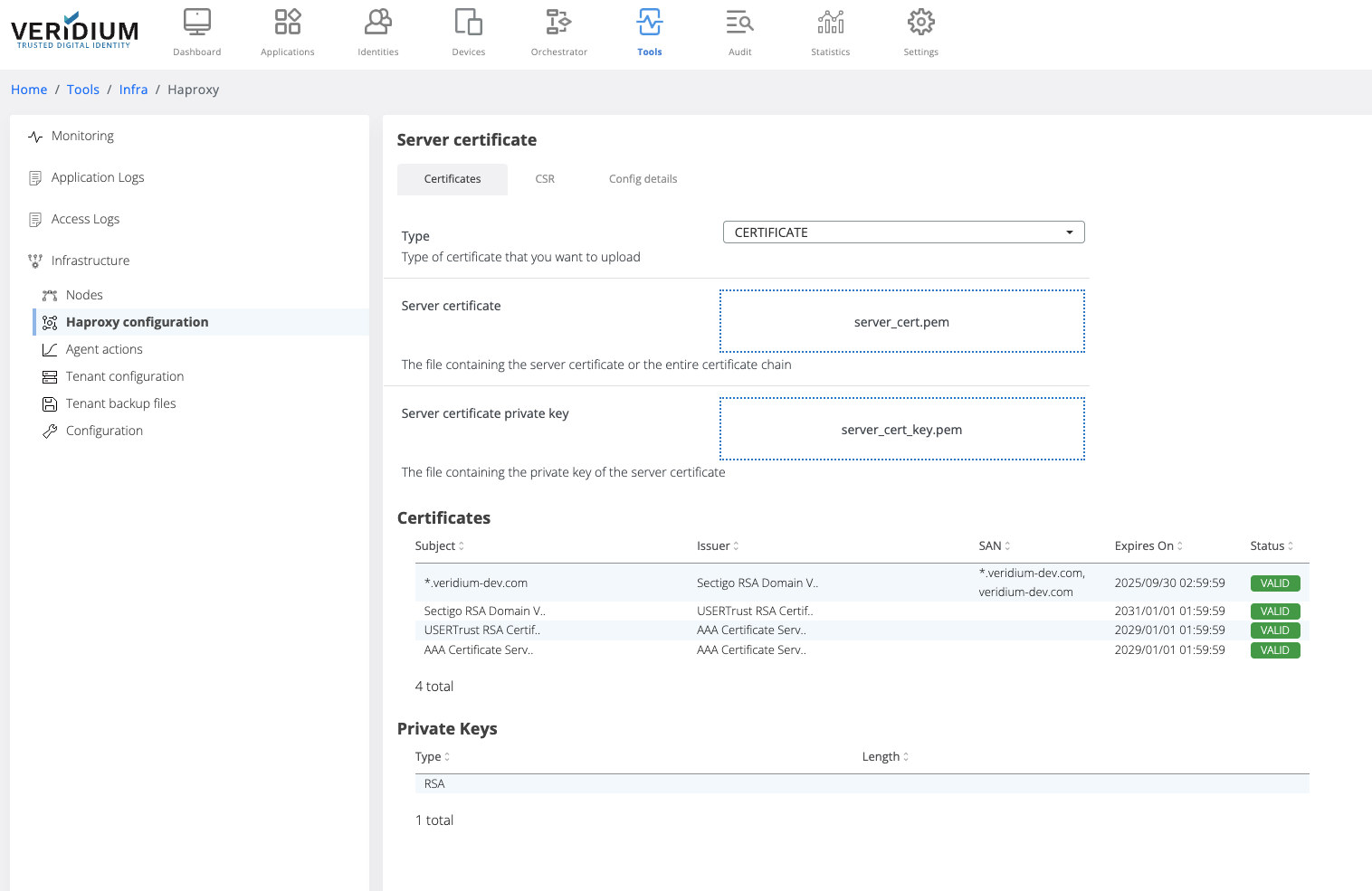
After uploading the certificate chain, the certificates part of the chain and the private key type are displayed below the upload boxes.
-
-
Click on Save button
-
When saving, the uploaded certificate chain is also added in the Veridium server Truststore
-
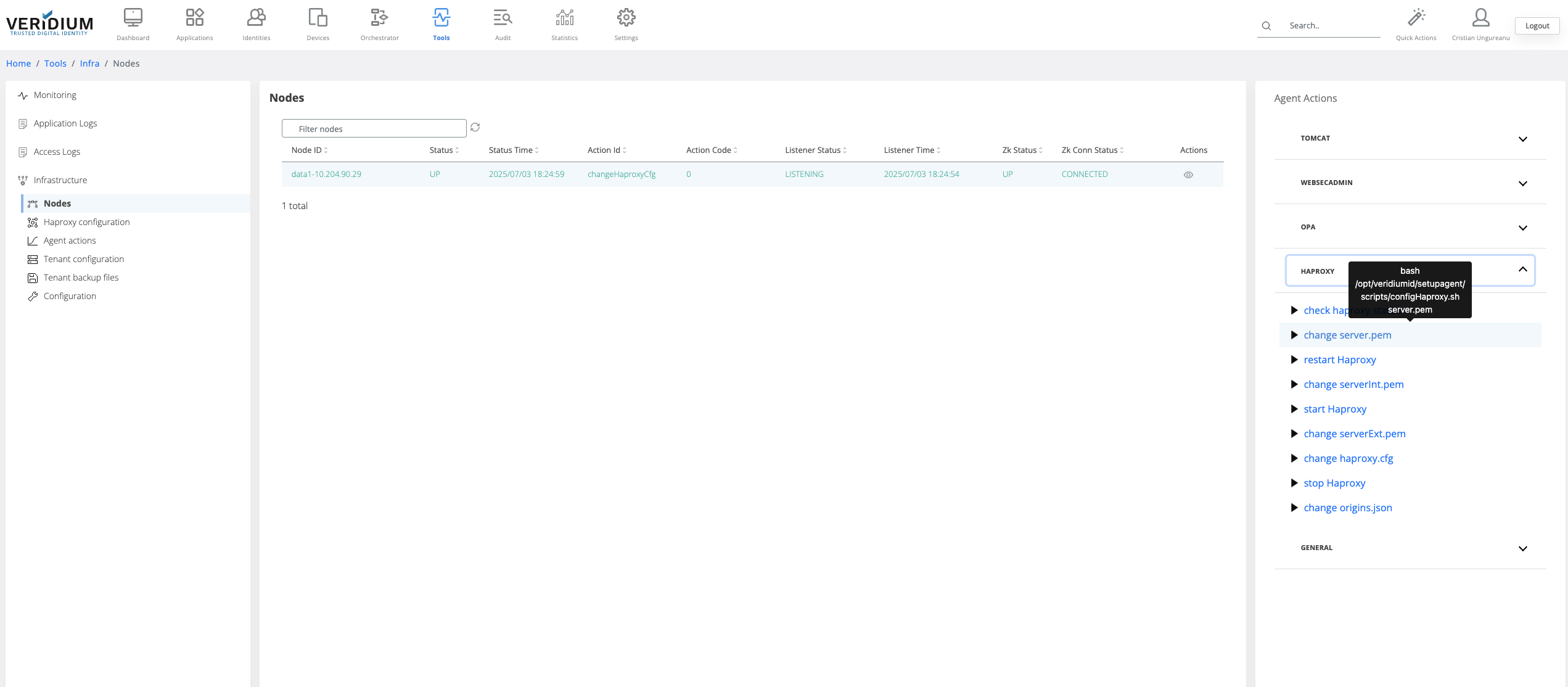
To apply the uploaded certificate on the server nodes a specific command must be ran on the webapp nodes. To do this, navigate to Settings → Nodes
-
On the right hand side panel expand the Haproxy category
-
Click on the “change server.pem” command
-
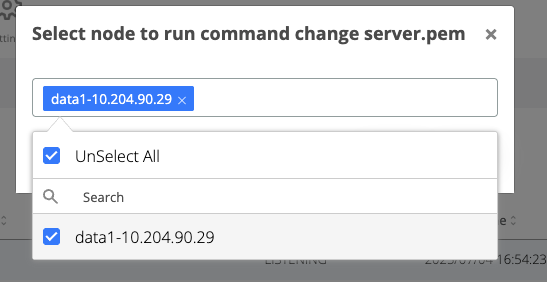
A pop-up will be displayed. Select from the drop-down field the all webapp nodes and click on Run
-
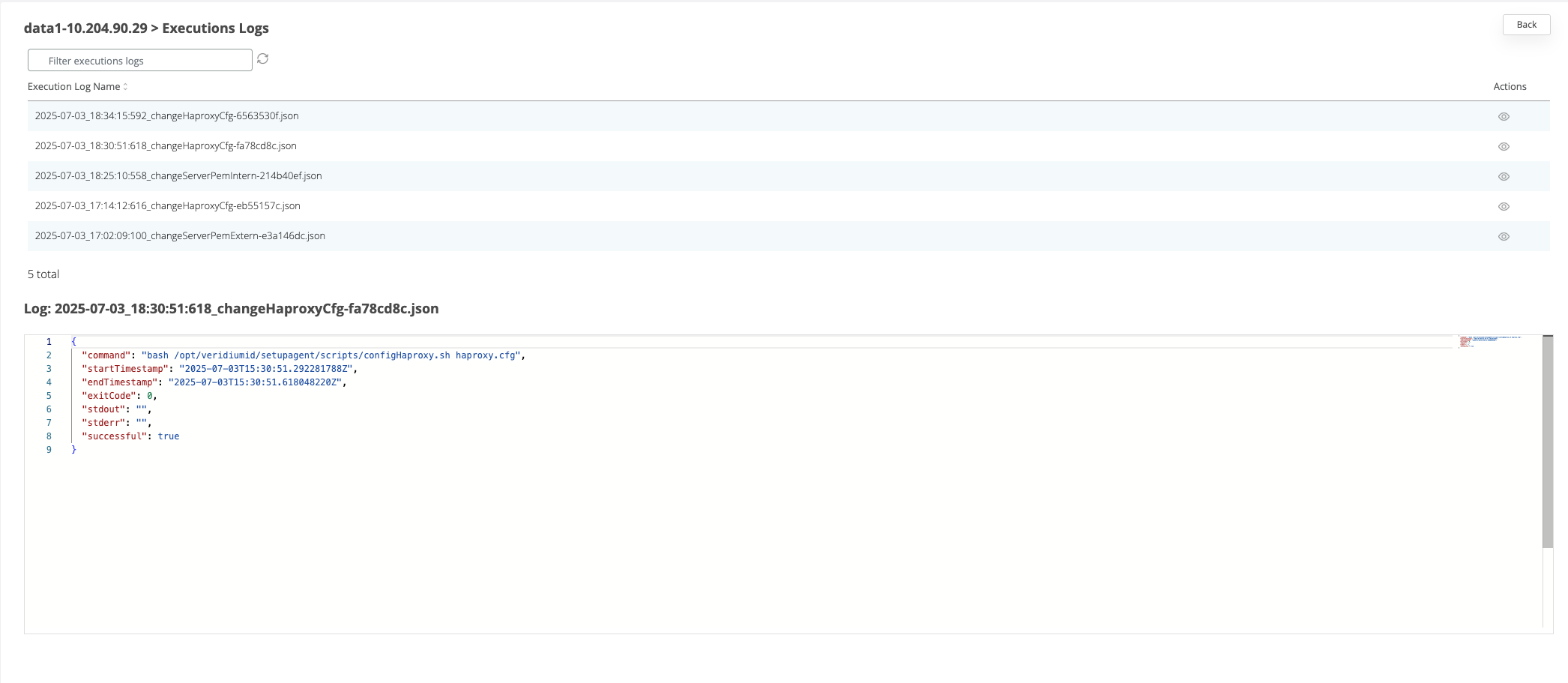
After the command is ran, the result status will be displayed for each node in the Nodes section.
-
If the command ran successfully on a node then the corresponding line in the nodes list will turn green
-
If the command failed on a node, then the corresponding line will turn red. To check the logs of the command execution on one node, click on the View actions on the corresponding line. Each execution log can be opened and see the status.
2. Using two client certificates for Veridium (internal and external)
Applies when:
-
Veridium is the first layer of SSL termination and there are used different internal and external FQDN
To change it the VeridiumID server will require two certificates containing the certificate and full-chain of it (one for the internal domain and another for the external).
The certificates can be in PKCS12, P7B, PEM format.
Before adding the certificates, the haproxy configuration template must be changed from the templates section to accommodate the serverExt.pem and serverInt.pem client certificates. By default, the platforms uses the server.pem client certificate for the use case when the SSL termination is done on another layer.
Changing the Haproxy configuration
-
In Veridium manager go to Tools → Tenant configuration
-
In the templates tab click on “haproxy”
-
There are 2 files that will be displayed. Click on the View icon for haproxy.cfg file to see the content on the right-hand side
-
in the content box, search for the string “server.pem”. For each occurrence found, comment the line (by adding # in front of it) where “server.pem” was found and uncomment the commented line below which sets the serverInt or serverExt certificates, as in the example below. There should be 10 occurrences where this change needs to be made.
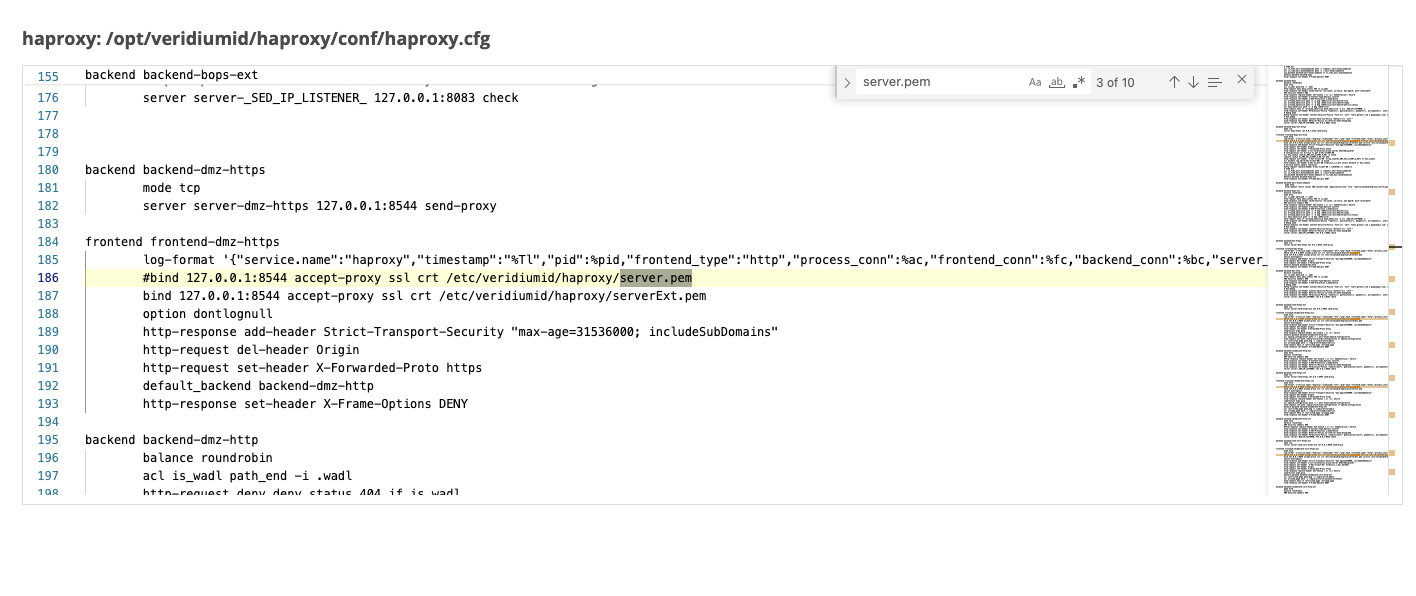
-
Save the configuration
-
Go to Tools-> Nodes
-
On the right hand side panel, expand the Haproxy category and click on “change Haproxy.cfg” command.
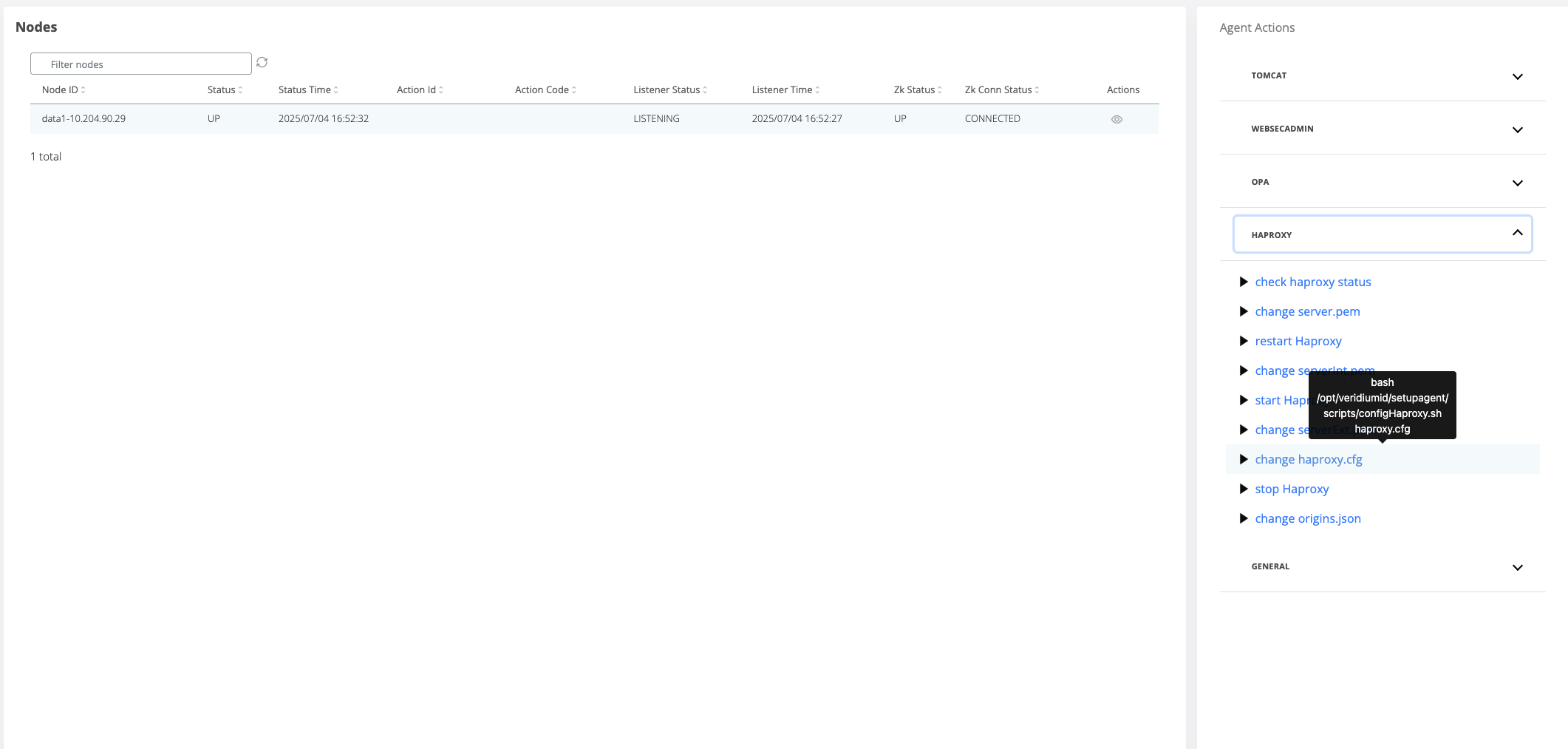
-
A pop-up will open where the webapp nodes must be selected for the template change to be applied.
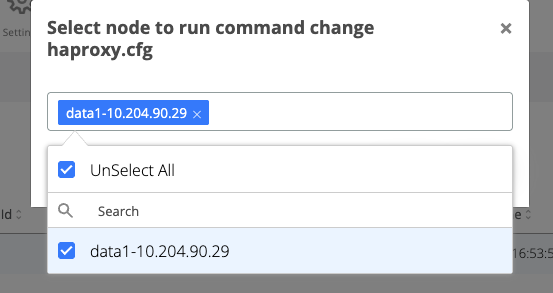
-
Click on the Run button
Change serverExt.pem
-
In Veridium manager, navigate to Tools → Haproxy configuration
-
In the Certificates tab select the type of the trusted client certificate that needs to be uploaded for external traffic. The possible options:
-
PKCS12 - upload a certificate chain that contains also the private key and add the required password
-
CERTIFICATE - upload the certificate chain and private key as separate files
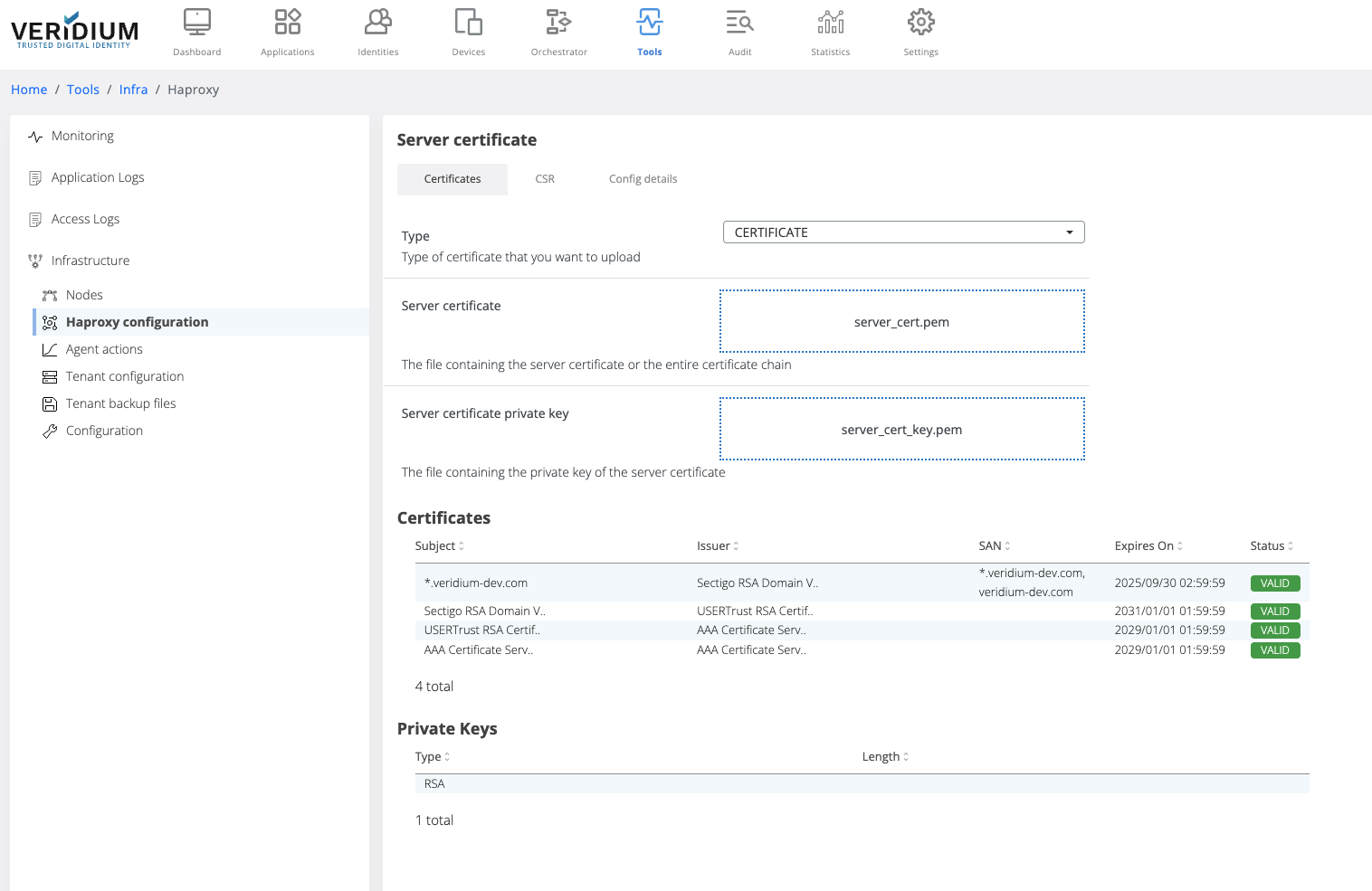
After uploading the certificate chain, the certificates part of the chain and the private key type are displayed below the upload boxes.
-
-
Click on Save button
-
When saving, the uploaded certificate chain is also added in the Veridium server Truststore
-
To apply the uploaded certificate on the server nodes a specific command must be ran on the webapp nodes. To do this, navigate to Settings → Nodes
-
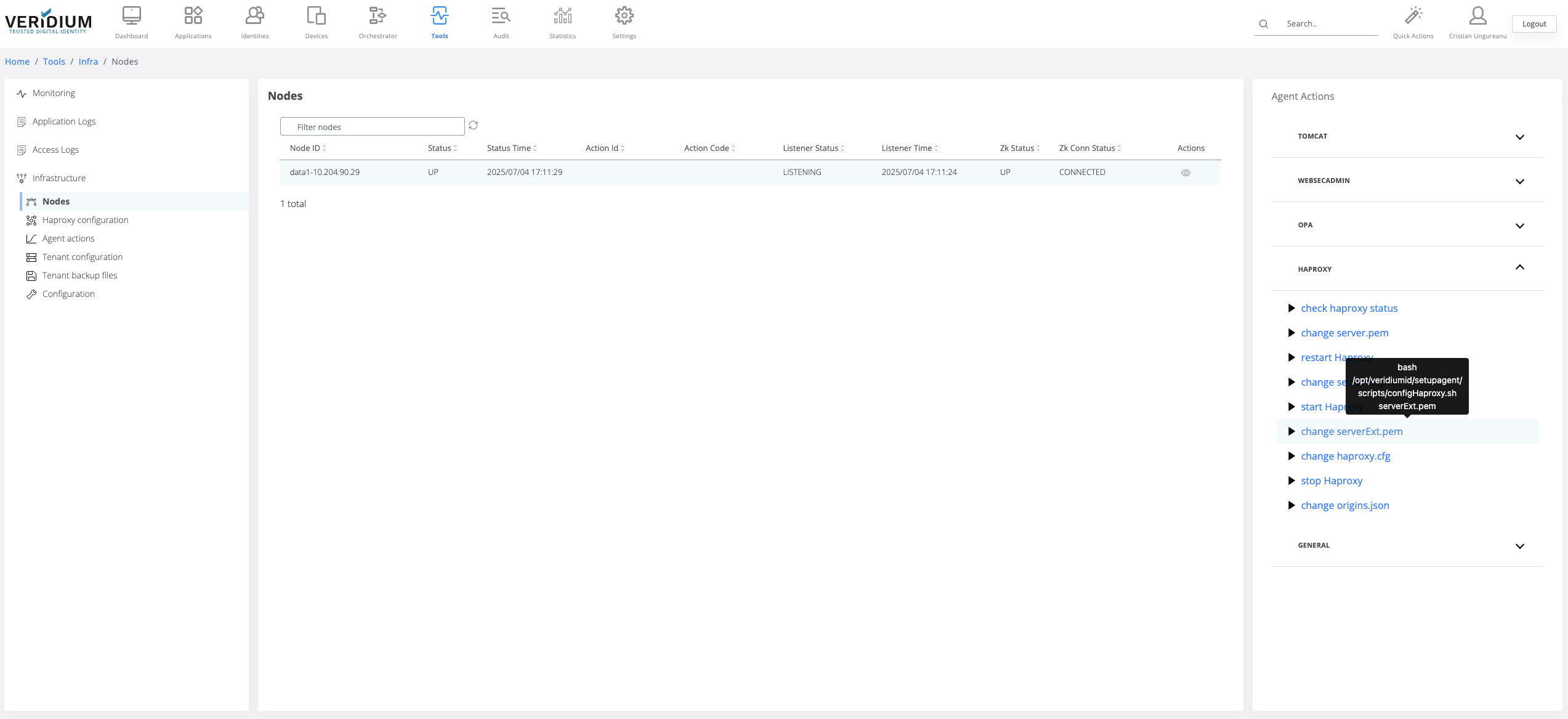
On the right hand side panel expand the Haproxy category
-
Click on the “change serverExt.pem” command
-
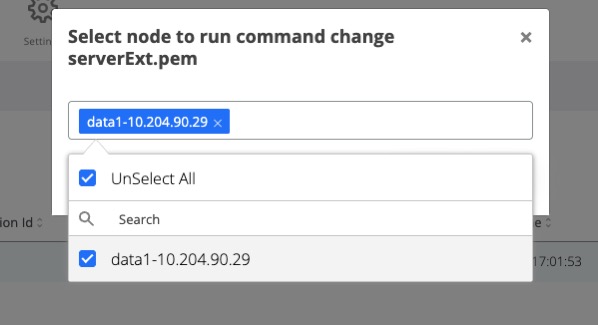
A pop-up will be displayed. Select from the drop-down field the all webapp nodes and click on Run
-
After the command is ran, the result status will be displayed for each node in the Nodes section.
-
If the command ran successfully on a node then the corresponding line in the nodes list will turn green
-
If the command failed on a node, then the corresponding line will turn red. To check the logs of the command execution on one node, click on the View actions on the corresponding line. Each execution log can be opened and see the status.
Generate and change serverInt.pem
To be able to add a client certificate for the internal traffic, a valid certificate must be generated from the internal certificate authority service.
Generate CSR
-
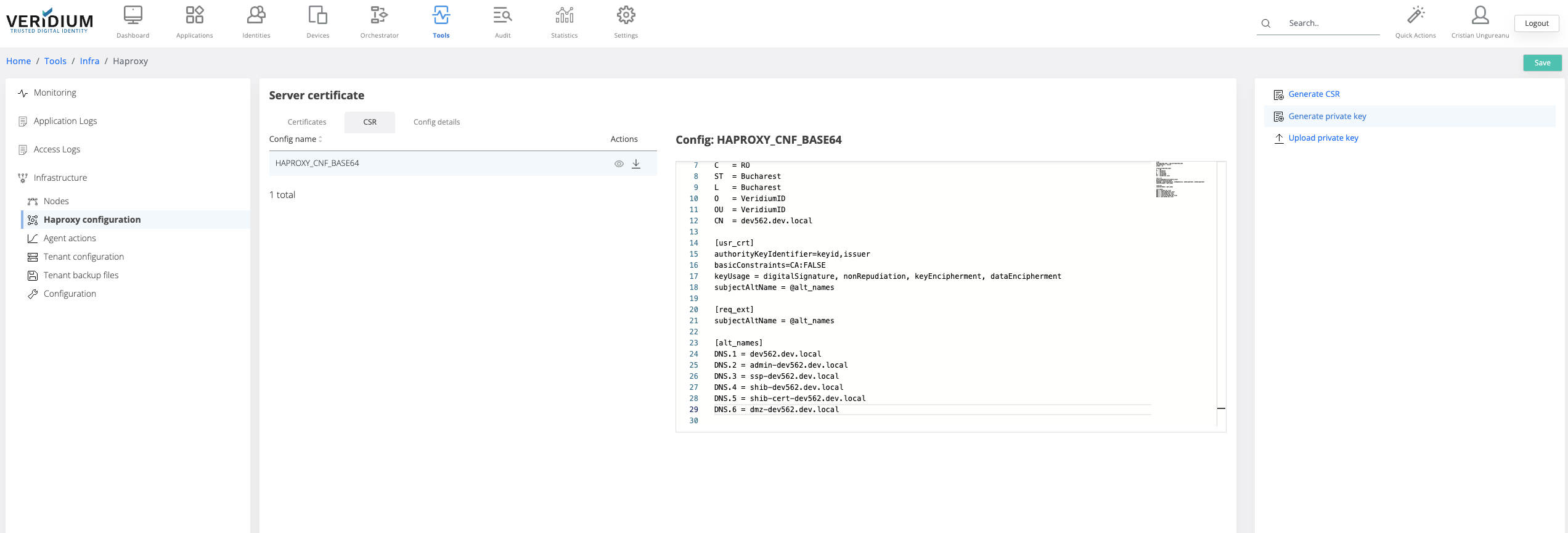
In Veridium manager go to Tools → Haproxy configuration → CSR tab
-
Click on the view icon for the HAPROXY_CNF_BASE64
-
Add the necessary details for the CSR
-
Click on Save
-
Click on Generate private key (this step is required if the client doesn’t already have a private key to be used). If the client already has a private key, it must be uploaded in veridium manager using the “Upload private key” button
-
Click on generate CSR and save the file
-
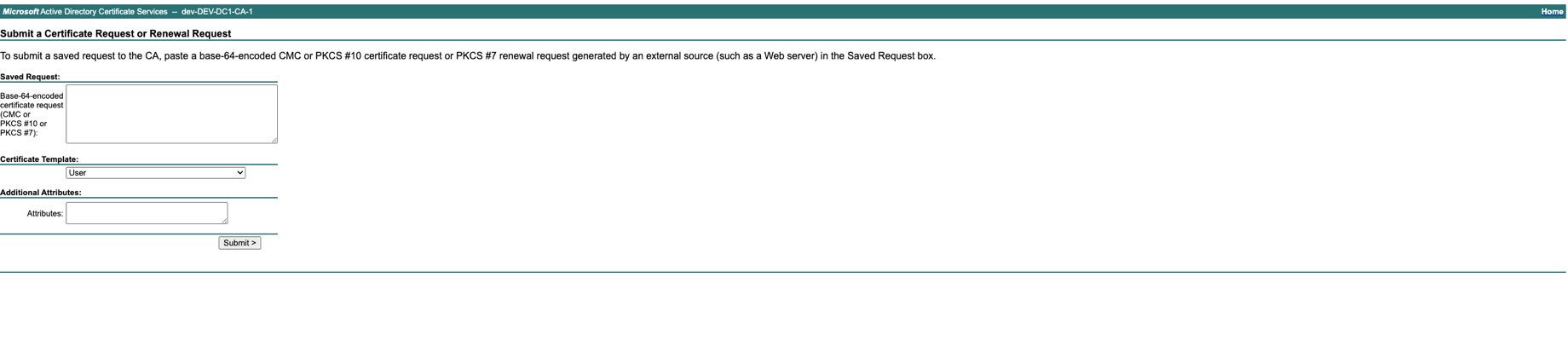
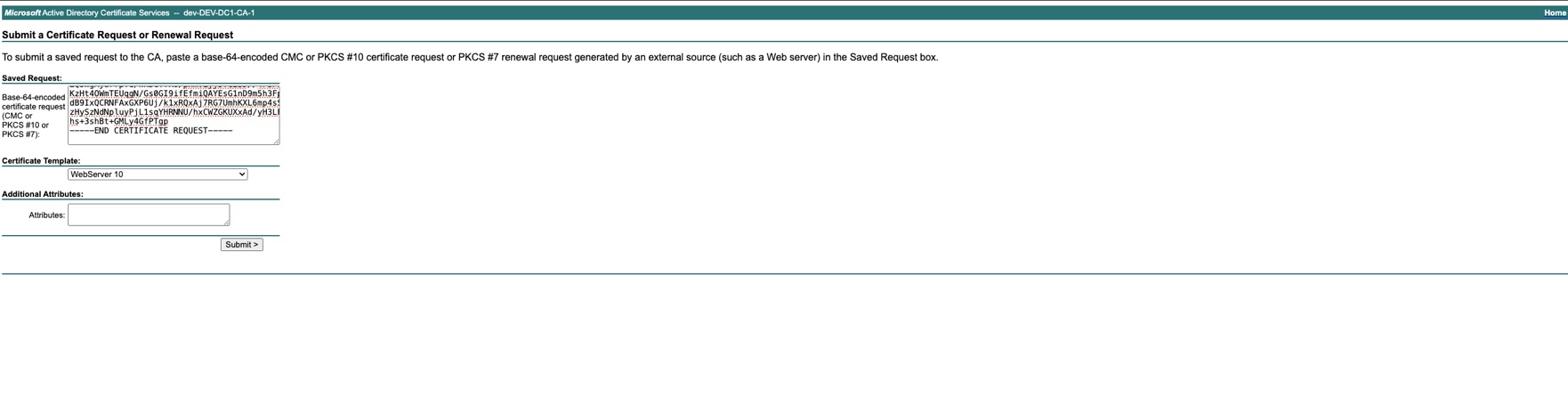
Access your internal Certificate authority service to generate the internal certificate (Below example is for Microsoft Active Directory Certificate Services)

-
Select “Get a certificate”

-
Select “advanced certificate request”
-
Add the content of the CSR saved at step 6 and select the Certificate Template = Web Server 10 and Submit
-
Download the certificate chain Base64 encoded

-
Get the private key generated at step 5 ( or the private key already owned) from Tools → Haproxy configuration → Config details tab -> Download HAPROXY_PUBLIC_CERT_KEY_PEM_BASE64
-
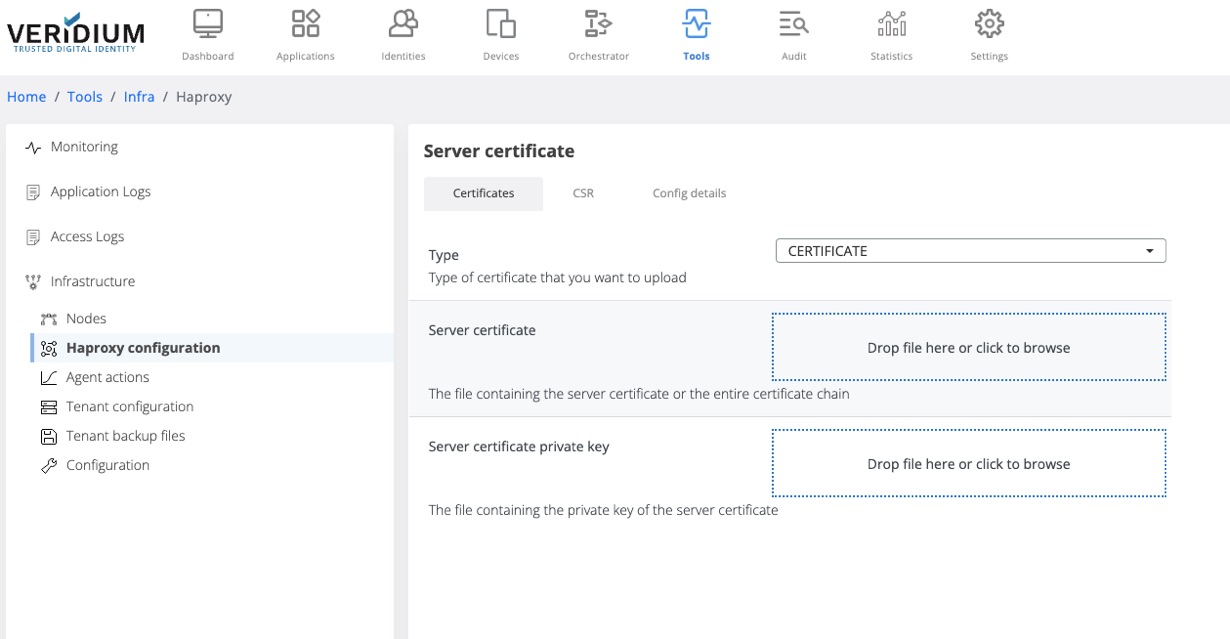
Go to Tools → Haproxy configuration → Certificates Tab and select Type=CERTIFICATE
-
Upload the generated certificate chain and the private key and click save
-
To apply the uploaded certificate in the serverInt.pem file on the server, Go to Tools → Nodes
-
Expand the Haproxy category and click on “change serverInt.pem” command
-
In the displayed pop-up select the webapp nodes and click on Run
-
The status of the execution will be displayed for each node.
(Optional) - Removing the the previous domain certificate from Truststores
This step is applicable when changing from self-signed certificate with another having a different chain.
-
Navigate to VeridiumID Admin Console → Settings → Certificates → Truststores.
-
Remove the entry for the self-signed certificate from the interface.
-
Restart the websecadmin service from all the Webapp nodes (command: service ver_websecadmin restart)