

As part of deployment resources, Veridium provides an out of the box OVA image which can be obtained from Veridium Sales Engineering team or Professional services.
This OVA image can be used for PoC's or Production.
See chapter How to Import an OVA file on how to import an OVA file.
After the OVA is imported, start the setup and installation of VeridiumID product. Make sure you have a FQDN for your VeridiumID server in DNS (bonus if you also have the PTR)
1. Connect ssh/scp and transfer HTTPS security certificate.
The certificate should be signed by a publicly trusted authority in p12 format with full chain included. Installation can be done also using a self signed certificate however that will make enrolling user devices difficult, vanilla iOS and Android devices need to trust the certificate in order to enroll.
1.1. Connect to the virtual console, authenticate, change default password, hostname and IP Address.
-
The default credentials for VeridiumIDPOC_Rocky9_3_8_1.ova are :
Login : rocky
Password: VeridiumID123!
-
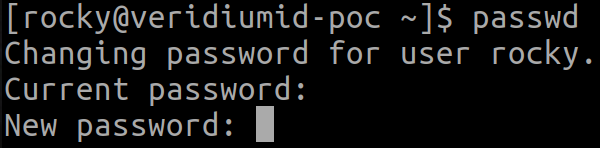
Use the ‘passwd’ command to change the password:
-
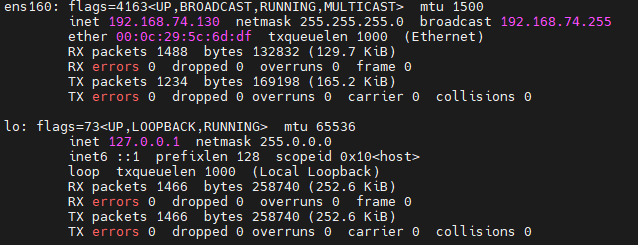
Use ‘sudo ifconfig’ to display network configuration information:
-
Use sudo nmtui command to configure the network. Here is an example, so the server will have always the same IP:
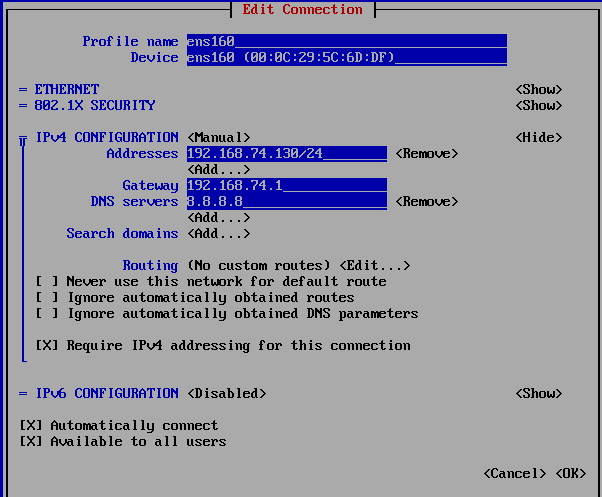
Also, from this interface the hostname can be changed.
-
Reboot the VM (I like using the command line ‘sudo reboot’, but you may also reboot using VMware as tools are installed)
-
Set the proper Chrony server:
sudo systemctl status chronyd
sudo systemctl enable chronyd; sudo systemctl start chronyd
sudo date
sudo chronyc -a sources
## check also if localzone is defined fine
sudo timedatectl
## also set timedate zone
sudo timedatectl list-timezones | grep Bucharest
## timedatectl set-timezone Europe/Berlin
## if no ntp server is available, the date can be modified manually
## sudo date -s "14 FEB 2024 18:08:00"
2) Run the ILP installer
-
It is necessary to have already deployed the VeridiumID.
2.1. Configure variable file (only modified the following values):
TMP_DEST="/vid-app/installer/ilp"
vi ${TMP_DEST}/variables.yaml
SSH_USER: <the user for which you have generated the ssh key>
WEBAPP_CONTACT_POINTS: IP_WEBAPP
PERSISTENCE_CONTACT_POINTS: IP_PERSISTENCE
# Where IP_WEBAPP is the IP address of the node where ILP will be installed and
# IP_PERSISTENCE is the IP address of the VeridiumID Server persistence node
# In case of list of IP addresses commas should be used to delimit them,
# for example: 10.1.1.1,10.1.1.2
# if the certifiate is for domain: *.ilp.veridium-dev.com, this should be the format in the document:
CLUSTERSUFFIX: ilp.veridium-dev.com
DOMAINSEPARATOR: "."
# take the datacenter name from nodetool status, from cassandra
CASSANDRA_DATACENTER: DC1
# Kafka Threshold Alert when uba_check_services is running
KAFKA_THRESHOLD_ALERT: 5
#timezone can be taken by running timedatectl on the machine
TIMEZONE: "Europe/Berlin"
UBA_VERSION: "2.7.6"
2.2. Start the installation process:
cd ${TMP_DEST}/
# check if the prereq are installed
./check_prereqs_rhel9.sh
# start the installation process
./uba-installer-rhel9.sh
## after the installation, please run below command on UBA Webapp and VeridiumId persistence nodes, to be sure that everything is successfully installed:
sudo bash /opt/veridiumid/uba/scripts/uba_check_services.sh
2.3. Generate a tenant for veridiumid-server, with a random uuid (ONE TIME).
The command bellow initialise the tenantId 79257e79-ae13-4d3d-9be3-5970894ba386, you can use another UUID and replace it in the command if you want:
## if case of non-cdcr deployments
sudo cp ${TMP_DEST}/generate_tenant_platform.sh /home/veridiumid
sudo chown veridiumid:veridiumid /home/veridiumid/generate_tenant_platform.sh
# connect as veridiumid user:
sudo su - veridiumid
bash generate_tenant_platform.sh `uuidgen`
## if case of cdcr deployments
sudo cp ${TMP_DEST}/generate_tenant_platform_cdcr.sh /home/veridiumid
sudo chown veridiumid:veridiumid /home/veridiumid/generate_tenant_platform_cdcr.sh
# connect as veridiumid user:
sudo su - veridiumid
bash generate_tenant_platform_cdcr.sh `uuidgen`
To test if the initialisation was successfully, go to a persistence-node, in cqlsh and check the following tables if they have data:
use uba;
expand on;
select * from tenants;
# should contain one entry, the tenant we registered
select * from global_model_latest_with_tenant;
# should contain one entry, the global context model
select count(1) from features_ordered_by_time;
# should contain 100+ entries, wait until the count doesn’t change then start doing authentications
-
Configure the integration of veridiumid-server with UBA cluster:
You need to configure the following entries in the main load-balancer to balances traffic to the UBA webapp machines. Example configuration for a HAProxy balancer:
frontend uba_webapp_443
    bind *:443
    mode tcp
    tcp-request inspect-delay 5s
    tcp-request content accept if { req_ssl_hello_type 1 }
    use_backend backend_uba
backend backend_uba
    mode tcp
    balance leastconn
    stick match src
    stick-table type ip size 1m expire 1h
    option ssl-hello-chk
    option tcp-check
    tcp-check connect port 443
    server webappserver1 <ip1>:443 check id 1
    server webappserver2 <ip2>:443 check id 2
Where ip1 is the IP of UBA machine1 and ip2 is the IP of UBA machine2.
On the webapp machines of veridiumid-server (on each machine), we need to add the following lines in /etc/hosts file, where the IP is the load balancer IP in front of ILP services or directly one ILP webapp node.
## edit /etc/hosts
<ip> tenant.ilp.veridium-dev.com
<ip> ingestion.ilp.veridium-dev.com
Where ip is the IP of the load-balancer from the previous step or the IP of the UBA node in case of a single node UBA deployment.
On the webapp machines of veridiumid-server (on each machine), we need to add the following lines in /opt/veridiumid/tomcat/bin/setenv.sh file:
### go in setenv in tomcat and add the following
TRACING_AGGREGATE_SPAN="true"
After that, you need to restart tomcat on both machine:
sudo service ver_tomcat restart
# wait for the servers to restart succesfully
4) Integration the ILP with VeridiumID application
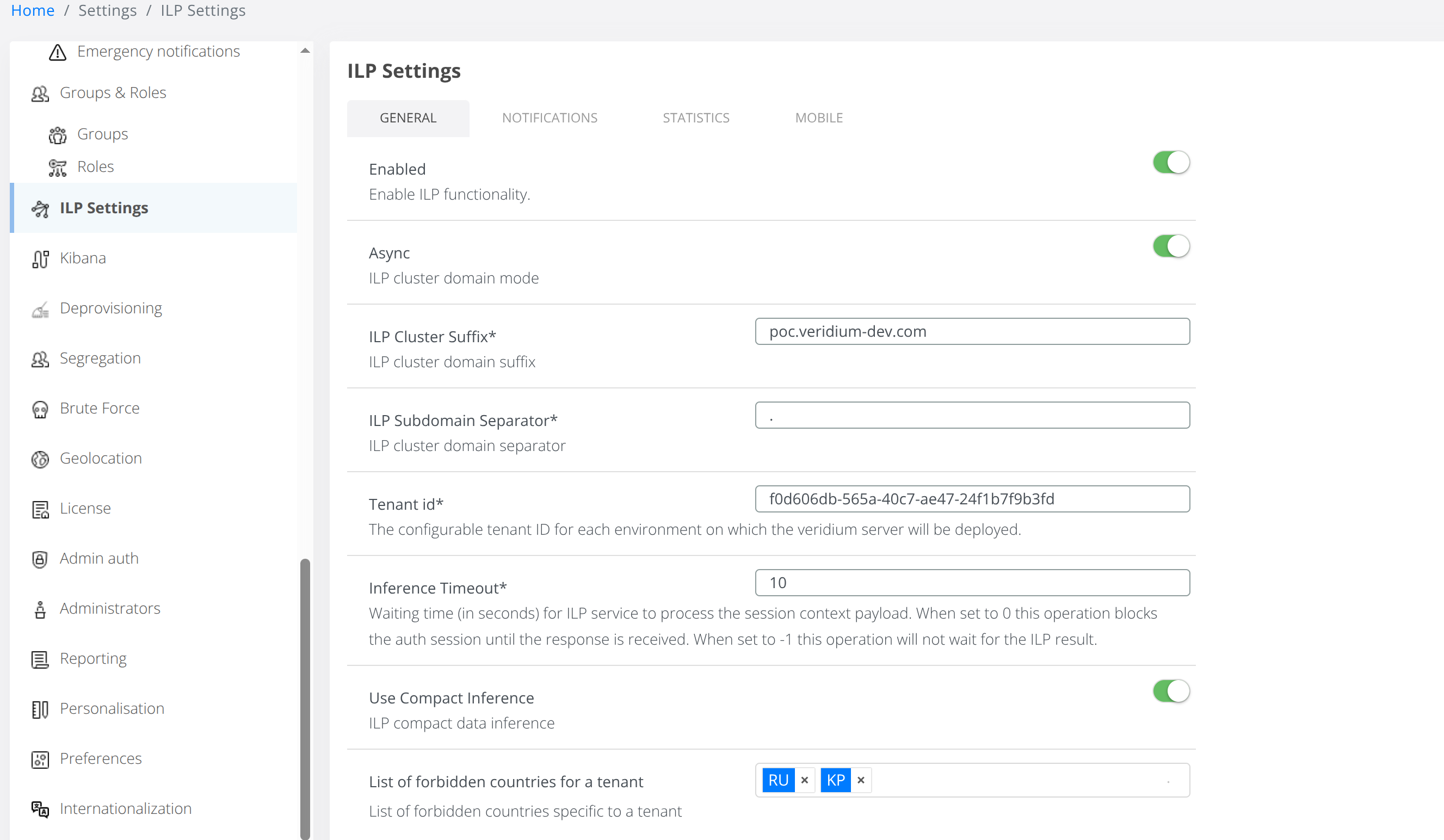
4.1. Login to WebSecAdmin go to Settings → ILP Settings and config as per below example
-
Enabled: (ON)
-
UBA CLUSTER SUFFIX: in our case will be “
CLUSTERSUFFIX" from variables.yaml -
UBA Subdomain Separator: in our case will be “
DOMAINSEPARATOR“ from variables.yaml -
Tenant Id*: in our case will be tenant id “
79257e79-ae13-4d3d-9be3-5970894ba386" or the uuid you generated in step 6. -
Use Compact Inference: (ON)
Set an username and a password in Statistics section:
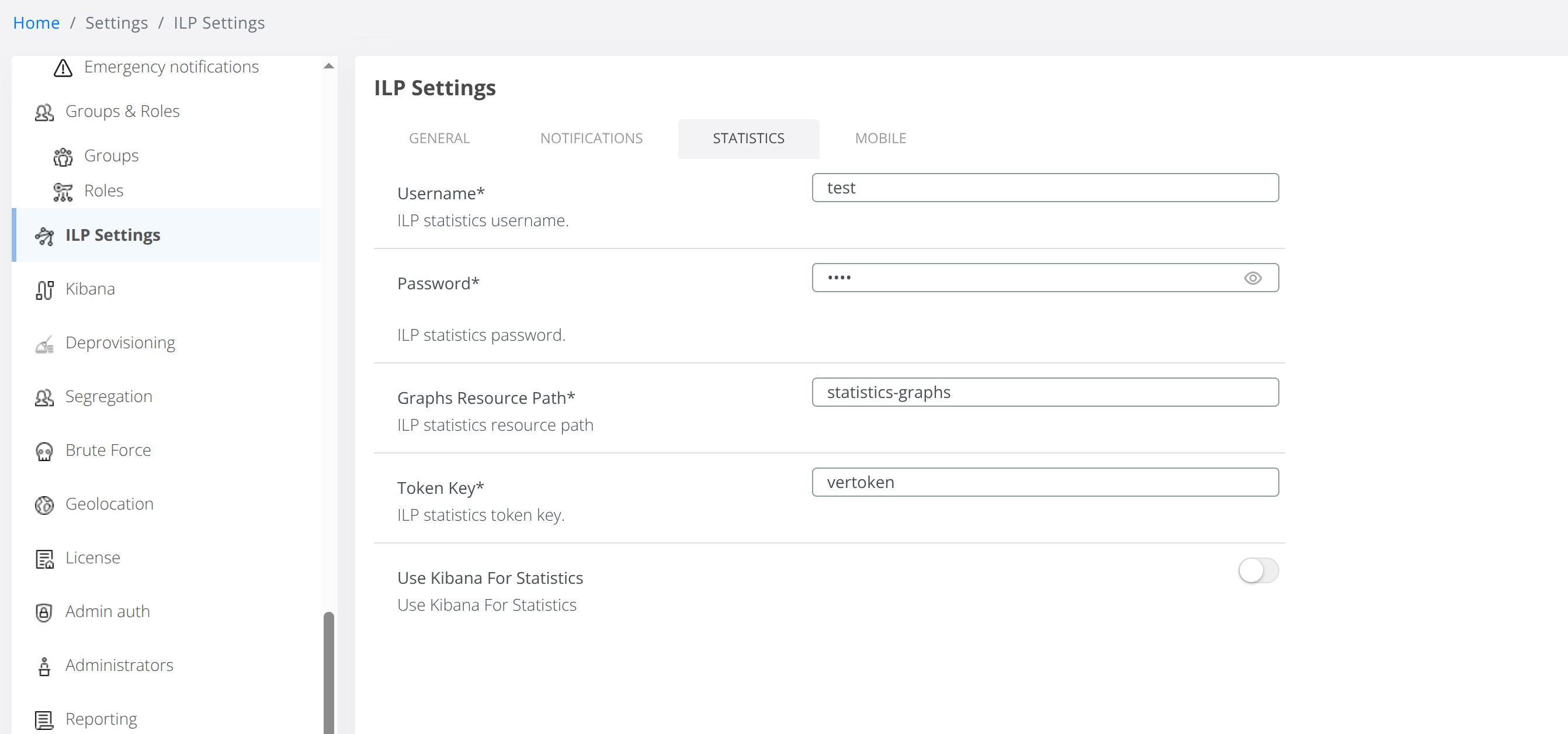
The navigate to ILP Settings → Mobile tab and enable Allow ILP data to go through mobile:
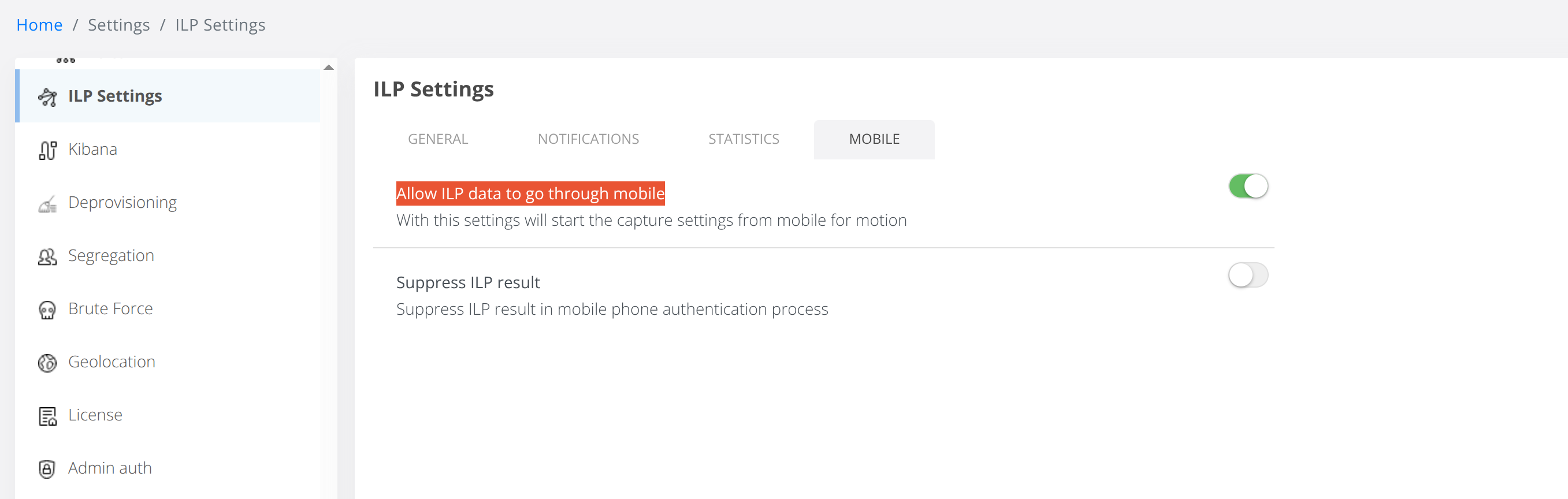
Then click on Save.
4.2. Check in the journey you are using if uba_command_motion and uba_command_context are enabled.
-
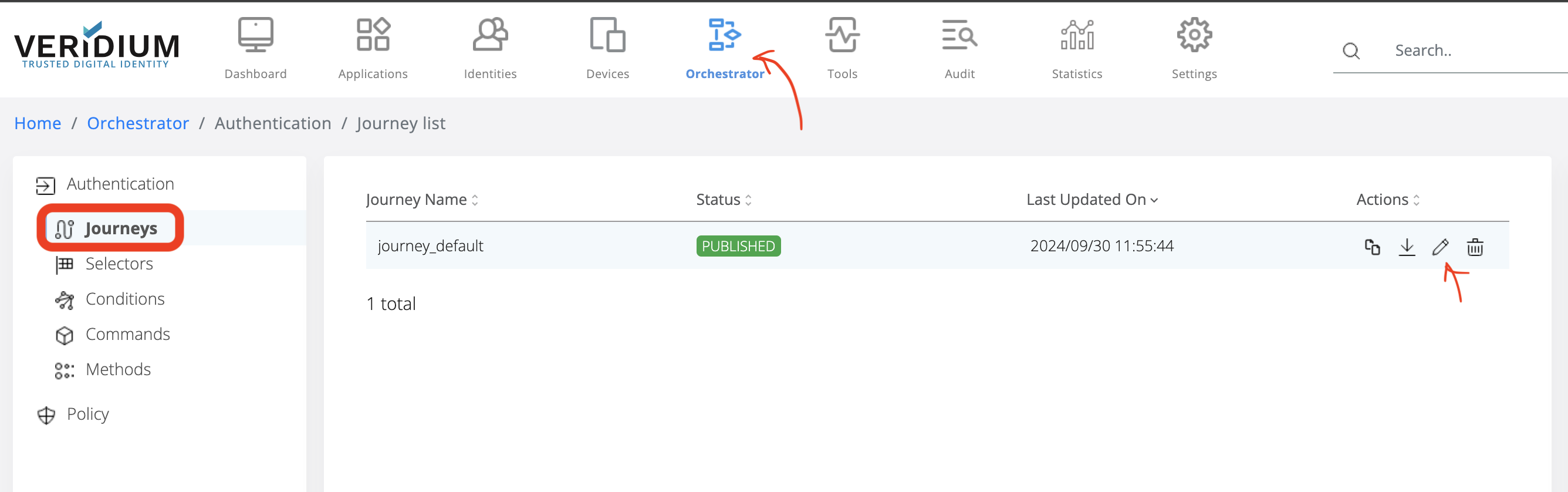
Click on Orchestator
-
Click on Journeys
-
In the Journey Name, select the active one and click on Edit button:
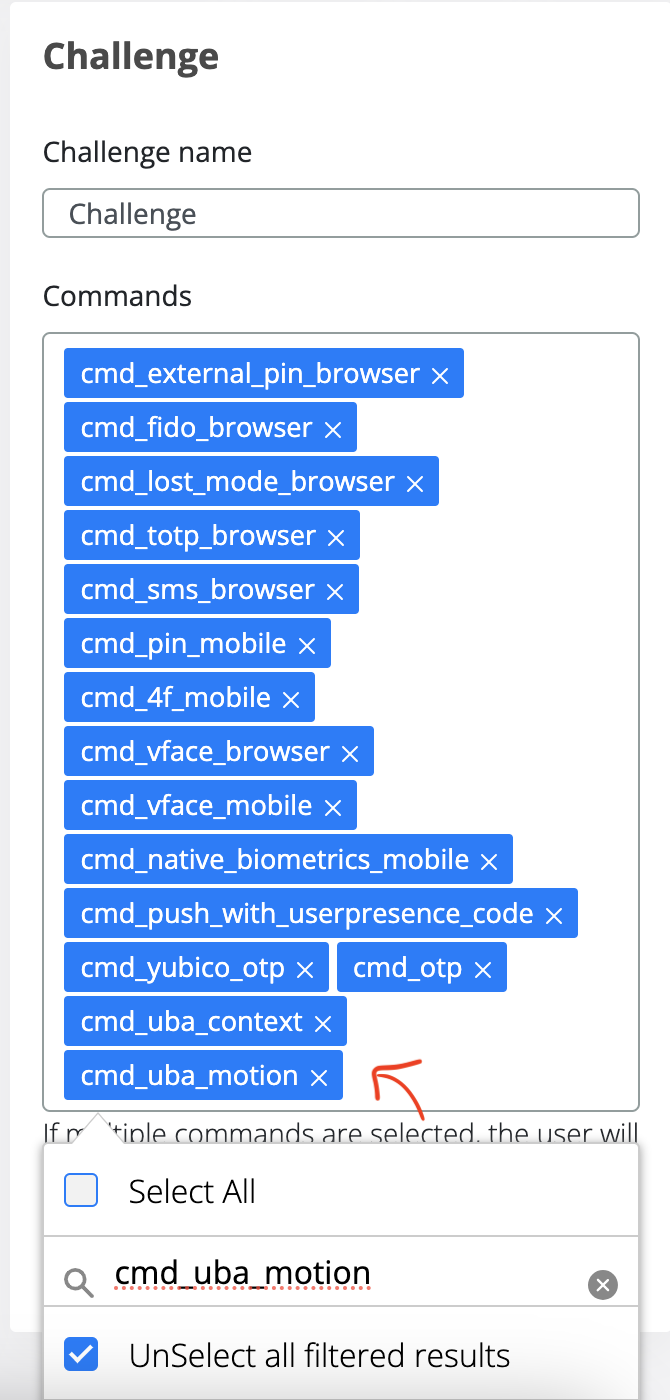
Check if uba_command_motion and uba_command_context are in the Challenge section:
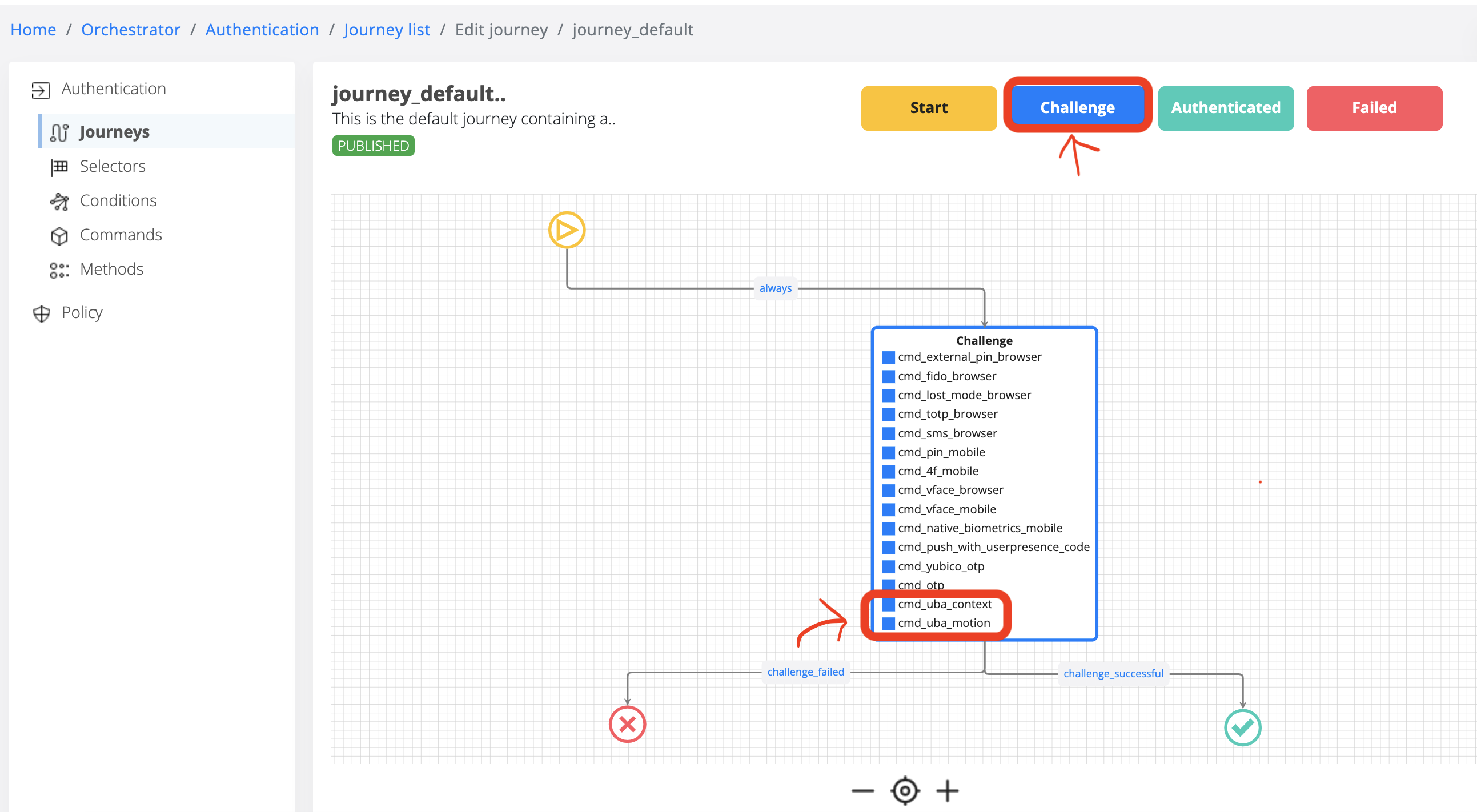
If uba_command_motion and uba_command_context are not enabled, please add in the Commands section and Save.
4.3. Configure proxy (if you are using one - OPTIONAL) in WebsecAdmin (Settings → Advanced → proxy-config.json) to maintain the traffic internally (where ilpdevelop.veridium-dev.com is the domain you are using for UBA)
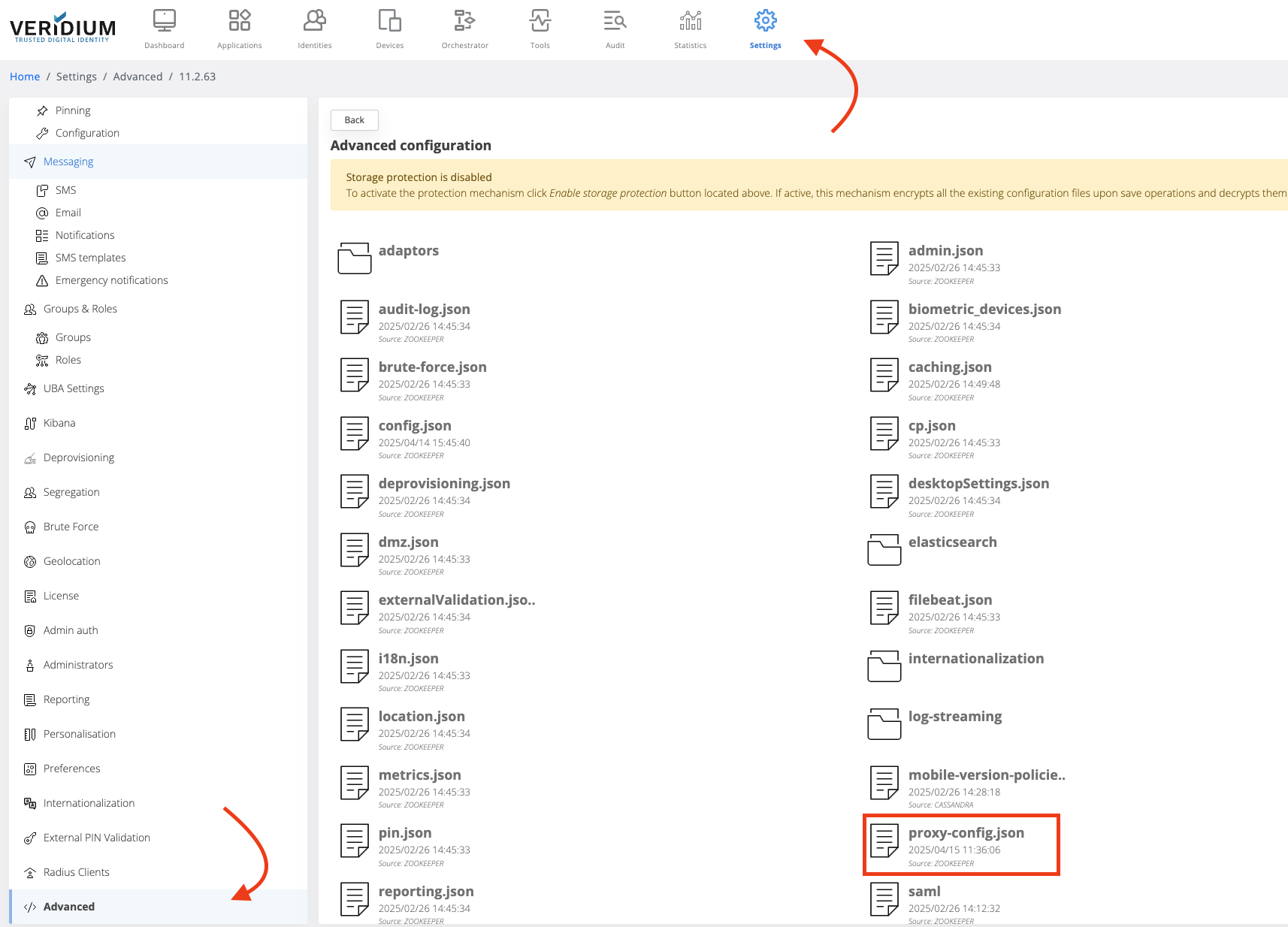
## proxy-config.json, such an entry, to keep the traffic internally
"nonProxyHttpsHosts": "localhost|ilpdevelop.veridium-dev.com|api.twilio.com|*ilpdevelop.veridium-dev.com|*.ilpdevelop.veridium-dev.com"
4.4. Go to SSP Login Page and do 11 logins and you will see score for Motion / Content in Activity. After 4 authentications you should receive a context score, and after 11 authentications you should receive a motion score as well.
Start/stop services:
## run the following command to see if everything is running:
uba_check_services
## check if kafka is running:
uba_check_kafka
## stop/start UBA services:
uba_stop
uba_start
## stop/start a specific service (e.g.: uba-kafka)
systemctl stop uba-kafka
systemctl start uba-kafka
Log location
## veridium logs on Webapp VeridiumId servers
/var/log/veridiumid/tomcat/bops.log
## uba logs location on ILP nodes
/var/log/veridiumid/uba/<service_name>.log
##
grep DURATION /var/log/veridiumid/tomcat/bops.log
grep SESSION_ID /var/log/veridiumid/tomcat/bops.log
Troubleshooting commands:
## run this on Webapp VeridiumId servers
ping tenant.FQDN
## check connectivity
nc -zv tenant.FQDN 443
## curl
export https_proxy=""
curl https://tenant.FQDN:443