
This section provides an overview of the Microsoft Entra Passkeys integration available. It includes steps for configuring the Microsoft Entra connector, passkey registration, and policy management.
Register Microsoft Entra Application
The Veridium Manager Entra Connector requires a registered Microsoft Entra application to call Microsoft Graph APIs securely.
Log in to the Microsoft Entra admin center.
-
Navigate to:
-
Applications > App registrations > + New registration
-
-
Configure the application:
-
Name:
Veridium Entra Connector -
Supported account types: Accounts in this organizational directory only
-
Redirect URI: (Optional – leave blank for service-to-service communication)
-
-
Click Register.
After registration, copy the Application ID (clientId) and Directory ID (tenantId). These are required for Veridium Manager configuration.
Add API Permissions for Passkey Management
To allow Veridium to manage passkeys through the Microsoft Graph API, grant the appropriate permissions.
-
In the app registration, go to API permissions > + Add a permission.
-
Choose:
-
Microsoft Graph
-
Application permissions
-
-
Add the following permission:
-
Click Add permissions.
-
Select Grant admin consent for [Tenant Name] to authorize the permission tenant-wide.
UserAuthMethod-Passkey.ReadWrite.All permission allows Veridium to create, read, update, and delete passkey authentication methods for users in the organization.
Application Credentials
Veridium Microsoft Entra connector uses client credentials to authenticate against Microsoft Entra. The credentials may be either Certificate or Client Secret.
Option A: Create a Client Secret
-
Go to the registered app > Certificates & secrets
-
Under Client secrets, click + New client secret
-
Add a description (e.g.,
Veridium Client Secret) -
Select an expiration duration (e.g., 6 or 12 months)
-
Click Add
-
Copy the generated value immediately — it will be hidden after you leave the page.
Option B: Upload a Certificate
-
Generate a certificate from your internal PKI:
-
Use your internal CA tools (e.g., Microsoft CA, OpenSSL) to generate the certificate.
-
Export the public key certificate in
.ceror.pemformat. Private key must never be exposed or shared during this process. It will be uploaded separately on Veridium Manager during Microsoft Entra Connector configuration.
-
-
Go to Certificates & secrets > Certificates
-
Click Upload certificate
-
Browse and select your certificate file
-
Click Add
Microsoft recommends that you use certificate credentials instead of client secrets when moving applications to a production environment.
Certificates offer enhanced security because the private key never leaves your infrastructure, whereas client secrets are transmitted during token requests and are prone to leakage or mismanagement.
Configure Microsoft Entra connector
This section of the Veridium Manager allows you to configure integration with Microsoft Entra ID using Microsoft Graph API. It enables secure communication between the Veridium platform and Microsoft services for managing authentication-related tasks.
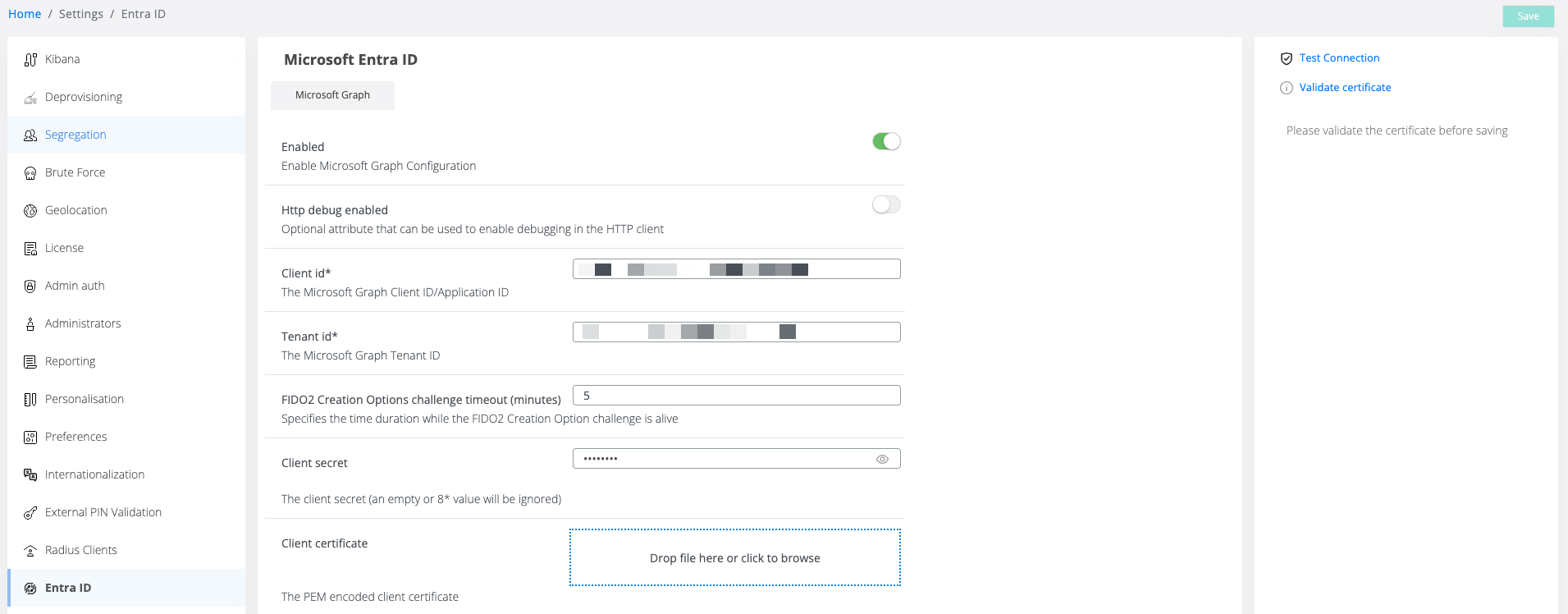
|
Field |
Description |
|---|---|
|
Enabled |
Toggle to enable or disable Microsoft Graph integration. |
|
HTTP Debug Enabled |
Optional toggle for verbose HTTP request logging (for troubleshooting). |
|
Client ID* |
Application (client) ID from your Entra app registration. |
|
Tenant ID* |
Directory (tenant) ID from your Entra app registration. |
|
Client Secret |
Secret generated under Certificates & secrets in the Entra app. Used for client authentication unless a certificate is configured. |
|
Client Certificate |
Upload a certificate to use for secure, certificate-based authentication. |
|
FIDO2 Creation Options Challenge Timeout (minutes) |
Time limit for FIDO2 registration challenge validity. Align this with your security policy. |
In production environments, it is strongly recommended to use client certificate credentials instead of client secrets.
Available Actions
-
Validate Certificate: Verifies the uploaded client certificate before you save the configuration.
-
Test Connection: Sends a test request to Microsoft Graph to confirm the settings are working properly.
Enrollment Policy
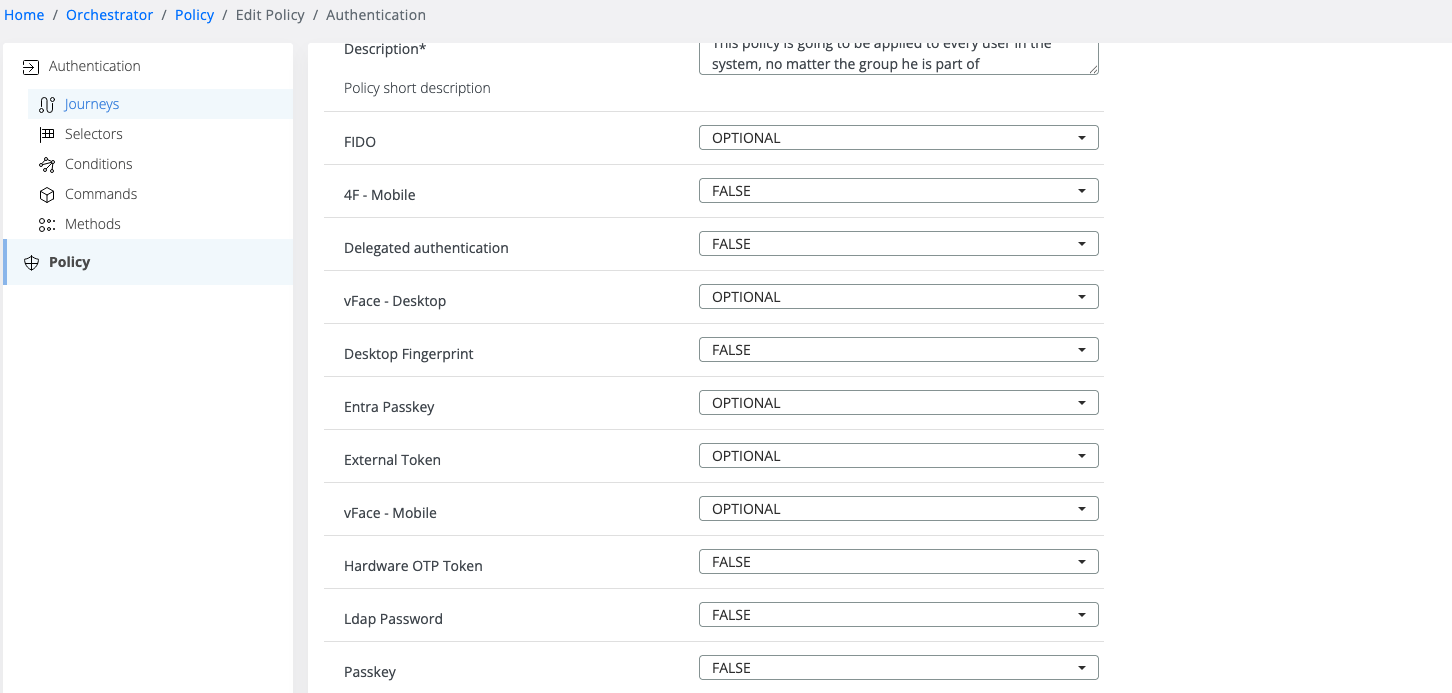
Once the configuration of Microsoft Entra integration is completed, the Entra Passkey policy may be enabled for the users.
-
Navigate to Veridium Manager / Orchestrator
-
From the left panel select Policy
-
Edit the targeted Policy
-
Set Entra Passkey to:
-
OPTIONAL — users may skip enrollment
-
TRUE — enrollment is mandatory
-
Enabling Entra Passkey for users not managed in Microsoft Entra, or without a valid connector configuration, will cause enrollment errors in the Veridium Mobile Application.
If the policy is set to TRUE (mandatory), affected users will be unable to complete enrollment.
Enrollment Overview
The Veridium mobile application is a certified FIDO2 Passkey provider, fully integrated with Microsoft Entra ID. As part of Veridium’s enrollment process, Passkeys are securely generated and registered directly with Microsoft Entra, enabling strong, phishing-resistant authentication.
Enrollment Workflow
-
The user completes identity validation through Veridium’s secure onboarding process.
-
The Veridium mobile app, acting as a certified FIDO2 Passkey provider, generates a new FIDO2 Passkey credential that is registered with Microsoft Entra ID using the Microsoft Entra Connector configured on Veridium services.
-
The Passkey generated is a device-bound credential securely stored within the device.
-
The registered Passkey becomes an authentication method available to the user in Microsoft Entra.
This design ensures that Passkey registration is performed within a trusted, managed environment, centralizing control via the Veridium platform.
Only Passkeys registered through this process — leveraging the Microsoft Entra Connector on Veridium services — are managed and governed (non-exclusively) by the Veridium platform.
Passkeys registered outside this flow (e.g., via http://myaccount.microsoft.com , Microsoft Authenticator etc) are not visible to or manageable within Veridium services.
Device Removal and Passkey Revocation
When a device is removed or deregistered from the Veridium platform, the corresponding Passkeys are also revoked and removed from Microsoft Entra to ensure security and prevent unauthorized access.
-
Upon device removal, the Veridium platform triggers the de-registration of all Passkeys associated with that device.
-
The Microsoft Entra Connector, configured on Veridium services, communicates with Microsoft Entra to remove the Passkey credentials from the user’s account.
-
This process ensures that Passkeys stored only on the removed device can no longer be used for authentication against Microsoft Entra resources.
-
The revocation is recorded within Veridium’s audit logs, maintaining a complete security trail.
Benefits
-
Ensures that compromised or lost devices cannot be used to authenticate
-
Maintains alignment between device lifecycle and credential validity
-
Provides centralized control over Passkey lifecycle and security compliance