

PREREQUIREMENTS:
-
it is important to have a separate mounted volume, /vid-app and to have sufficient space -100Gb minimum, in this location on each node.
-
it is necessary to have already deployed the VeridiumID persistence servers.
-
The script requires internet connection or local repository to install all required packages/dependencies (
java-11-openjdk bc chrony logrotate libffi-devel bzip2-devel xz-devel openssl-devel pcre-devel systemd-devel zlib-devel)
## WEBAPP/INSTALLATION NODES
sudo yum install -y java-11-openjdk bc chrony logrotate libffi-devel bzip2-devel xz-devel openssl-devel pcre-devel systemd-devel zlib-devel python3-pip python3-pyyaml python3-jinja2
sudo pip3 install kafka-python
## PERSISTENCE NODES
sudo yum install bc python3-pyyaml python3-jinja2 libffi-devel -y
sudo pip3 install kafka-python
1) Download UBA installer on the machine we want to start the installation.
Please check if you have enought space (df -h). The zip file has 5.8GB and uncompressed 7.9GB.
wget --user nexusUser --password nexusPassword https://veridium-repo.veridium-dev.com/repository/UBAInstallerOnPrem/2.7.3/uba-onprem-installer.zip
## ILP is installed under /vid-app folder, that should be mounted and there should be at lease 100Gb on Webapp and also on persisntence.
##copy the zip file under /vid-app/install
##in case does not exists, please create the folder assign ownership on this folder to deployment user:
sudo mkdir -p /vid-app/install
sudo chown DEPLOYEMNT_USER:DEPLOYEMNT_USER /vid-app/install
## with deployment user, run the following command:
mv uba-onprem-installer.zip /vid-app/install
cd /vid-app/install
unzip uba-onprem-installer.zip
2) Configuring the domain certificate - OPTIONAL can be done after installation.
Connect to a webapp veridiumid-server node and copy the file from location /etc/veridiumid/haproxy/server.pem to this location (on the machine we want to start installation): The certificate should be a wildcard for CLUSTERSUFFIX. Can be used temporary the server.pem, if not other certificate is available.
vi uba-onprem-installer/webapp/haproxy/server.pem
3) Generate a ssh key to do the installation:
##On the server, where the installation is started, generate a ssh key and copy it to all servers
# (for the installation user and for the veridiumid user for persistence nodes only):
ssh-keygen
cat .ssh/id_rsa.pub
vi .ssh/authorized_keys
4) Configure variable file (only modified the following values):
vi uba-onprem-installer/variables.yaml
SSH_USER: the user for which you have generated the ssh key
WEBAPP_CONTACT_POINTS: IP1,IP2
PERSISTENCE_CONTACT_POINTS: IP3,IP4,IP5
#if the certifiate is for domain: *.ilp.veridium-dev.com, this should be the format in the document:
CLUSTERSUFFIX: ilp.veridium-dev.com
DOMAINSEPARATOR: "."
#complete to install all required packages/dependencies for the installation
PROXY: "http://10.202.10.10:3128"
## take the datacenter name from nodetool status, from cassandra
CASSANDRA_DATACENTER: DC1
# Kafka Threshold Alert when uba_check_services is running
KAFKA_THRESHOLD_ALERT: 5
# uba-cannary at what peirod to be run in seconds
CANARY_RUN_PERIOD: "60"
# uba-cannary max duration call in seconds
MAX_DURATION_CALL_SECONDS: "4"
# Example: uba-europe, will be included in the uba-cannary email alert the ID of the cluster
UBA_CLUSTERID: "uba-europe"
# Example: europe-1, will be included in the uba-cannary email alert the region of the cluster
UBA_REGION: "europe-1"
#Example myserver.domain.com, the smtp server used by uba-cannary to send email alerts
UBA_CANNARY_MAILSMTPHOST: "myserver.domain.com"
#Example: 587, SMTP AUTH port used by uba-cannary to send email alerts
UBA_CANNARY_MAILSMTPPORT: "587"
#Example: uba@domain.ro, SMTP USER used by uba-cannary to send email alerts
UBA_CANNARY_MAILSMTPAUTHUSER: "uba@domain.ro"
#Example mystrongpassword, SMTP Password used by uba-cannary to send email alerts
UBA_CANNARY_MAILSMTPAUTHPWD: "mystrongpassword" used by uba-cannary to send email alerts
#Example: uba@domain.com, From where the email will be sent used by uba-cannary to send email alerts
UBA_CANNARY_MAILFROM: "uba@domain.com"
#Example: Where the email will be sent: noc@domain.com by uba-cannary
UBA_CANNARY_MAILTO: "noc@domain.com"
#timezone can be taken by running timedatectl on the machine
TIMEZONE: "Europe/Berlin"
UBA_VERSION: "2.7.3"
5) Start the installation process:
cd ./uba-onprem-installer
# check if the prereq are installed
./check_prereqs_rhel9.sh
# start the installation process
./uba-installer-rhel9.sh
#after the installation, please run below command on webapp and persistence nodes, to be sure that everything is successfully installed.
sudo bash /opt/veridiumid/uba/scripts/uba_check_services.sh
6) Generate a tenant for veridiumid-server, with a random uuid (ONE TIME).
The command bellow initialise the tenantId 79257e79-ae13-4d3d-9be3-5970894ba386, you can use another UUID and replace it in the command if you want:
# connect as veridiumid user: sudo su - veridiumid
# use the tenantId as parameter for the following script (if case of non-cdcr deployments)
bash /vid-app/install/uba-onprem-installer/generate_tenant_platform.sh `uuidgen`
# use the tenantId as parameter for the following script (if case of cdcr deployments)
bash /vid-app/install/uba-onprem-installer/generate_tenant_platform_cdcr.sh `uuidgen`
To test if the initialisation was successfully, go to a persistence-node, in cqlsh and check the following tables if they have data:
use uba;
expand on;
select * from tenants;
# should contain one entry, the tenant we registered
select * from global_model_latest_with_tenant;
# should contain one entry, the global context model
select count(1) from features_ordered_by_time;
# should contain 900+ entries, wait until the count doesn’t change then start doing authentications
-
Generate a tenant for UBA canary service (ONE TIME - optional): (TODO script)
# Remove "/tmp/cli.log" as root/user with sudo permission and restart uba-cli-server service:
sudo rm -rf /tmp/cli.log
sudo systemctl restart uba-cli-server
# As user "veridiumid" run the following commands:
bash /vid-app/install/uba-onprem-installer/generate_tenant_cannary.sh
To test if the initialisation was successfully, go to a persistence-node, in cqlsh and check the following tables if they have data:
use uba;
select * from tenants; # should contain two entry, the tenants we registered
select * from global_model_latest_with_tenant;
# should contain two entries, the global context model and uba-cannary
select count(*) from features_ordered_by_time where tenant_id=8a2b6534-4506-4120-94af-329370b02f68 allow filtering;
# should contain 1800+ entries, wait until the count doesn’t change then start doing authentications
Note: uba-cannary needs to run only on one server:
sudo systemctl start uba-cannary
sudo systemctl status uba-cannary
Check the log file: /var/log/veridiumid/uba/uba-cannary.log
based on variable “CANARY_RUN_PERIOD“ set from “/etc/default/veridiumid/uba_variables”, if the value is 60 will be: 60 seconds x 11 authentication = 11 minutes.
and we will see SCORE:
...truncate...
INFO  com.veridiumid.uba.v2.cannary.MotionContextClientService:350 - Context result answer: ACCEPT confidence HIGH score 0.25694302675560166
...truncate...
INFO  com.veridiumid.uba.v2.cannary.MotionContextClientService:291 - UBA score: 0.7028731166294203 for stage ID 4f374442-9e8d-4687-94fb-c8918a24c2a5
...truncate...
-
Configure the integration of veridiumid-server with UBA cluster:
You need to configure the following entries in the main load-balancer to balances traffic to the two UBA webapp machines. Example configuration for a HAProxy balancer:
frontend uba_webapp_443
    bind *:443
    mode tcp
    tcp-request inspect-delay 5s
    tcp-request content accept if { req_ssl_hello_type 1 }
    use_backend backend_uba
backend backend_uba
    mode tcp
    balance leastconn
    stick match src
    stick-table type ip size 1m expire 1h
    option ssl-hello-chk
    option tcp-check
    tcp-check connect port 443
    server webappserver1 10.203.90.3:443 check id 1
    server webappserver2 10.203.90.4:443 check id 2
Where 10.203.90.3 is the IP of UBA machine1 and 10.203.90.4 is the IP of UBA machine2.
On the webapp machines of veridiumid-server (on each machine), we need to add the following lines in /etc/hosts file, where the IP is the load balancer IP in front of ILP services or directly one ILP webapp node.
## edit /etc/hosts
10.203.90.3 cli.ilp.veridium-dev.com
10.203.90.3 tenant.ilp.veridium-dev.com
10.203.90.3 users.ilp.veridium-dev.com
10.203.90.3 ingestion.ilp.veridium-dev.com
10.203.90.3 models.ilp.veridium-dev.com
10.203.90.3 opentelemetry-collector.ilp.veridium-dev.com
10.203.90.3 jaeger.ilp.veridium-dev.com
Where 10.203.90.3 is the IP of the load-balancer from the previous step.
On the webapp machines of veridiumid-server (on each machine), we need to add the following lines in /opt/veridiumid/tomcat/bin/setenv.sh file:
### go in setenv in tomcat and add the following
TRACING_AGGREGATE_SPAN="true"
After that, you need to restart tomcat on both machine:
sudo service ver_tomcat restart
# wait for the servers to restart succesfully
9) Integration the UBA with VeridiumID application
9.1) Login to WebSecAdmin go to Settings → UBA Settings and config as per below example
-
Enabled: (ON)
-
UBA CLUSTER SUFFIX: in our case will be “
CLUSTERSUFFIX" from variables.yaml -
UBA Subdomain Separator: in our case will be “
DOMAINSEPARATOR“ from variables.yaml -
Tenant Id*: in our case will be tenant id “
79257e79-ae13-4d3d-9be3-5970894ba386" or the uuid you generated in step 6. -
Use Compact Inference: (ON)
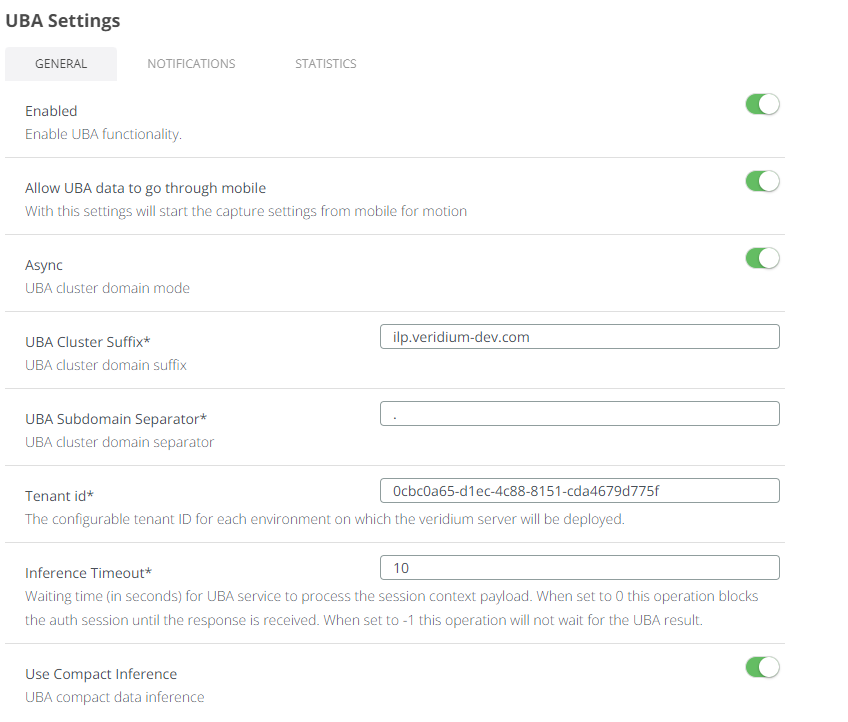
9.2) Check in the journey you are using if uba_command_motion and uba_command_context are enabled.
9.3) Configure proxy (if you are using one - OPTIONAL) to maintain the traffic internally (where ilpdevelop.veridium-dev.com is the domain you are using for UBA)
## go in websecadmin and add in proxy-config.json, such an entry, to keep the traffic internally
"nonProxyHttpsHosts": "localhost|ilpdevelop.veridium-dev.com|api.twilio.com|*.ilpdevelop.veridium-dev.com"
9.4) Go to SSP Login Page and do 11 logins and you will see score for Motion / Content in Activity. After 4 authentications you should receive a context score, and after 11 authentications you should receive a motion score as well.
Troubleshooting and script commands:
#run the following command to see if everything  running (all services without uba-cannary):
uba_check_services
# UBA WebAPP
# to see service status on webapp
uba_check_services
uba_check_kafka
# to stop/start services
uba_stop
uba_start
# VeridiumID Persistence
# to see status on persistence, for UBA services:
uba_check_services
uba_check_kafka
# to stop uba specific services, just kafka
systemctl stop uba-kafka
systemctl start uba-kafka
# to check logs of the platform:
less/vim/cat/tail /var/log/veridiumid/uba/log_file_of_service.log # where log_file_of_service is the file you want to see.